
Setting up Recharge
as your Payment Provider
Connect Recharge to agnoStack in Zendesk: create an API token in the Recharge admin with the right permission scopes, then enter its API key in the agnoStack configuration panel.
Connect Recharge to agnoStack in Zendesk: create an API token in the Recharge admin with the right permission scopes, then enter its API key in the agnoStack configuration panel.
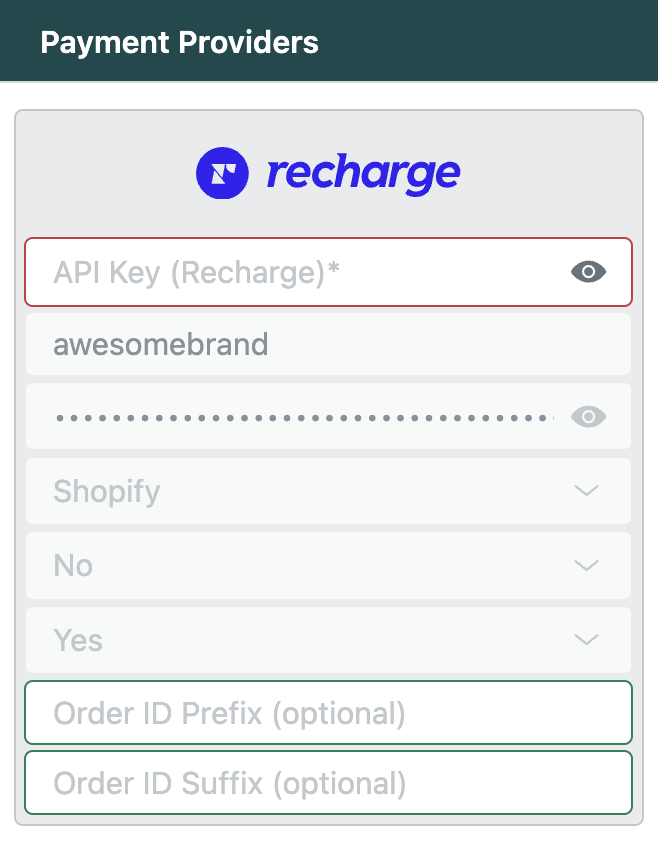
Recharge can be connected to Zendesk as a free Add-On Provider using the agnoStack plugin.
Recharge is one of the leading Subscription Payment solutions, providing an easy way to launch and scale a subscription business. Recharge's Getting started guide gives a high-level overview of Recharge, its core features and migration resources.
Learn more about growing revenue through subscriptions in our guide to Optimize eCommerce Subscription Models, and see how to Streamline Subscription Management with our agnoStack Recharge integration.
To connect Recharge, you'll need one value: a Recharge API key. Follow the steps below to create one.
API Tokens in Recharge
-
Visit your Recharge admin portal, log in and select your storefront.
-
In the left-hand navigation menu, click Apps → API Tokens.
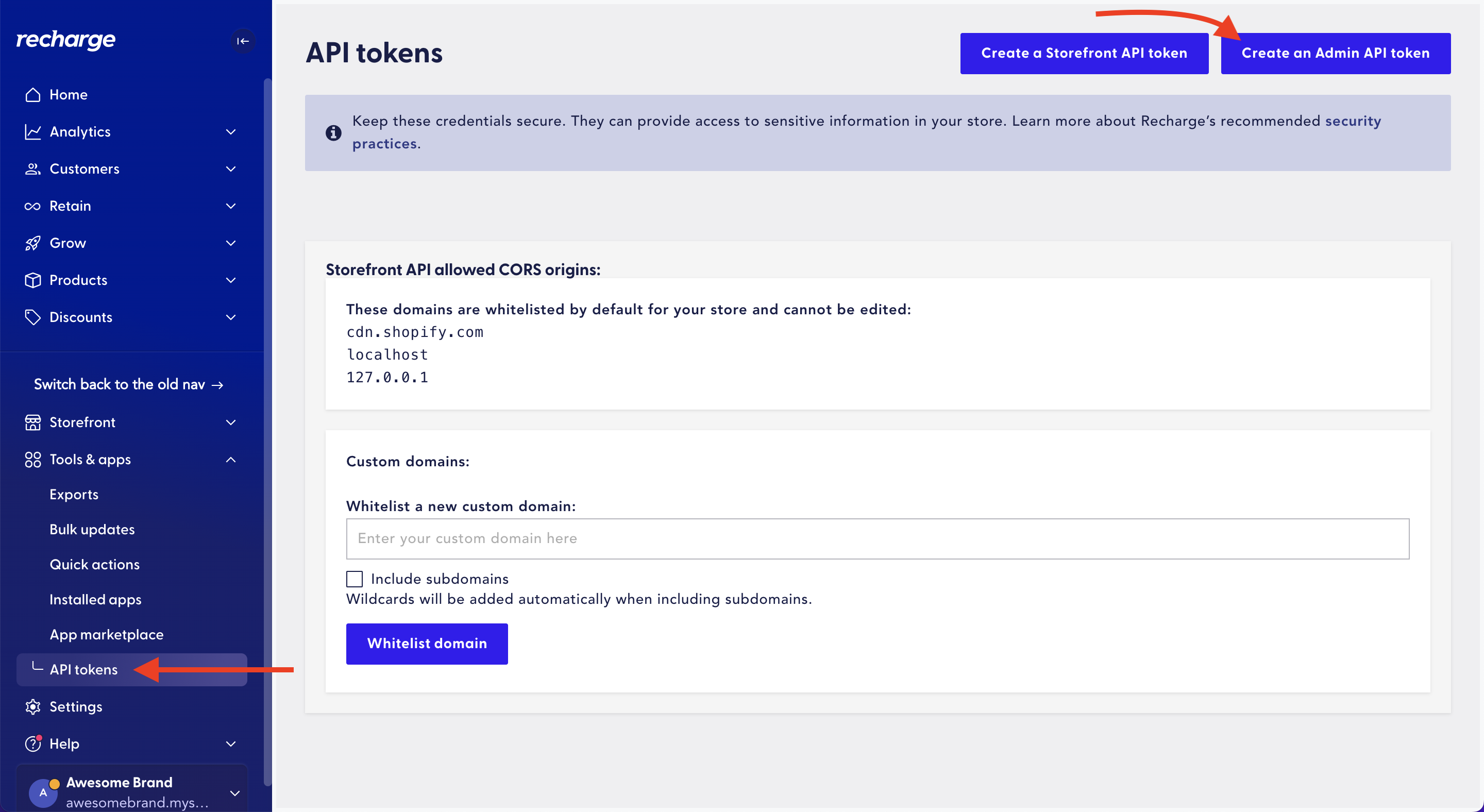
API tokens in the Recharge admin.
API Token and API Key
-
On the Create an API token page, give your Token nickname a meaningful name. It can be anything you wish.
-
Enter an email address associated with your Recharge account.
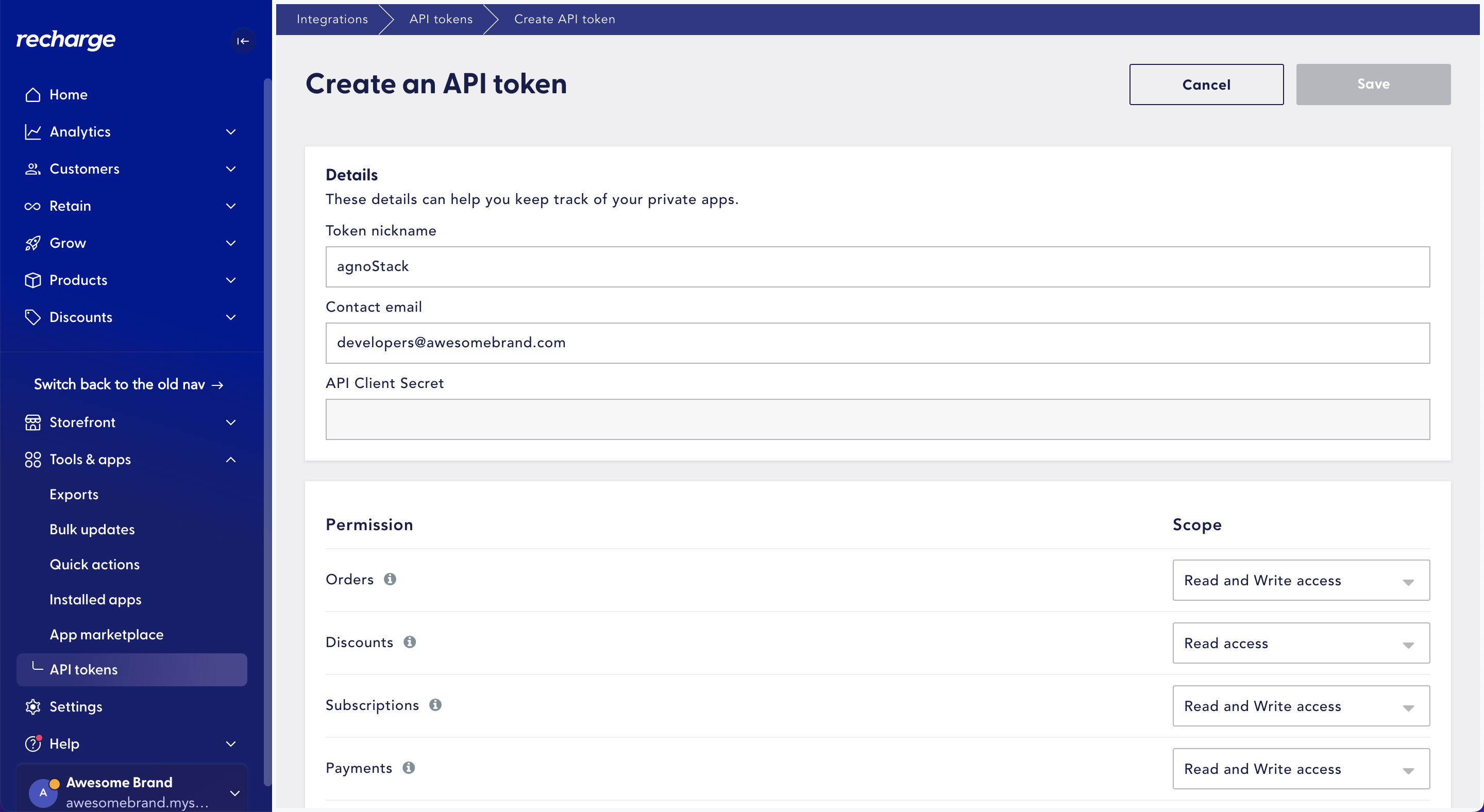
Creating an API token in Recharge.
-
Set the permission scopes as follows:
Permission Scope Orders Read and Write access Discounts Read and Write access Subscriptions Read and Write access Payments Read and Write access Payment Methods Read access Customers Read and Write access Products Read access Store Information Read access Async Batches Read access Accounts Read access Customer Notifications Grant access 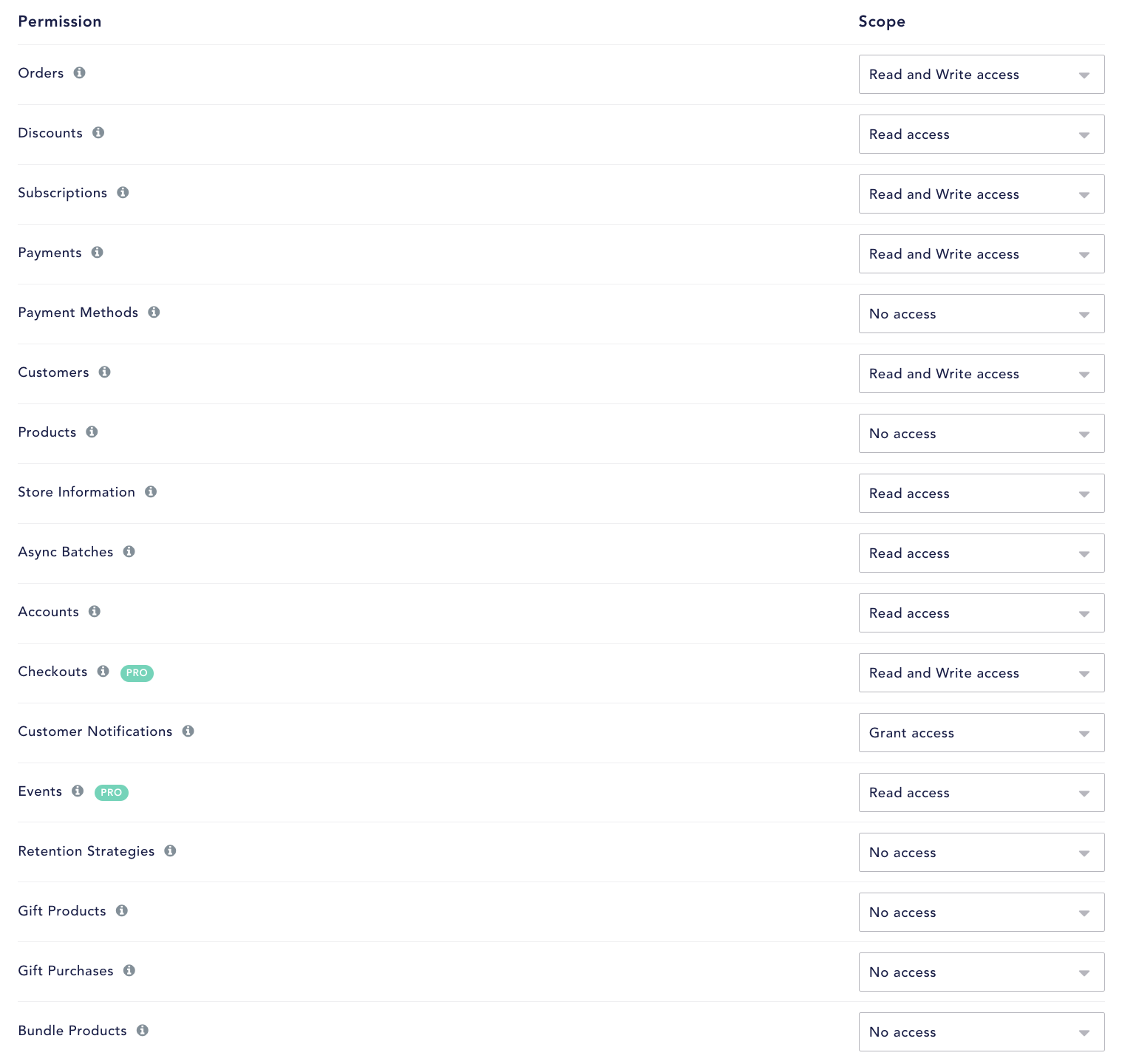
Setting the API token's permission scopes.
-
Once your API token is created, copy the API key listed on the API Tokens page. This is the key you'll enter in agnoStack.
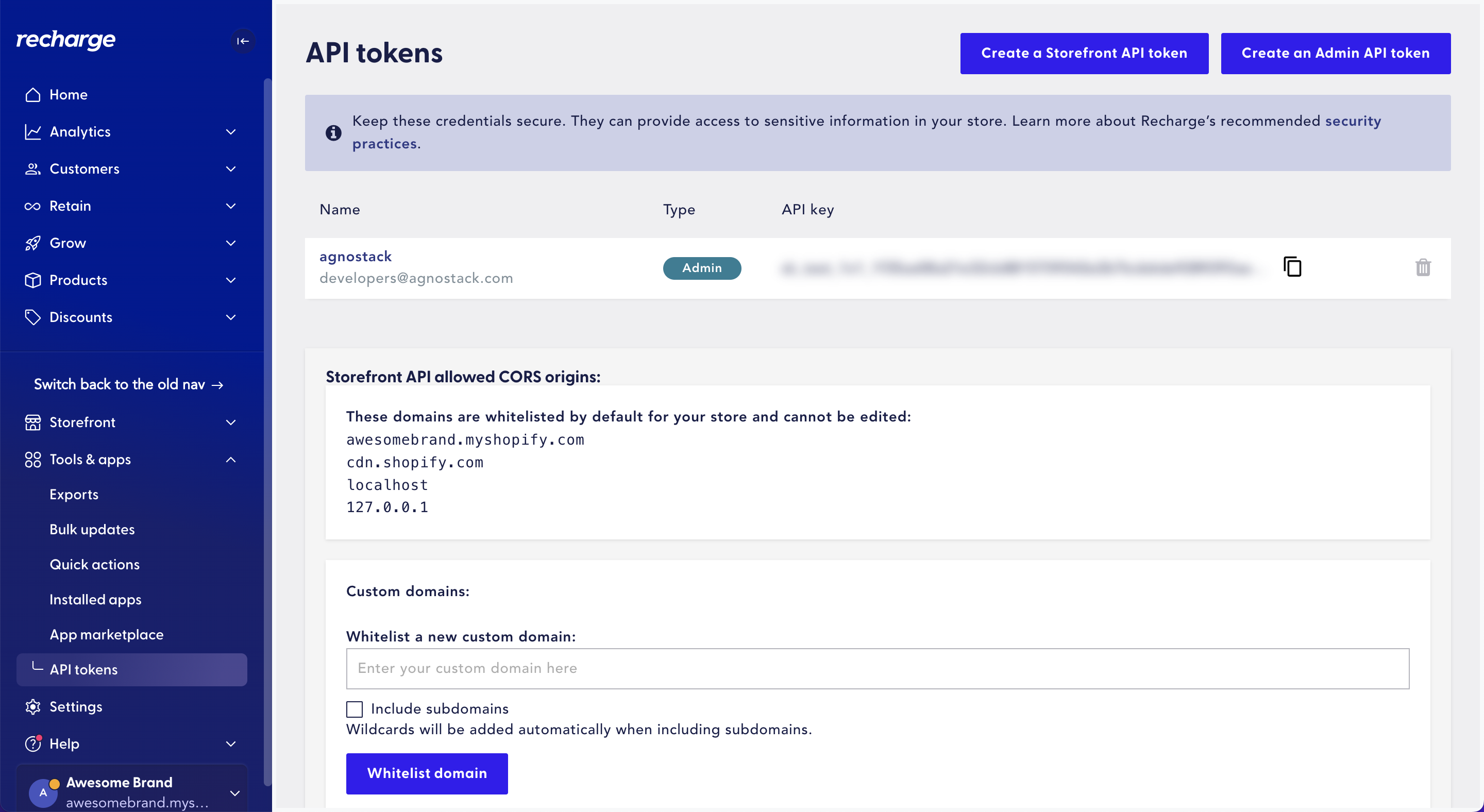
Copying your Recharge API key.
Entering Your Credentials in agnoStack
In Zendesk, open the agnoStack configuration panel (via the Manage Your Account link or the icon in the left sidebar) and, under Payment Providers, enter the Recharge API key you copied above in the API Key (Recharge) field.
Continue through the remainder of the configuration screens and click Activate to save your new Add-On configuration.
If you run into any trouble or need additional assistance, please contact us any time at support@agnostack.com.