
Setting up Okendo
as your Marketing Provider
Connect Okendo Reviews to Zendesk via agnoStack with your Okendo User ID and Merchant REST API Key, and optionally build a review moderation workflow with Shopify Flow and Zendesk.
Connect Okendo Reviews to Zendesk via agnoStack with your Okendo User ID and Merchant REST API Key, and optionally build a review moderation workflow with Shopify Flow and Zendesk.
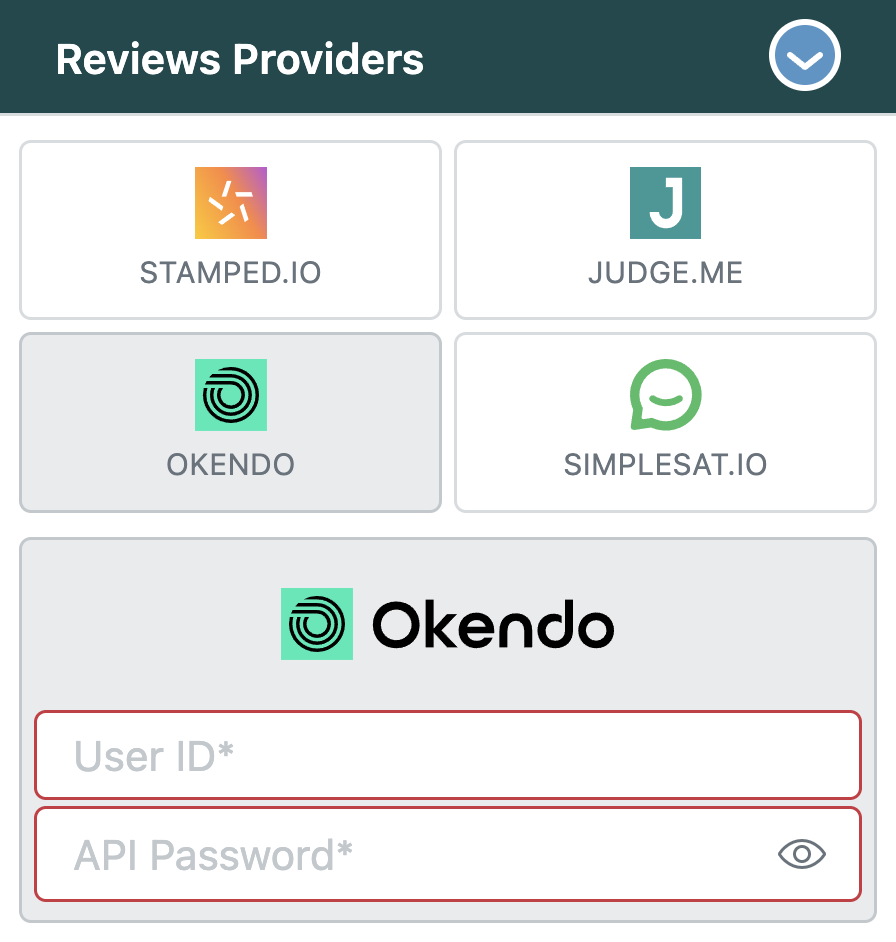
Okendo is available as an Add-On Provider in agnoStack. With Okendo Reviews connected, agents see detailed Okendo customer data in the agnoStack Customer Insights panel, and Okendo customer events in the agnoStack Customer Timeline, right inside each Zendesk ticket.
To connect Okendo, you'll need two values from the Okendo platform: your User ID and your Merchant REST API Key.
Note: Beyond the Okendo Add-On setup, this guide also includes an optional example of an advanced review approval and moderation workflow for retailers who want to get the most out of their Okendo integration.
Okendo API Credentials
You'll generate your API credentials in the Okendo platform.
-
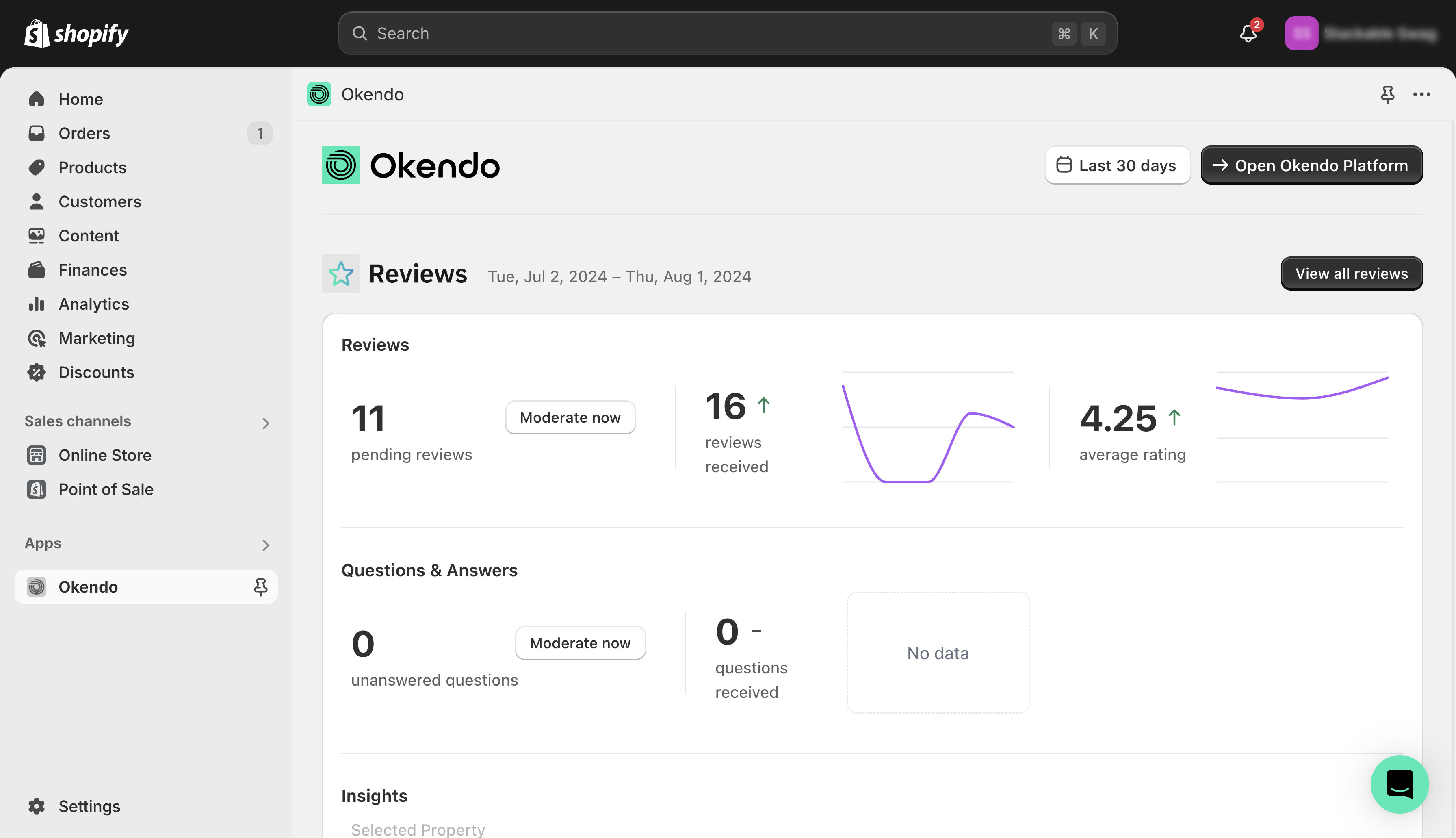
Make sure the Okendo app is installed in your Shopify store.
-
From the Okendo app in Shopify, click Open Okendo Platform to log in to the Okendo admin.
The Okendo app landing screen.
-
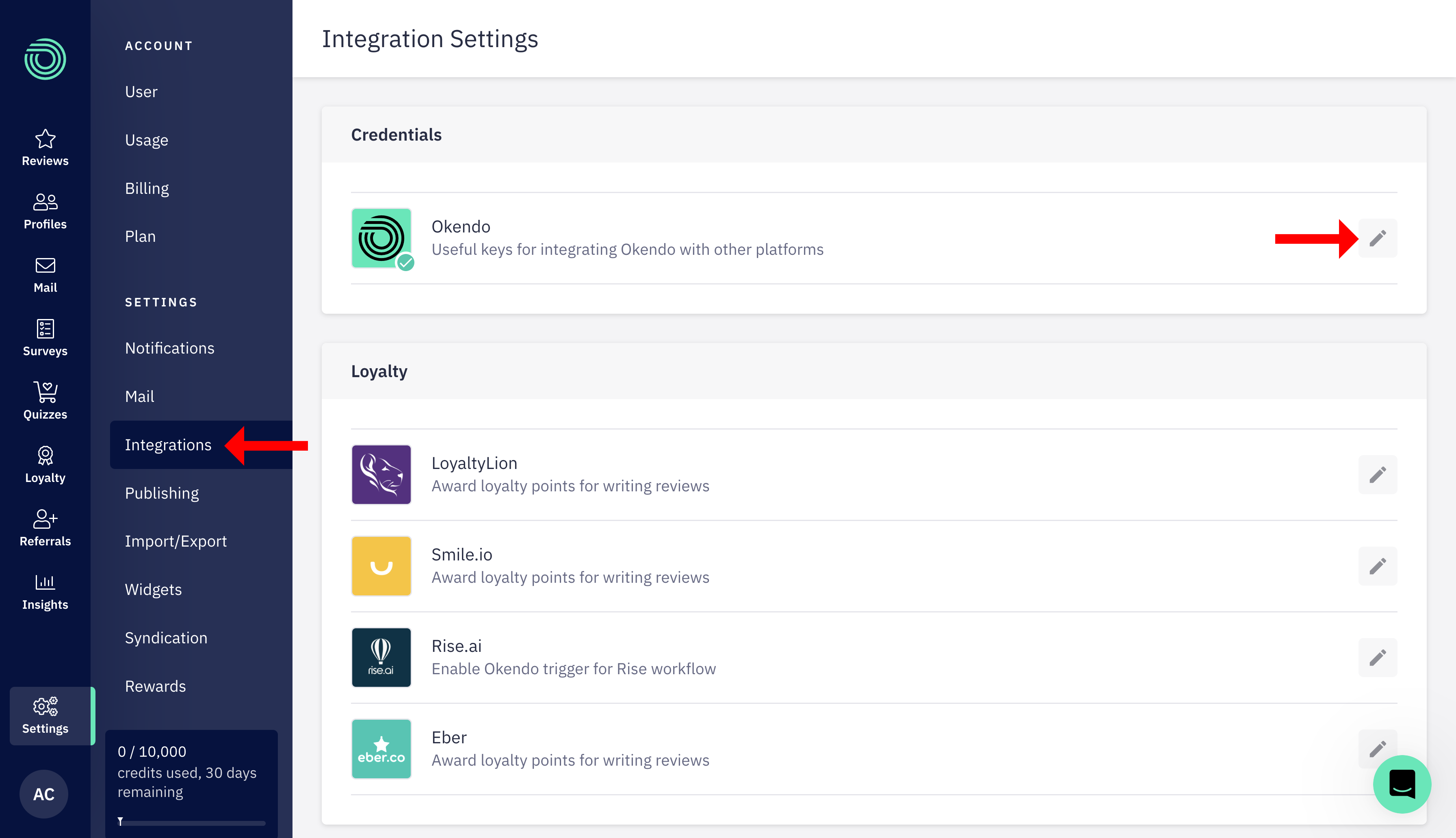
In the left-hand navigation of the Okendo platform, click Settings → Integrations.
-
In the Integrations list, click the edit icon.
-
Click Generate (or Show) to reveal your API credentials.
-
Copy the User ID and the Merchant REST API Key and save them for later in the setup.
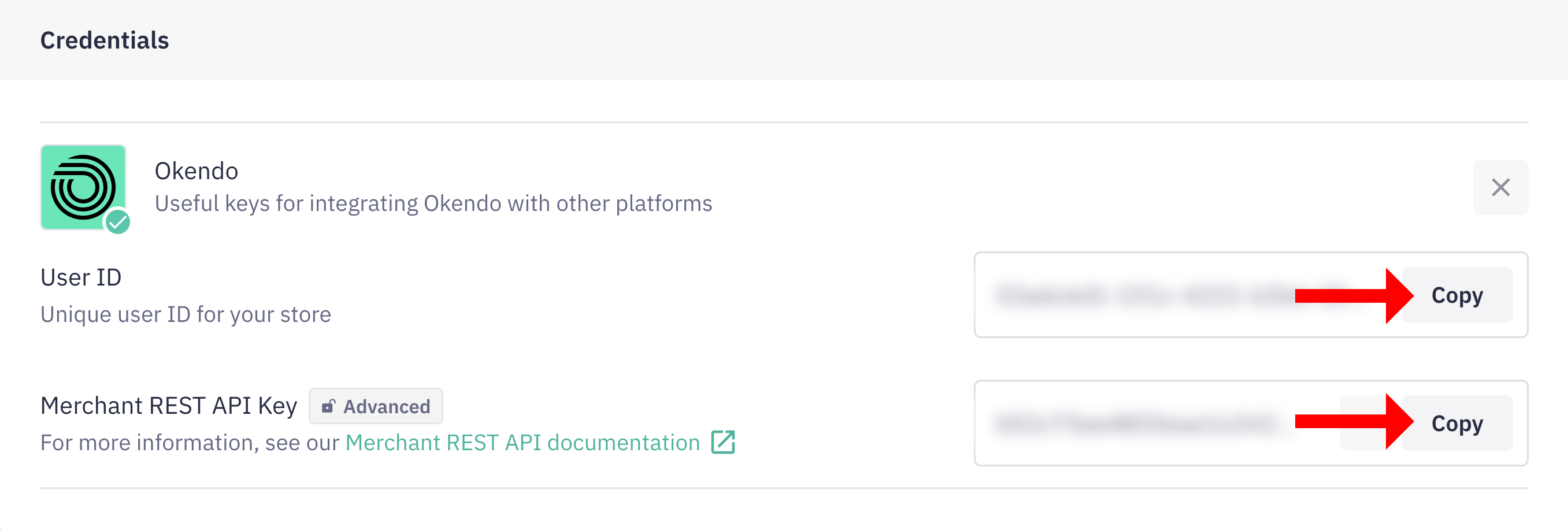
Your Okendo integration API credentials.
Entering Your Credentials in agnoStack
In Zendesk, open the agnoStack configuration panel (via the Manage Your Account link or the agnoStack icon in the left sidebar) and select Okendo under Reviews Providers. Then enter the following:
| Field | Value |
|---|---|
| User ID | Your Okendo User ID |
| API Password | Your Okendo Merchant REST API Key |
Continue through the remaining configuration screens and click Activate to save your new Add-On configuration.
If you run into any trouble or need additional assistance, contact us any time at support@agnostack.com.
Advanced Review Moderation
This optional workflow unlocks more of agnoStack Customer Insights with a review moderation pipeline across Okendo, Shopify and Zendesk, so retailers can handle reviews within Zendesk and boost agent efficiency and customer satisfaction. With it, you can:
- Automatically convert Okendo reviews into Zendesk tickets for easy management
- Respond to reviews directly, choosing to make responses public or keep them private
- Approve or reject storefront reviews directly from the Order Timeline
The sections below walk through building the pipeline end to end, using Shopify Flow, advanced Zendesk configuration and agnoStack Customer Insights.
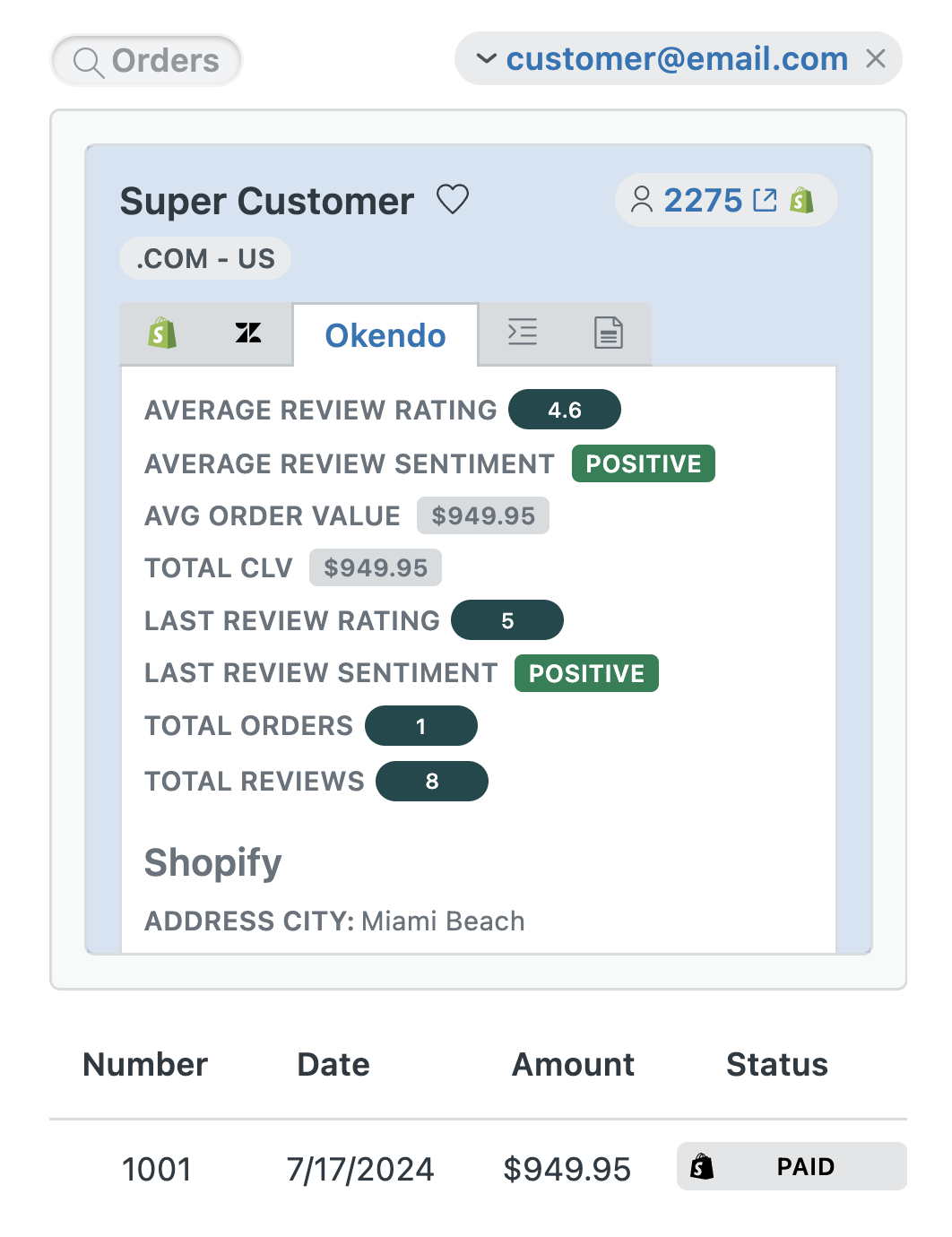
Okendo in agnoStack Customer Insights.
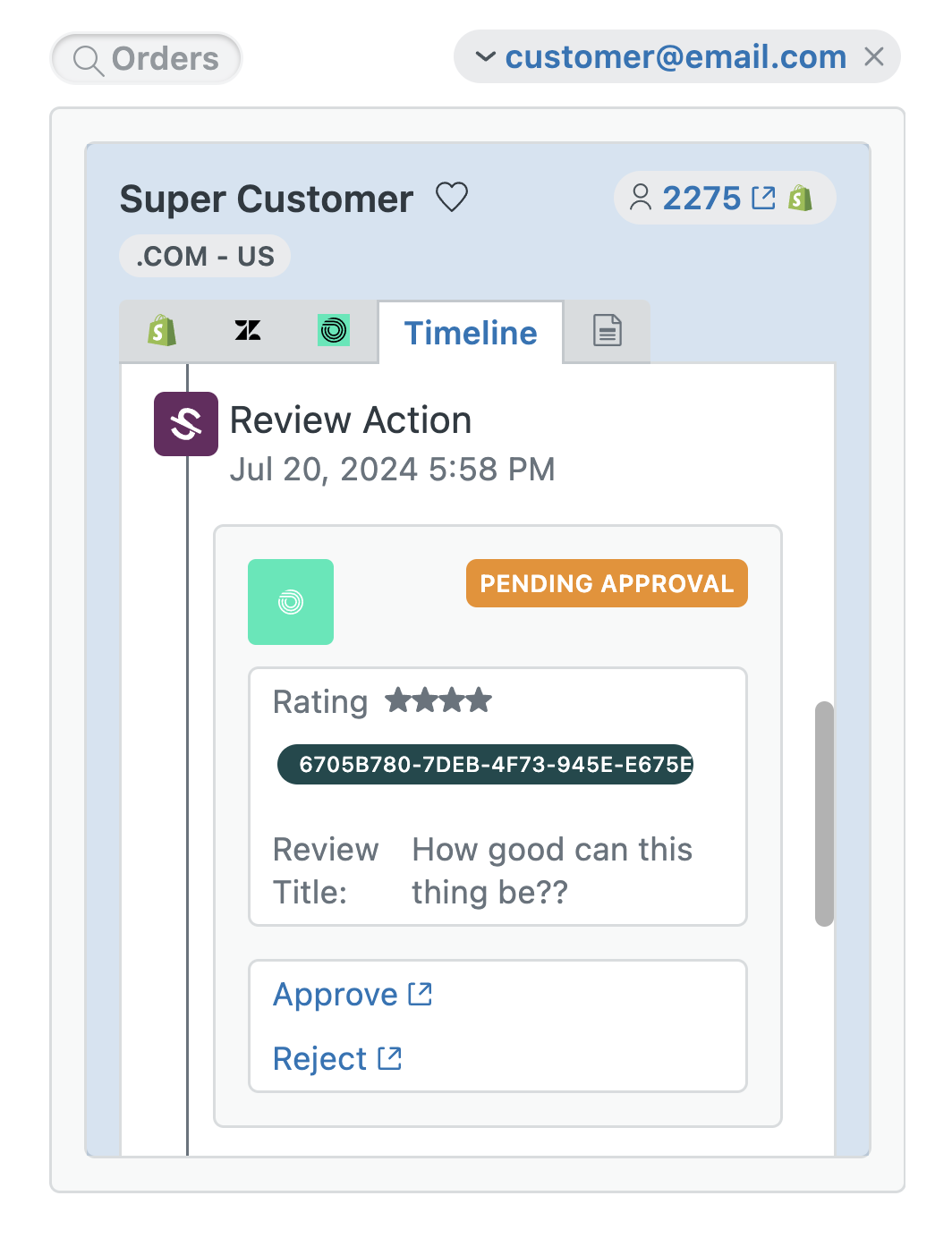
Okendo in the agnoStack Customer Timeline.
Note: To get the example code for every part of this workflow (the Shopify Flow steps and the Zendesk automations), contact support@agnostack.com.
Zendesk API Token
Create a Zendesk API token for Shopify to use.
-
In the Zendesk Admin Center, click Apps and integrations → APIs → Zendesk API.
-
Click Add API token and name it Okendo Reviews.
-
Copy the API Token and save it for later in the setup.
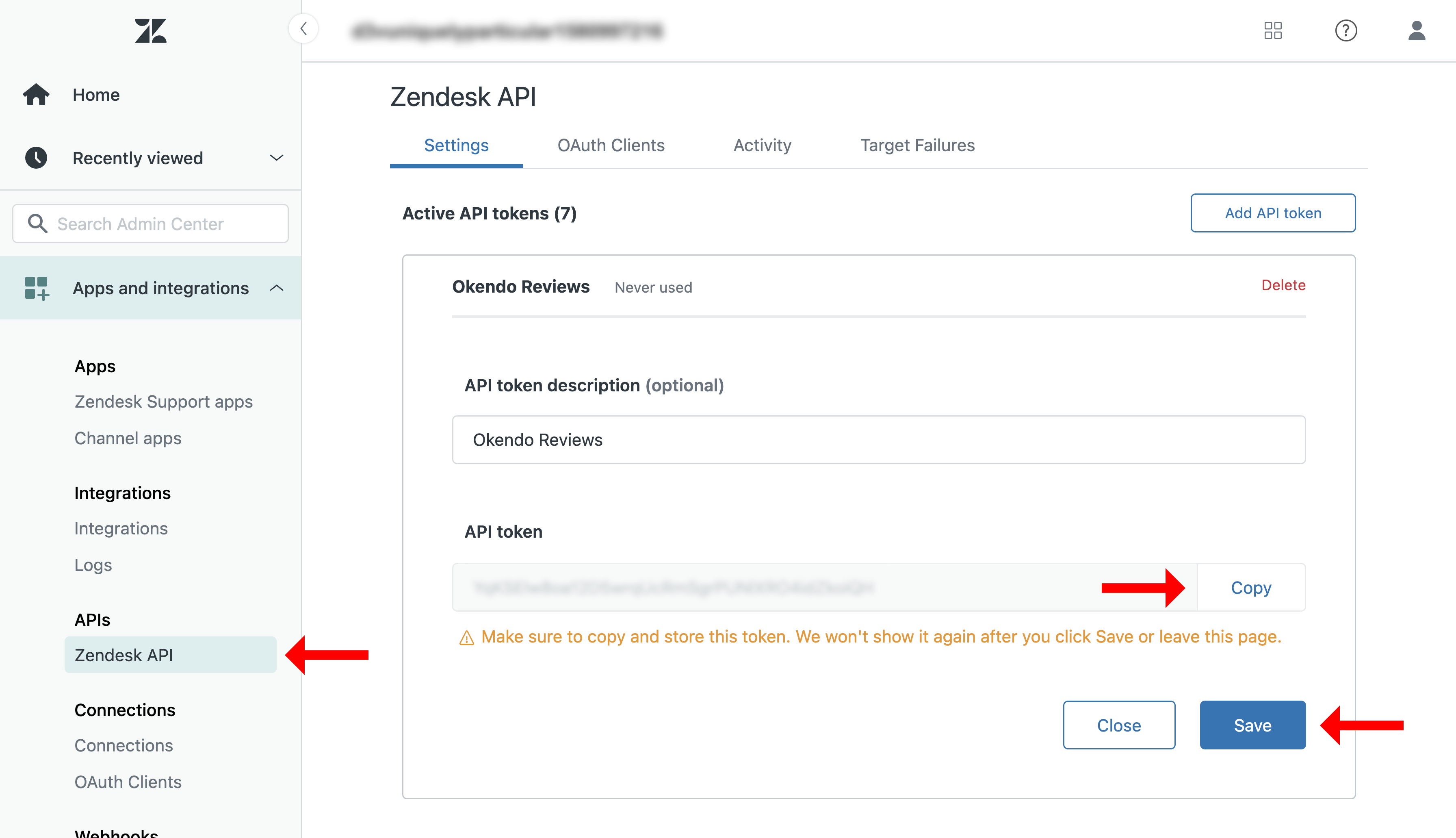
Creating the Zendesk API token.
Encoding Your Zendesk Credentials
Your Zendesk API token is used in a new Shopify Flow, and Shopify needs it in an encoded form first.
-
Build a string from your Zendesk username (your email address) and the API token from the previous section, in this format:
YOUR_ZENDESK_LOGIN_EMAIL/token:YOUR_ZENDESK_API_TOKENReplace
YOUR_ZENDESK_LOGIN_EMAILandYOUR_ZENDESK_API_TOKENwith your own values. -
Base64 encode the string.
-
Copy the encoded value and save it for later in the setup.
Note: You can Base64 encode a string with Node/JavaScript in a terminal window or in your browser console.
Zendesk Ticket Fields
The workflow uses two custom ticket fields in Zendesk.
-
In the Zendesk Admin Center, click Objects and rules → Tickets → Fields.
-
Create a new field of type Text, name it Okendo Review ID, and note its ticket field ID.
-
Create a second Text field, name it Okendo Product ID, and note its ticket field ID.
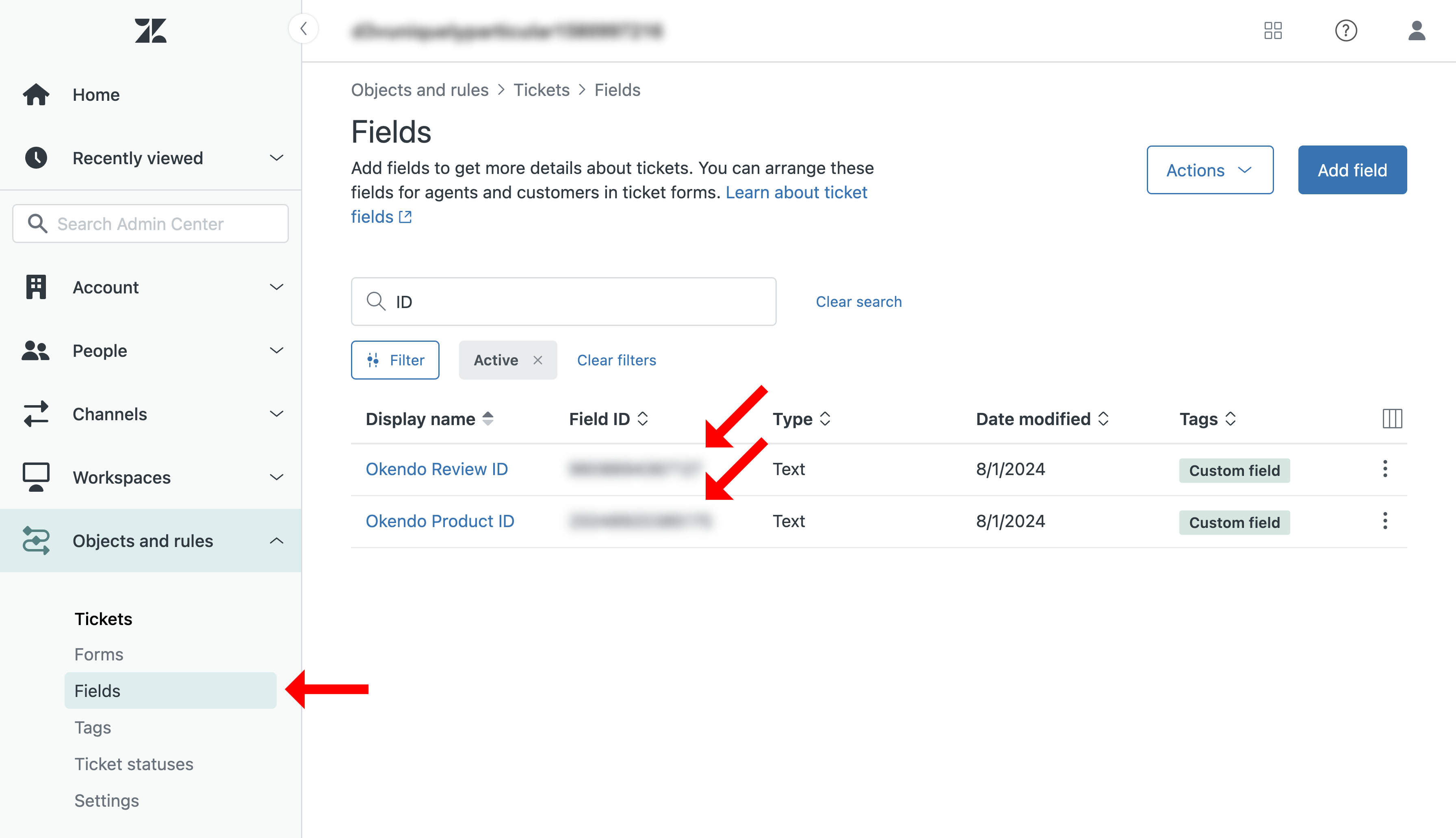
The two custom ticket fields.
Shopify Metafields
The workflow also uses Shopify metafields. You create the metafield definitions and values with the Shopify GraphQL Admin API, which needs a Shopify access token with scopes for writing metafields.
Creating Metafield Definitions
Use the following mutation to create each metafield definition:
mutation metafieldDefinitionCreate($definition: MetafieldDefinitionInput!) {
  metafieldDefinitionCreate(definition: $definition) {
    createdDefinition {
      key
      name
      namespace
    }
    userErrors {
      field
      message
    }
  }
}
Create three metafield definitions: Zendesk Field Review ID, Zendesk Field Product ID and Zendesk Subdomain.
// Example mutation payload for Zendesk Field Review ID
{
  "definition": {
    "ownerType": "SHOP",
    "key": "zendesk-field-review-id",
    "type": "single_line_text_field",
    "name": "Zendesk Field Review ID",
    "namespace": "agnoStack-metadata"
  }
}

// Example mutation payload for Zendesk Field Product ID
{
  "definition": {
    "ownerType": "SHOP",
    "key": "zendesk-field-product-id",
    "type": "single_line_text_field",
    "name": "Zendesk Field Product ID",
    "namespace": "agnoStack-metadata"
  }
}

// Example mutation payload for Zendesk Subdomain
{
  "definition": {
    "ownerType": "SHOP",
    "key": "zendesk-subdomain",
    "type": "single_line_text_field",
    "name": "Zendesk Subdomain",
    "namespace": "agnoStack-metadata"
  }
}
Setting Metafield Values
Once the definitions exist, use the following mutation to set the three metafield values:
mutation metafieldsSet($metafields: [MetafieldsSetInput!]!) {
  metafieldsSet(metafields: $metafields) {
    metafields {
      key
      type
      value
      namespace
    }
    userErrors {
      field
      message
    }
  }
}
Populate the values for Zendesk Field Review ID, Zendesk Field Product ID and Zendesk Subdomain by replacing the placeholders in the payload below. For the Review ID and Product ID, use the ticket field IDs from Zendesk ticket fields. You'll also need your Shopify Shop ID, which you can get from the Shopify API.
// Example mutation payload for Zendesk Fields Review ID, Product ID and Subdomain
{
  "metafields": [{
    "namespace": "agnoStack-metadata",
    "ownerId": "gid://shopify/Shop/YOUR_SHOPIFY_SHOP_ID",
    "type": "single_line_text_field",
    "key": "zendesk-field-review-id",
    "value": "YOUR_REVIEW_ID_TICKET_FIELD_ID"
  }, {
    "namespace": "agnoStack-metadata",
    "ownerId": "gid://shopify/Shop/YOUR_SHOPIFY_SHOP_ID",
    "type": "single_line_text_field",
    "key": "zendesk-field-product-id",
    "value": "YOUR_PRODUCT_ID_TICKET_FIELD_ID"
  }, {
    "namespace": "agnoStack-metadata",
    "ownerId": "gid://shopify/Shop/YOUR_SHOPIFY_SHOP_ID",
    "type": "single_line_text_field",
    "key": "zendesk-subdomain",
    "value": "YOUR_ZENDESK_SUBDOMAIN"
  }]
}
Shopify Flow
Next, use the Shopify Flow app to build a workflow that creates a Zendesk ticket whenever an Okendo review is created.
-
Make sure the Flow app is installed in your Shopify store.
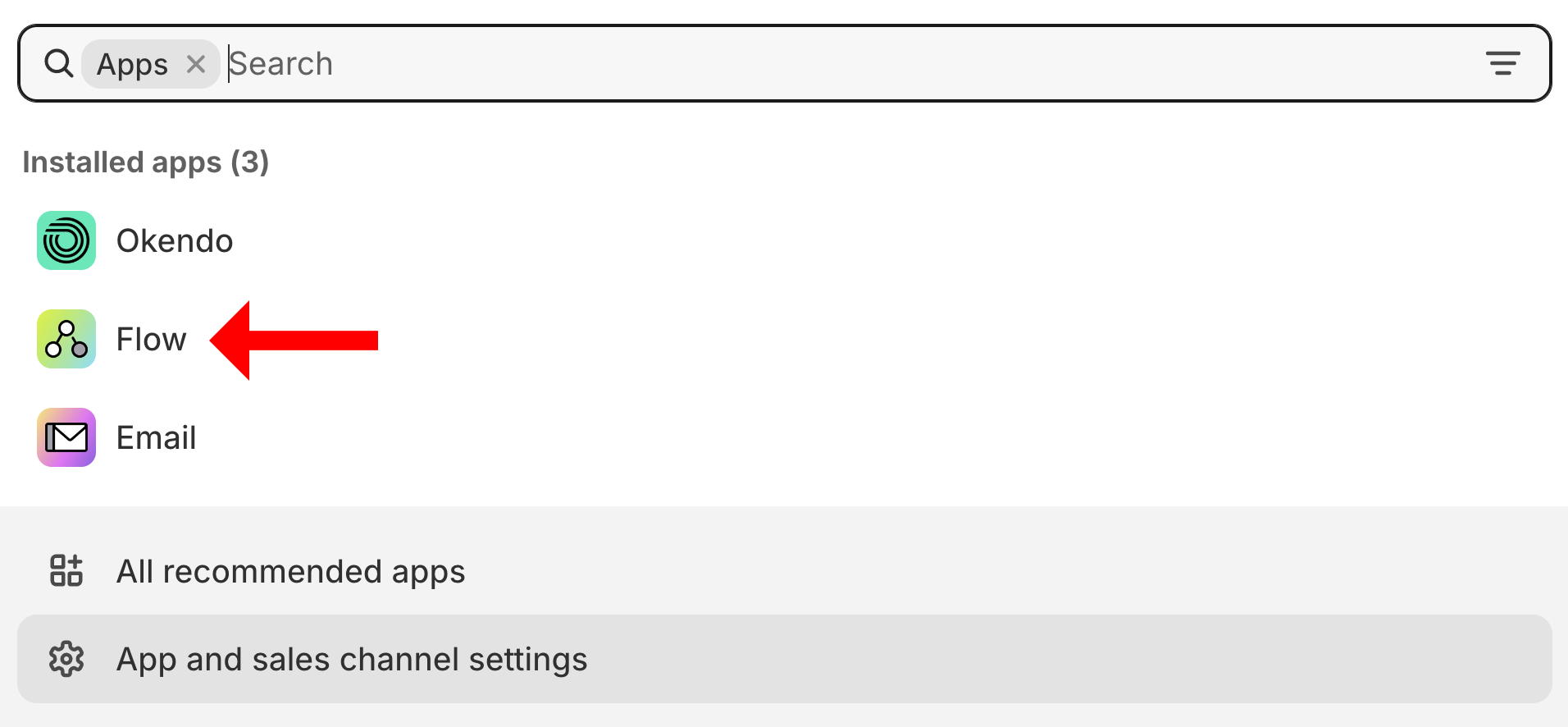
The Shopify Flow app.
-
In Flow, click Create workflow → Select a trigger → Okendo Review Created → Okendo Review Created.
-
At the top of the screen, name the workflow Okendo Review Created.
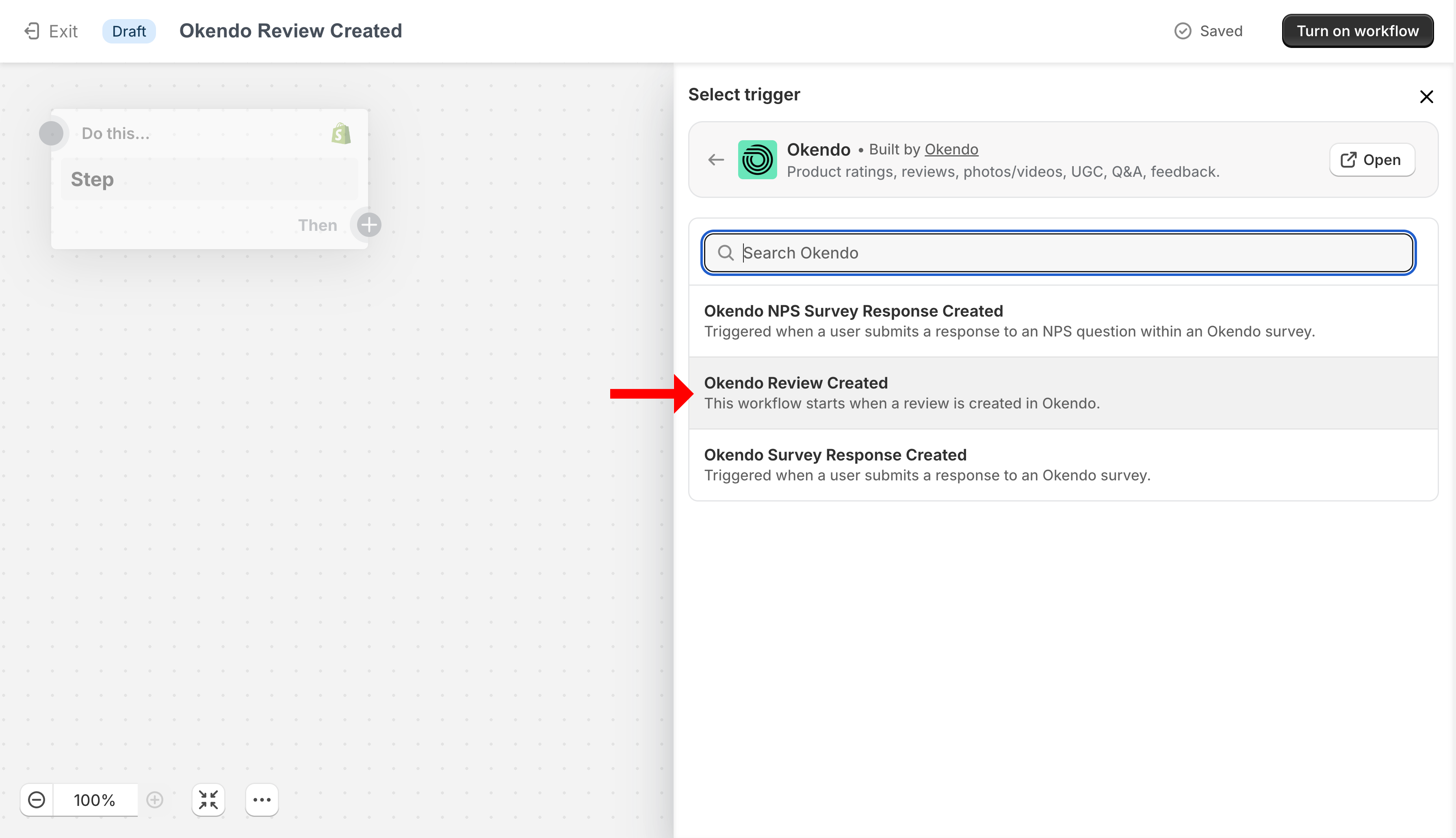
The Okendo Review Created trigger.
-
Below the Okendo Review Created step, click the plus (+) icon, choose Action, then choose Flow → Run code.
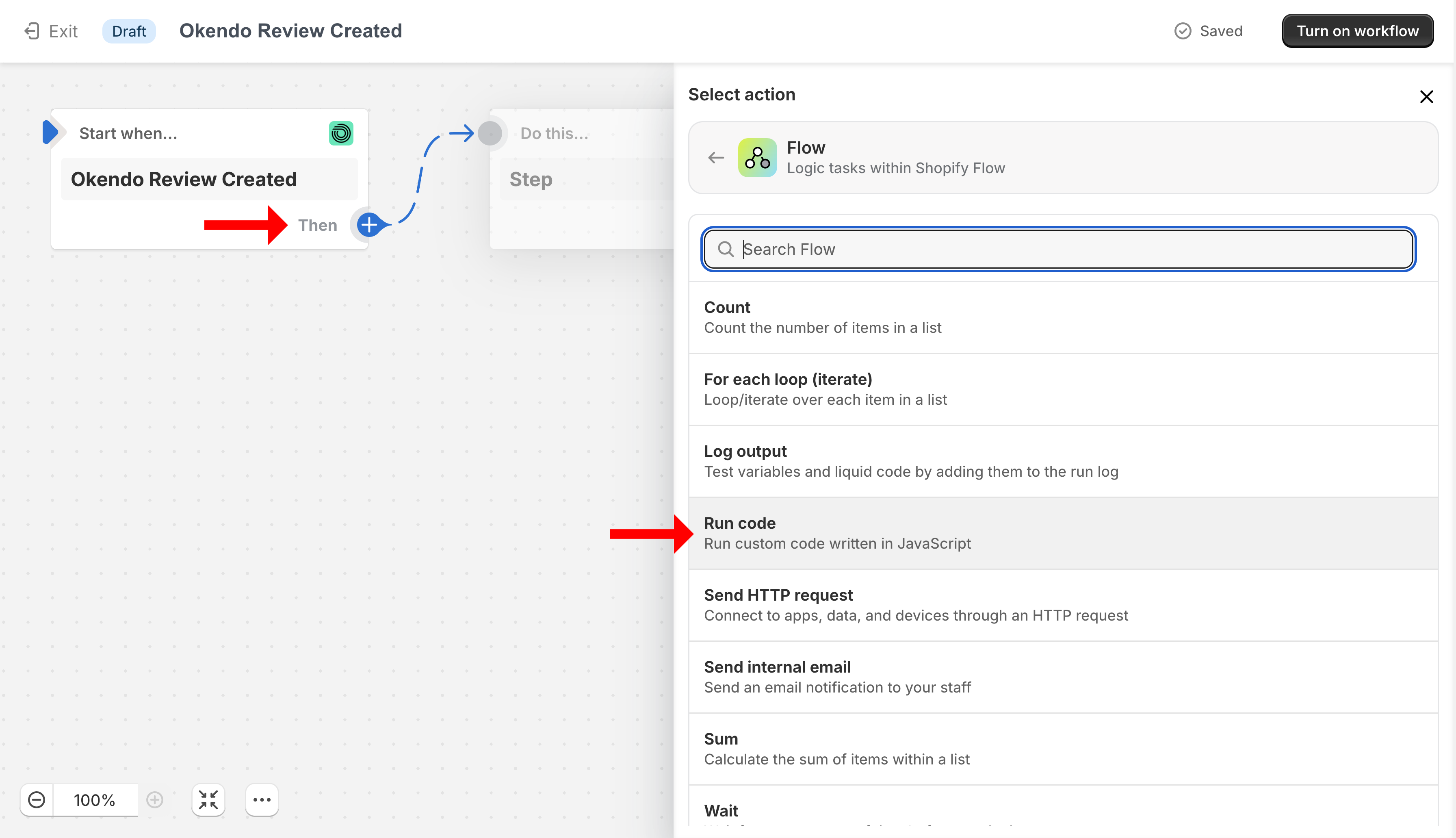
Adding the Run code action.
-
In the Run code editor, paste in the code for Input, Output and Code.
-
In the code, replace the word Redacted with your encoded Zendesk credentials from Encoding your Zendesk credentials, then close the Run code step.
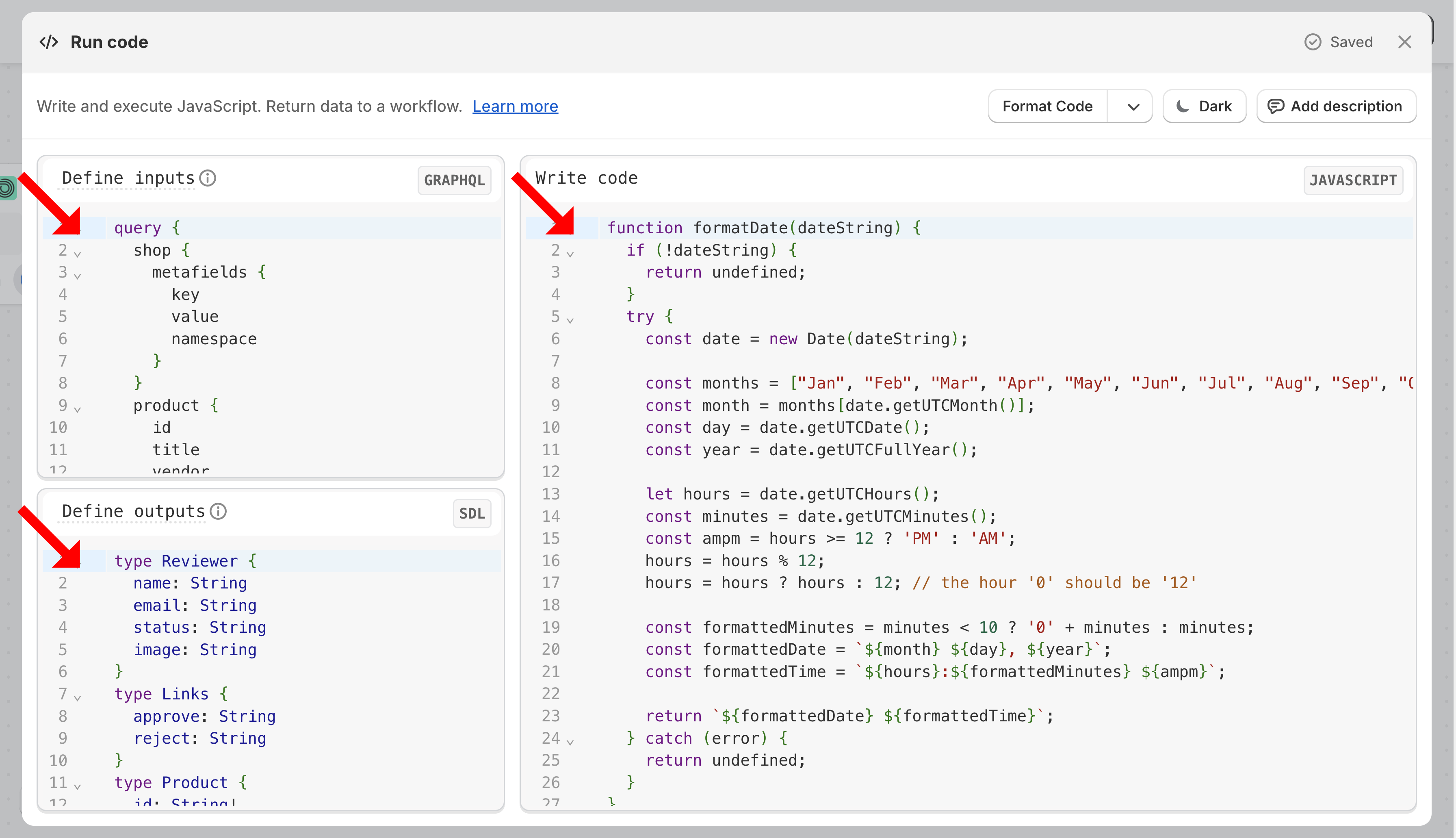
Configuring the Run code step.
-
Below the Run code step, click the plus (+) icon, choose Action, then choose Flow → Send HTTP request.
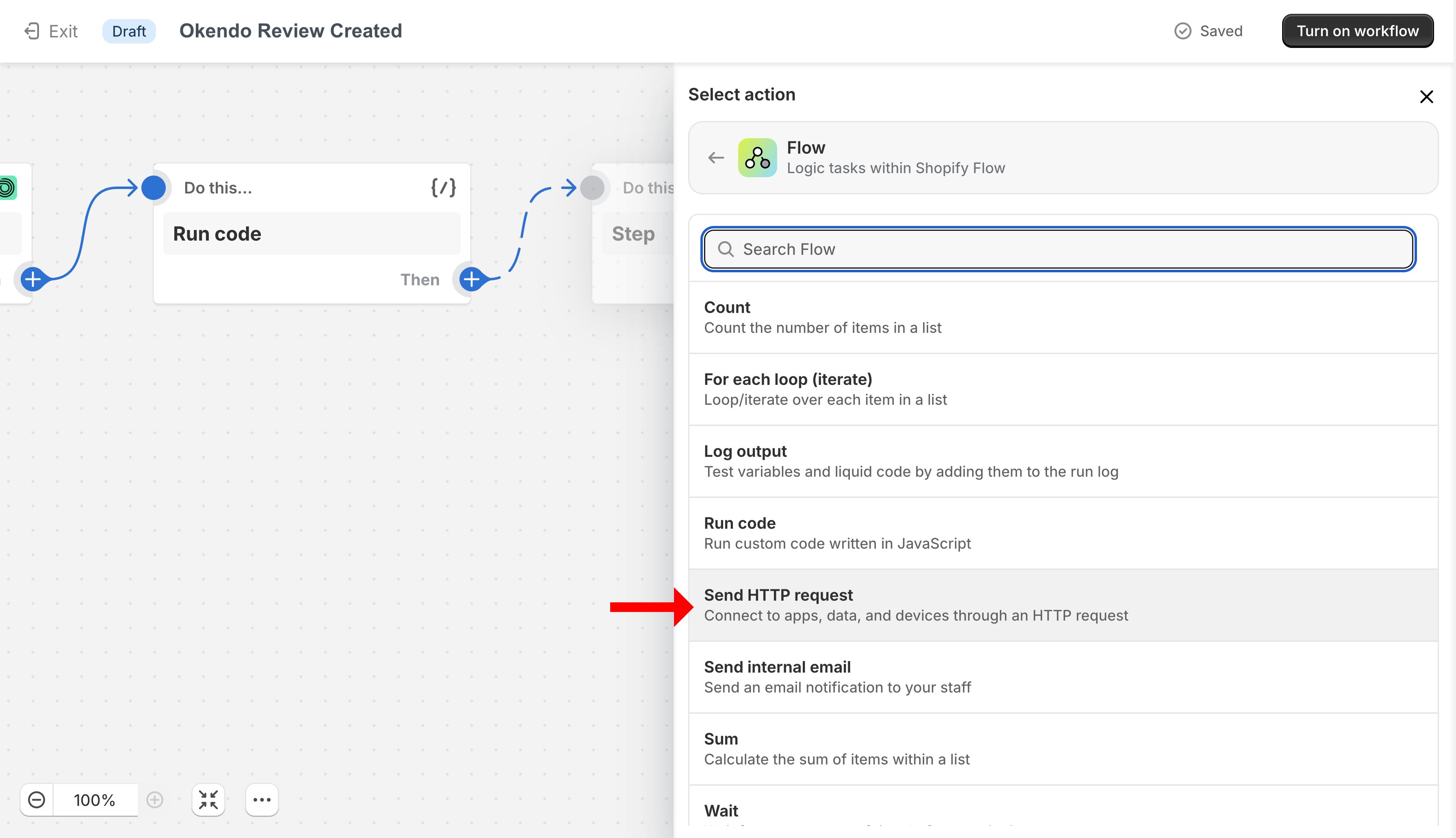
Adding the Send HTTP request action.
-
Fill in all the details and close the step.
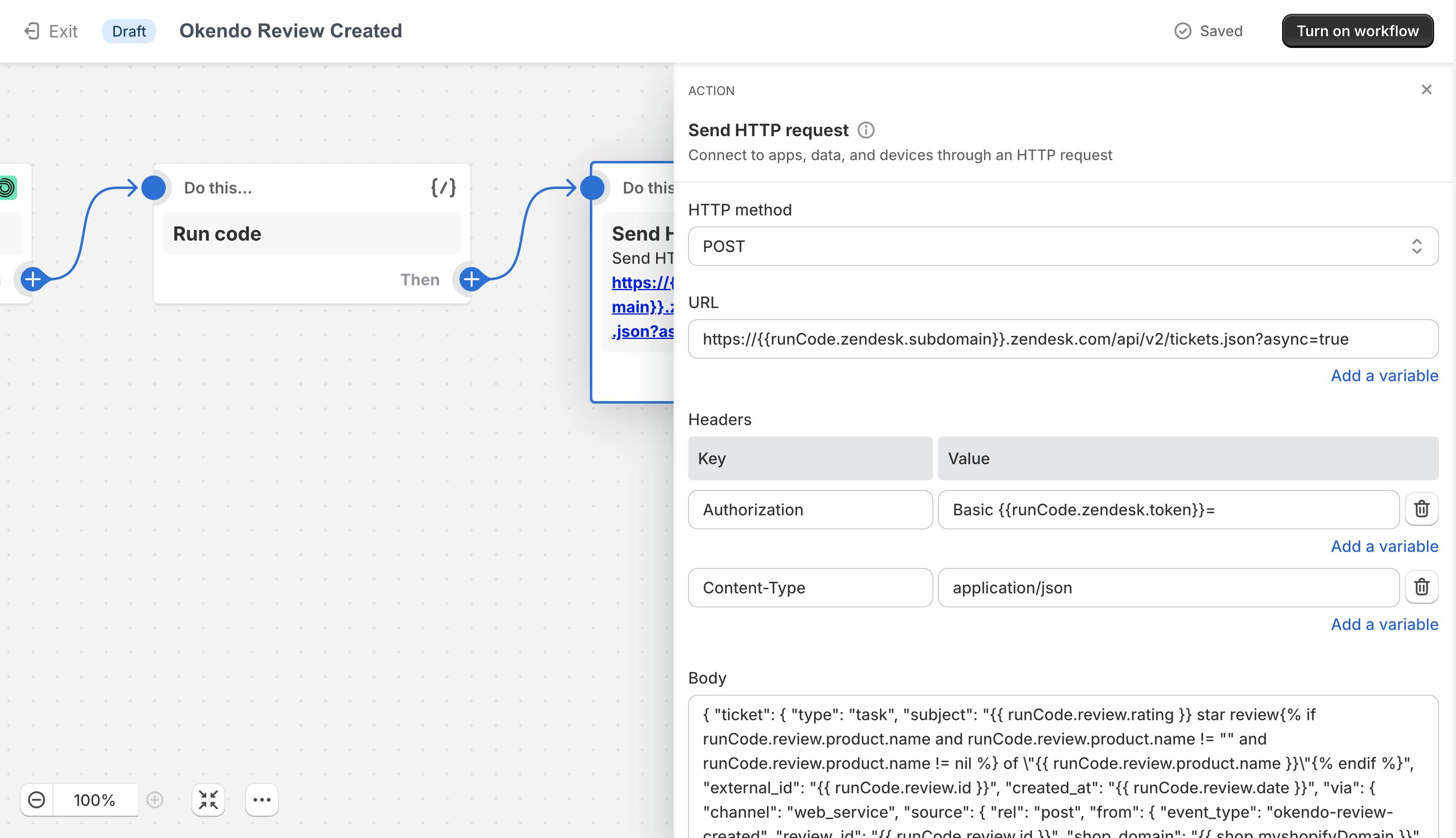
Configuring the first Send HTTP request step.
-
Repeat once more: click the plus (+) icon on the Run code step, choose Action, then Flow → Send HTTP request. Fill in all the details and close the step.
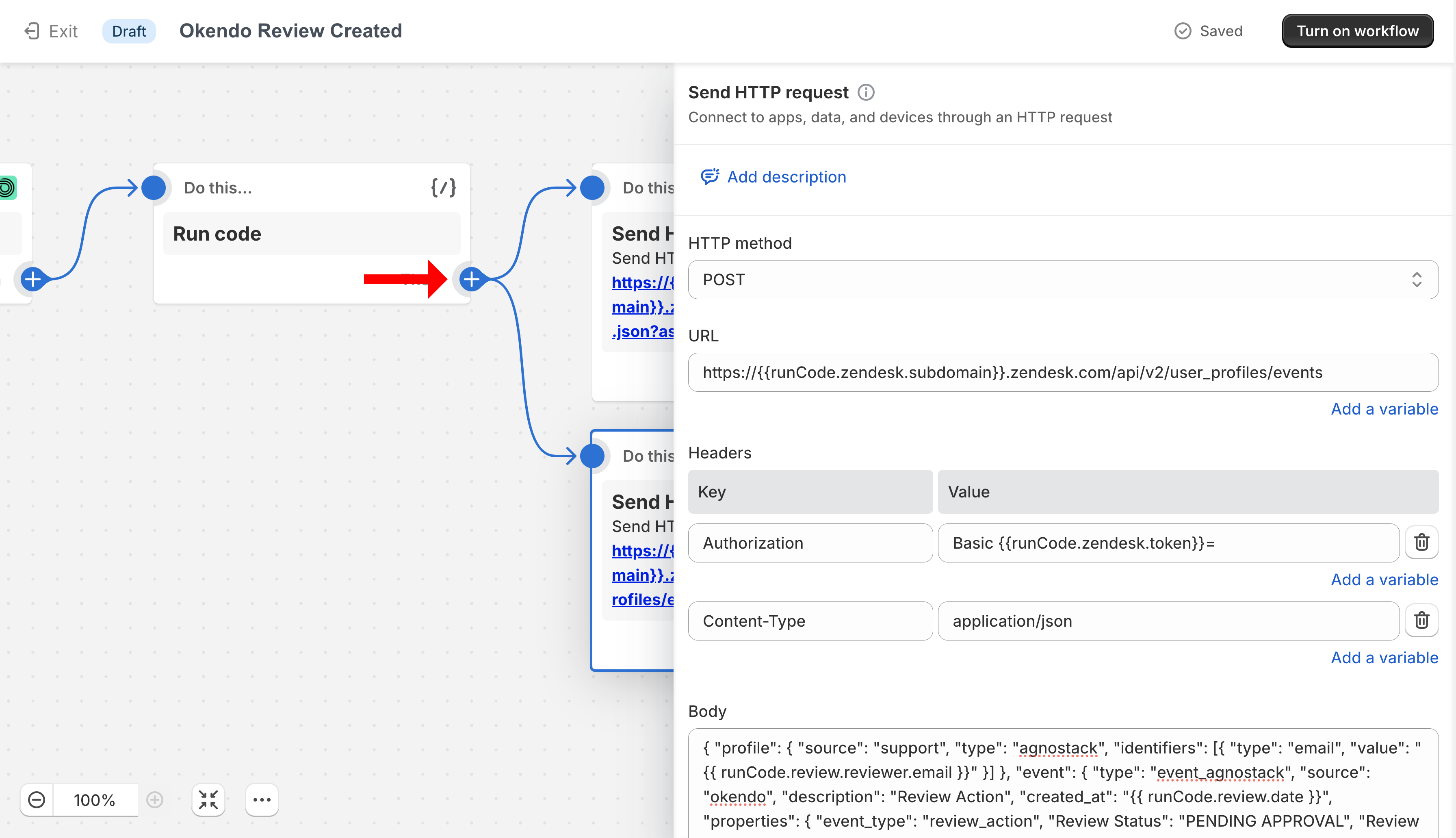
Configuring the second Send HTTP request step.
-
Click Apply changes to save the workflow.
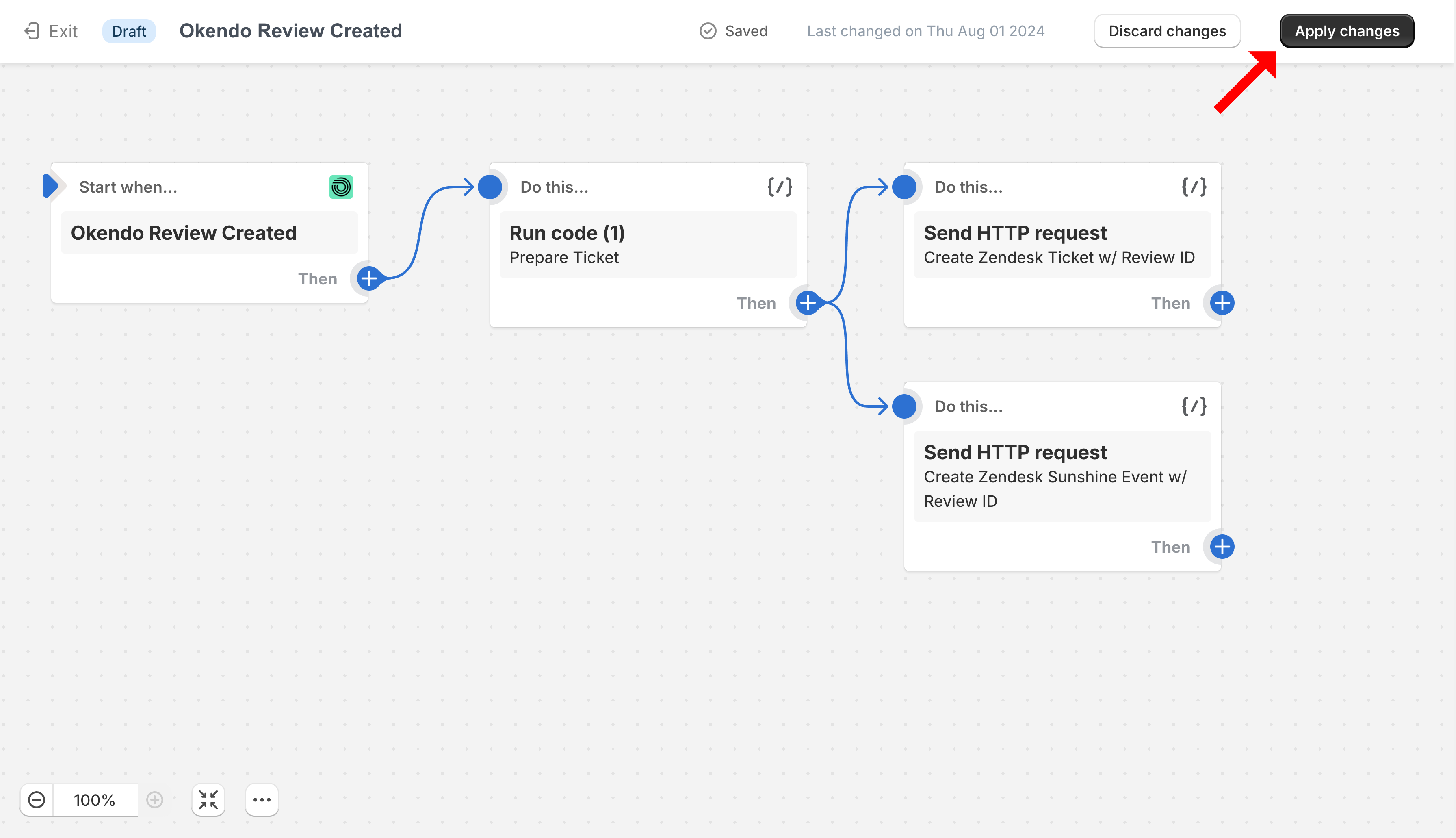
The completed workflow.
Note: For the example code for the Run code and Send HTTP request steps, contact support@agnostack.com.
Zendesk Macros
With the Shopify Flow in place, finish the setup in Zendesk, starting with two new macros.
-
In the Zendesk Admin Center, click Workspaces → Agent tools → Macros.
-
Create a macro named Okendo Review - Private Reply and fill in the details as shown below.
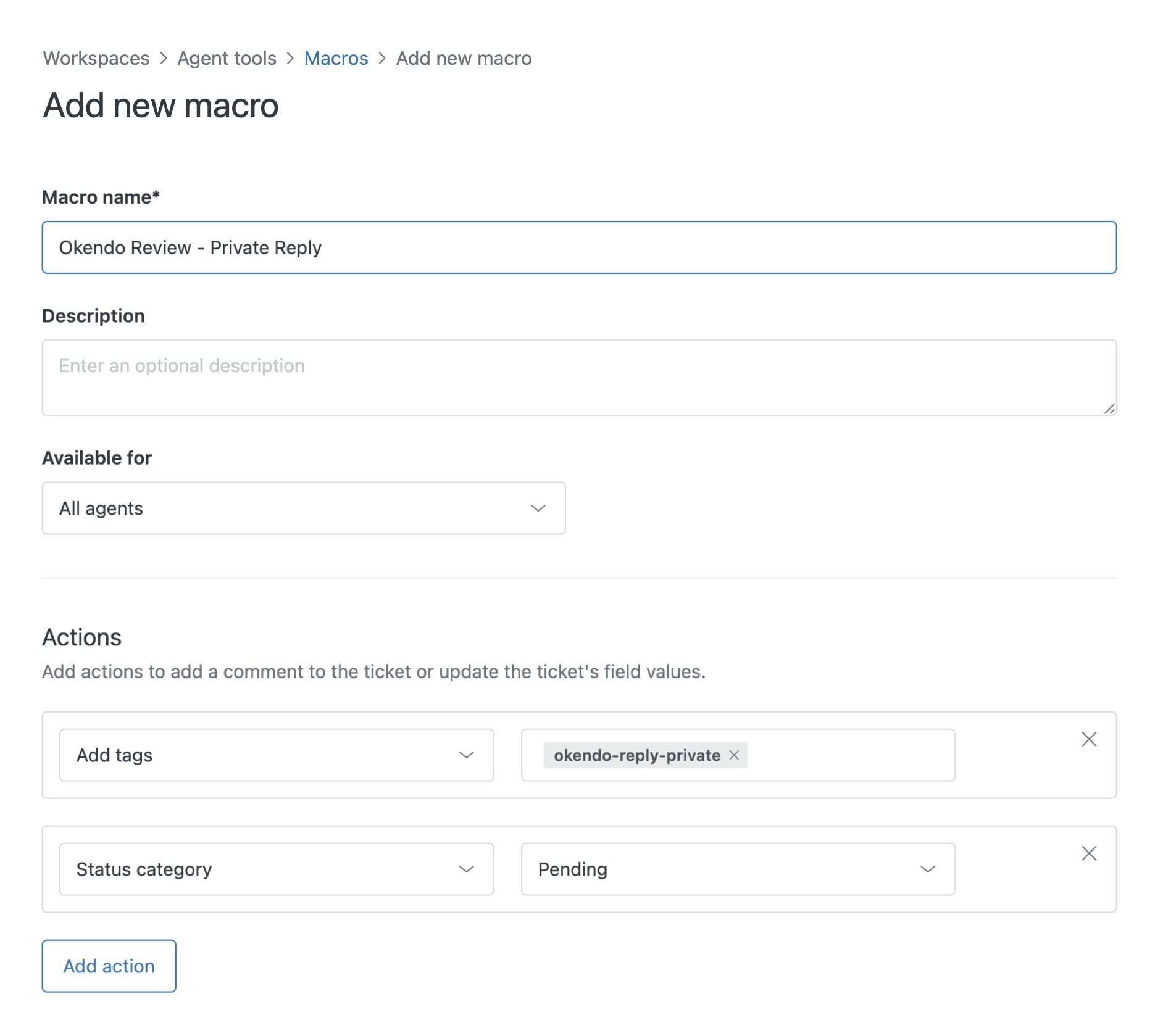
The private reply macro.
-
Create a macro named Okendo Review - Public Reply and fill in the details as shown below.
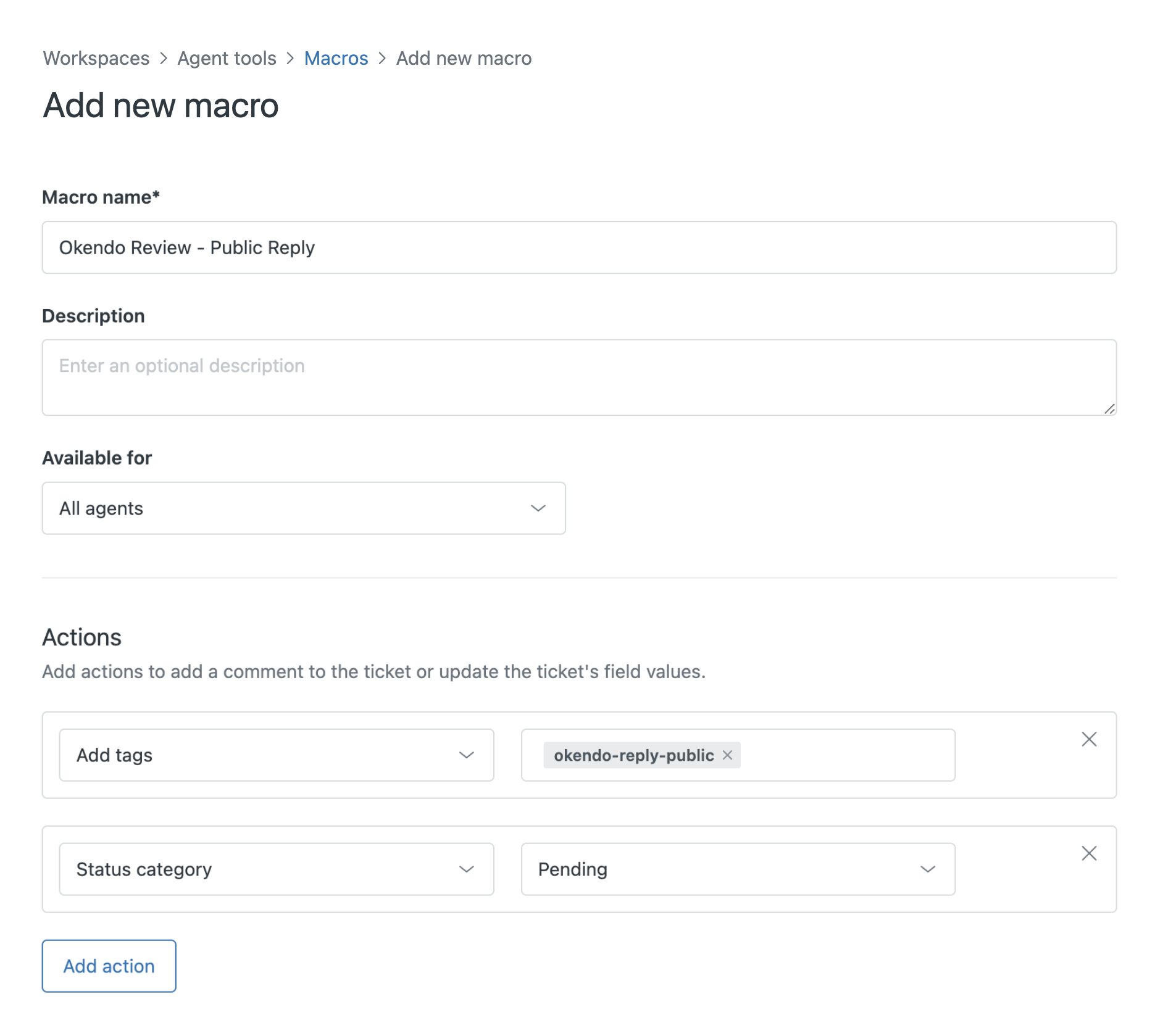
The public reply macro.
Zendesk Webhook
Next, create a webhook for communicating with your Okendo platform.
-
In the Zendesk Admin Center, click Apps and integrations → Webhooks.
-
Click Create webhook, select Trigger or automation and click Next.
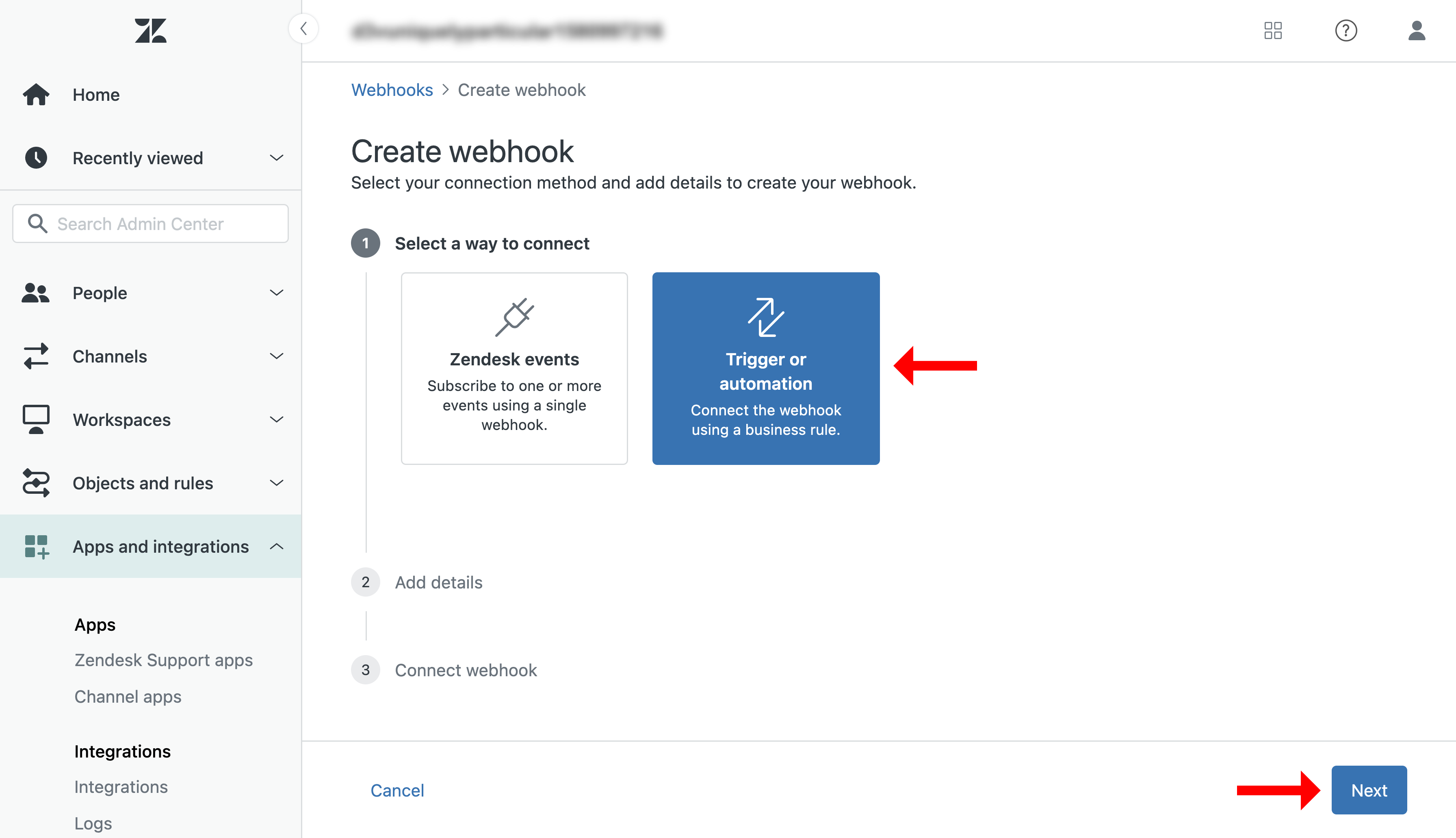
Choosing a Trigger or automation webhook.
-
Fill in the details as shown below.
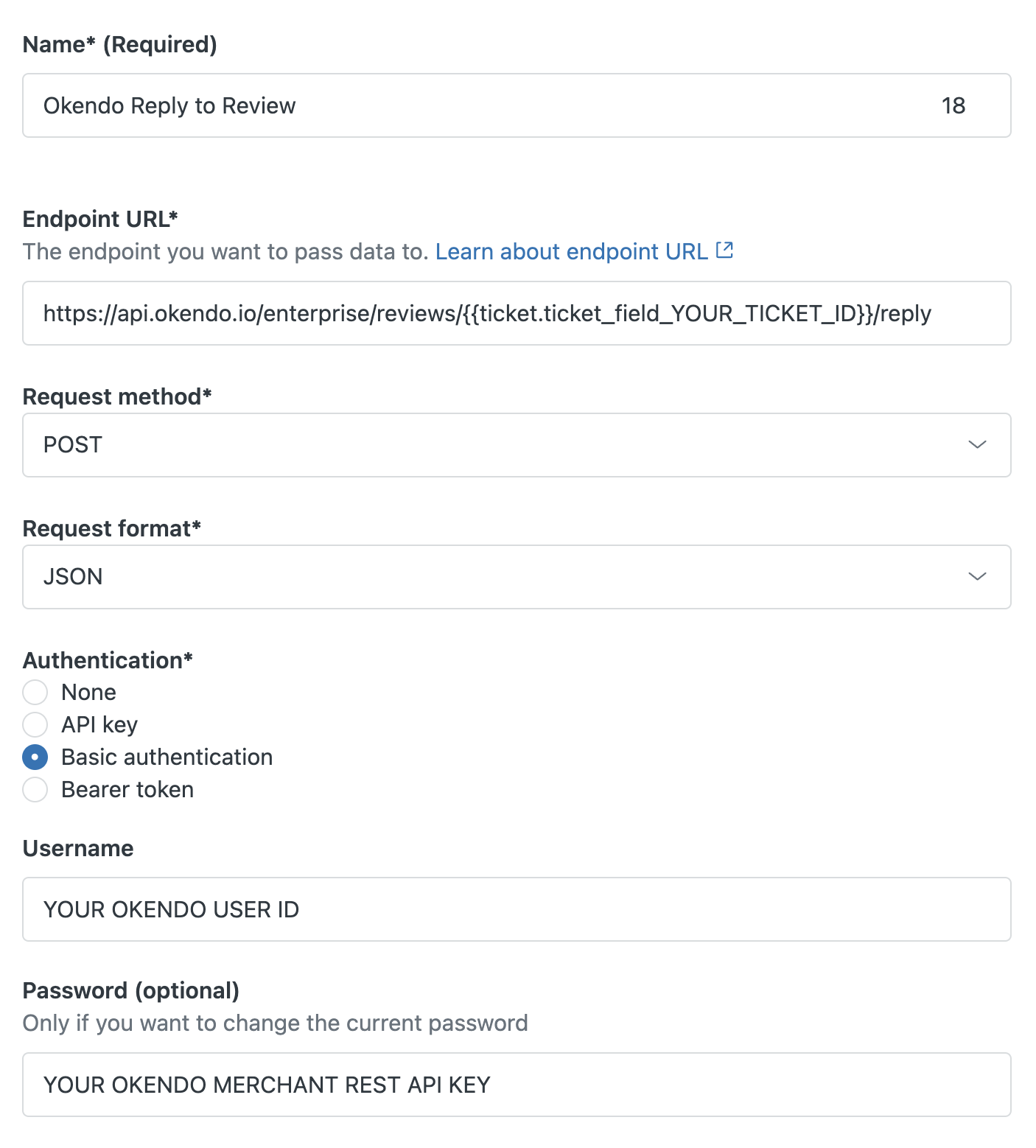
Configuring the webhook.
-
Click Create webhook, then Finish setup, then Leave without connecting.
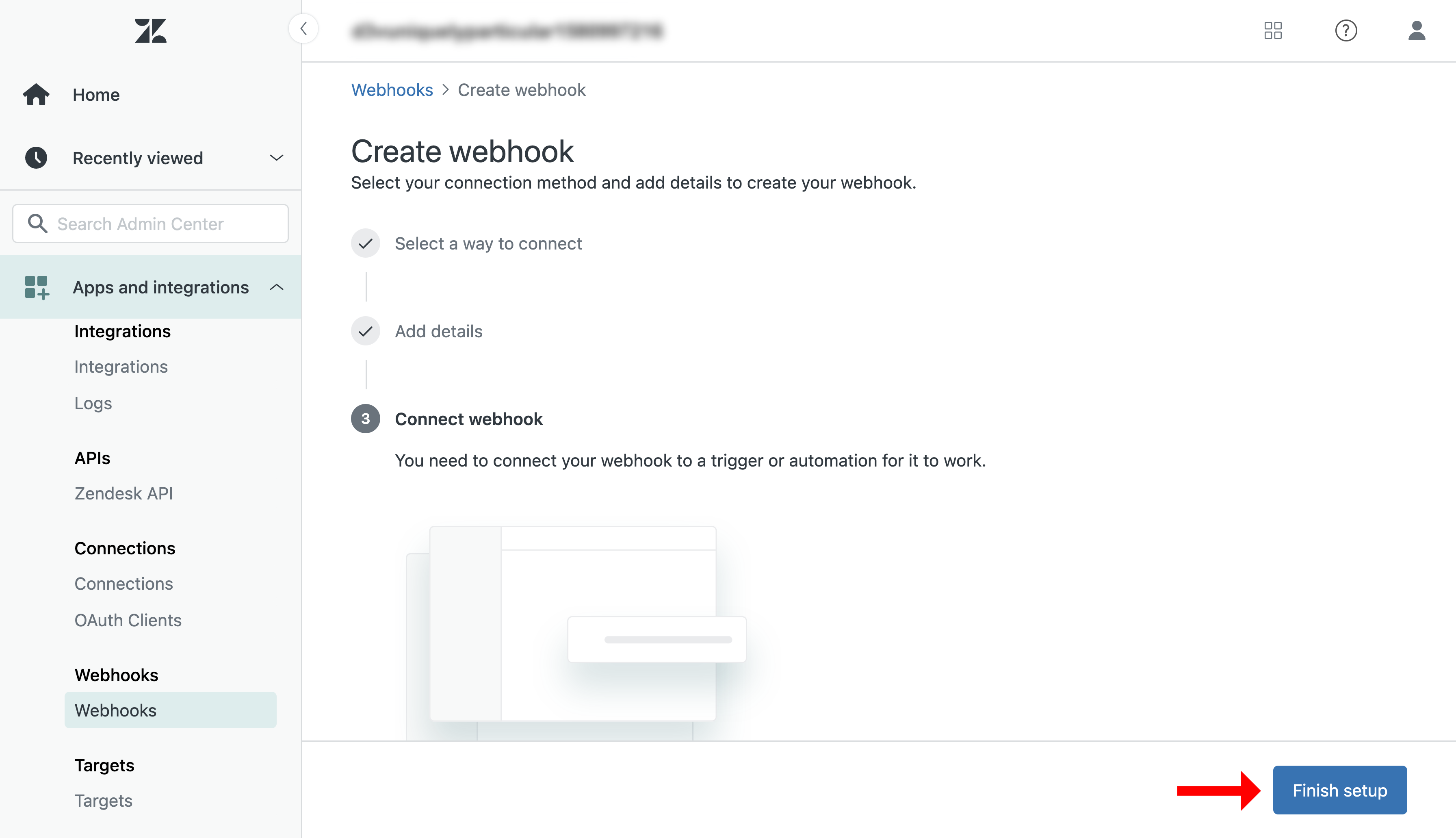
Finishing the webhook setup.
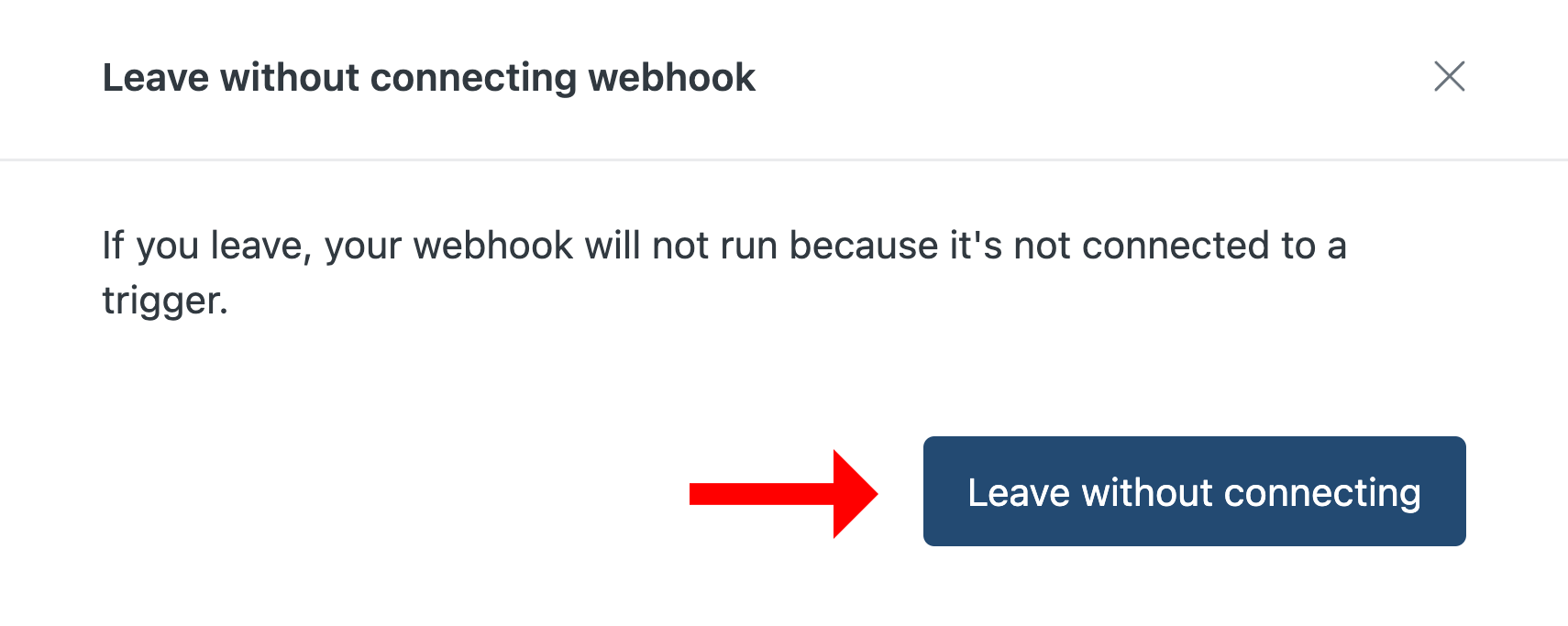
Leaving the webhook without connecting.
Zendesk Automations
Finally, create two Zendesk automations that send agent replies to the Okendo platform.
-
In the Zendesk Admin Center, click Objects and rules → Business rules → Automations, then click Add automation.
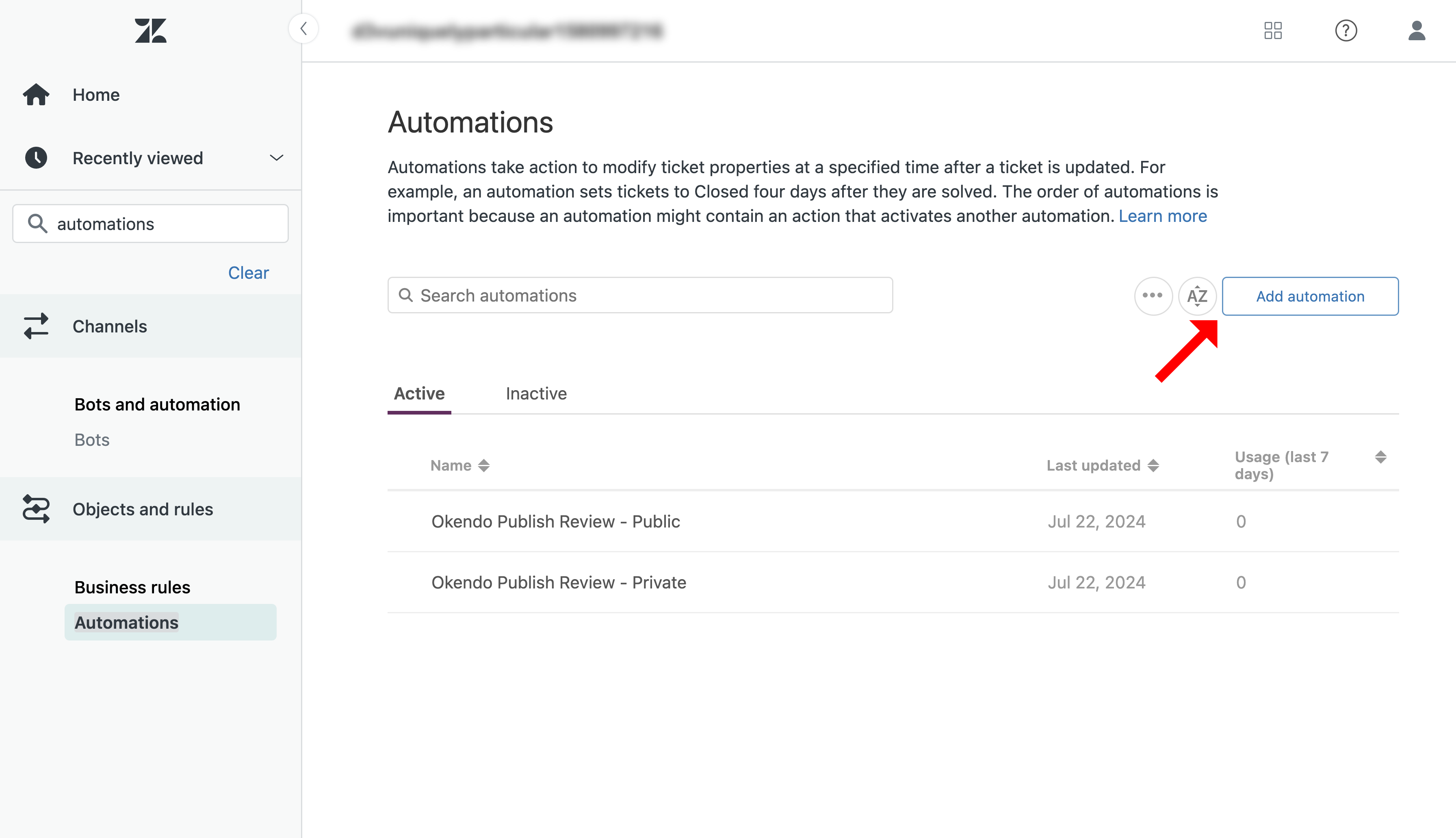
Adding an automation.
-
Create an automation named Okendo Publish Review - Private, fill in the details as shown below and click Create.
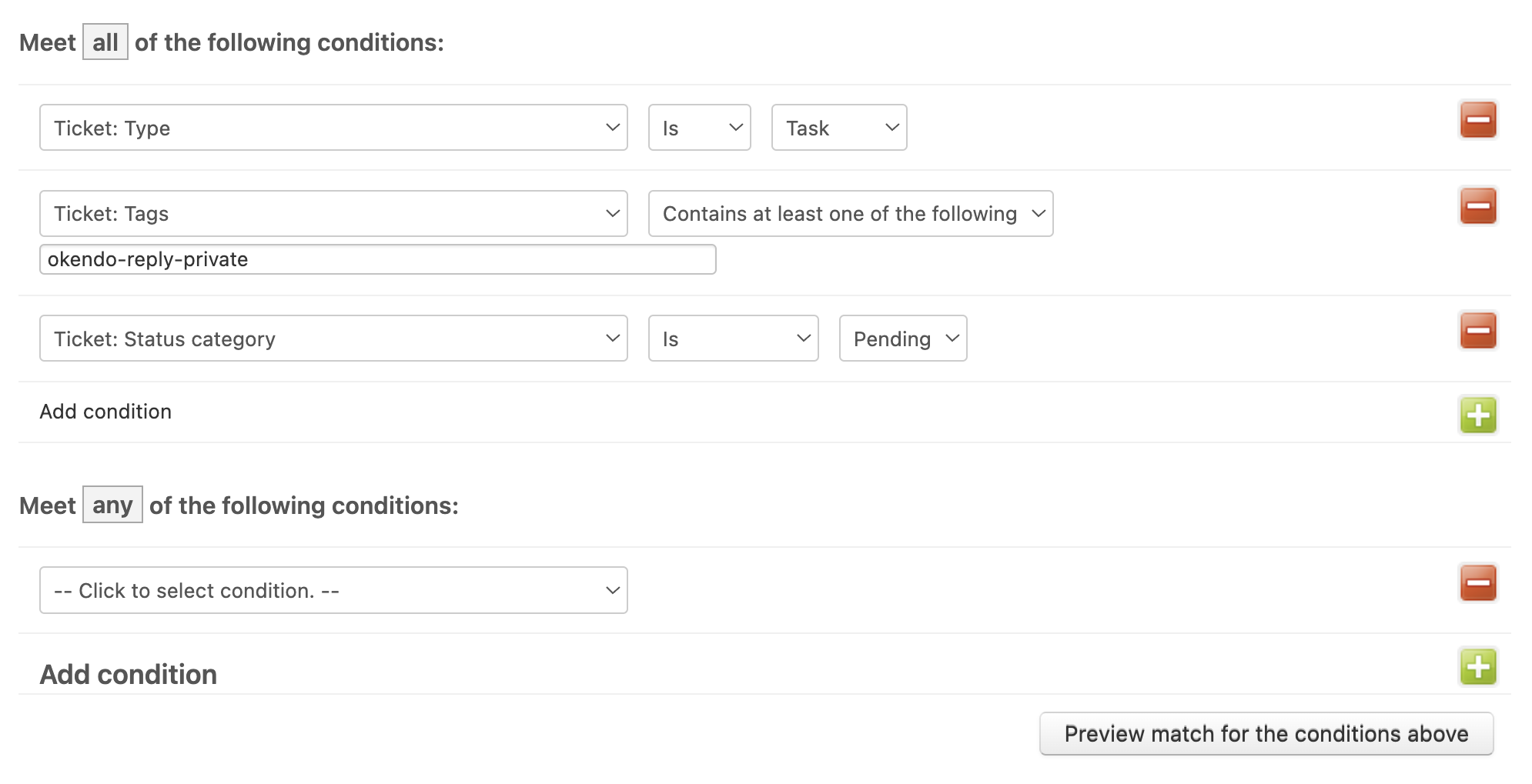
The private automation.
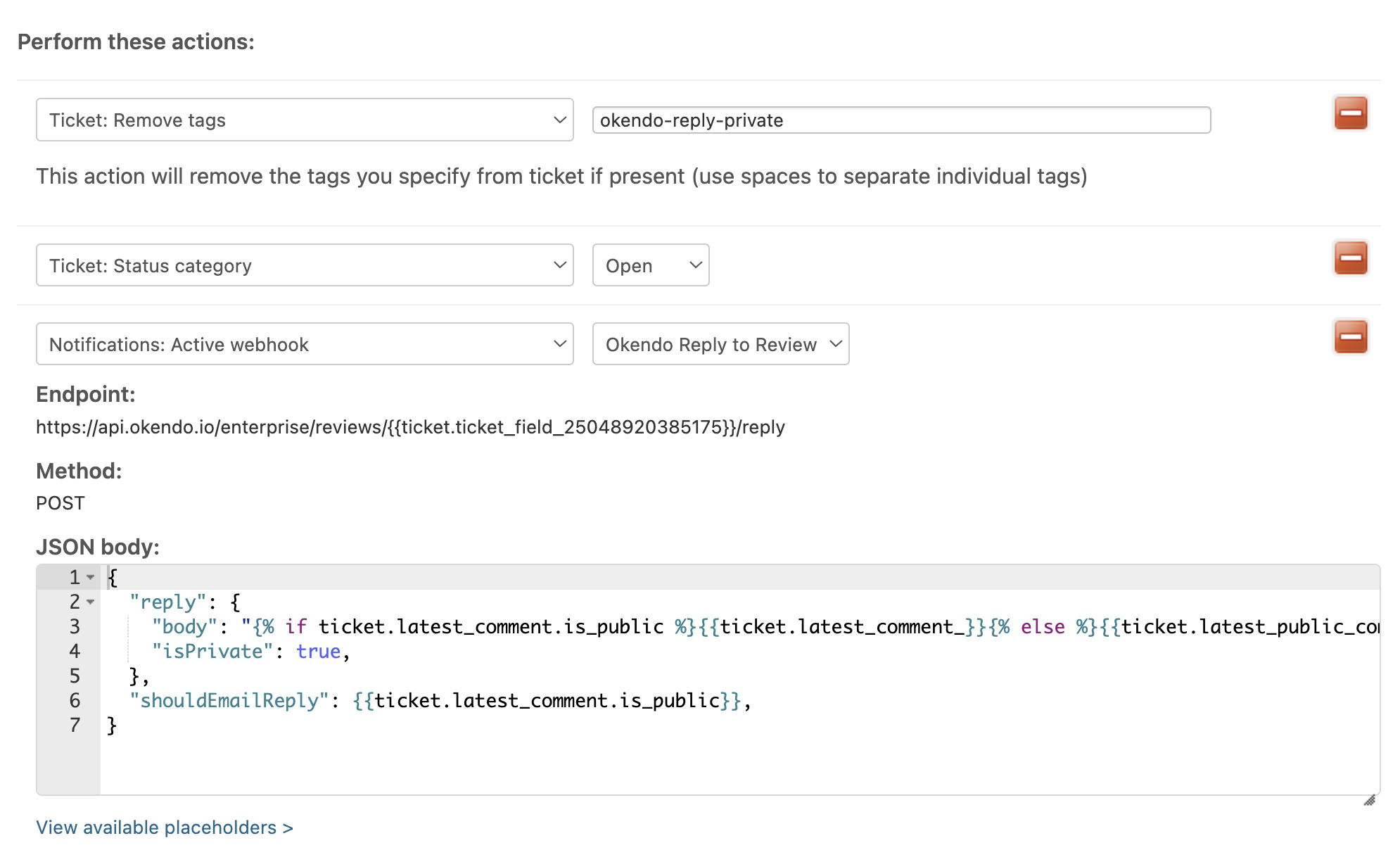
The private automation, continued.
-
Create another automation named Okendo Publish Review - Public, fill in the details as shown below and click Create.
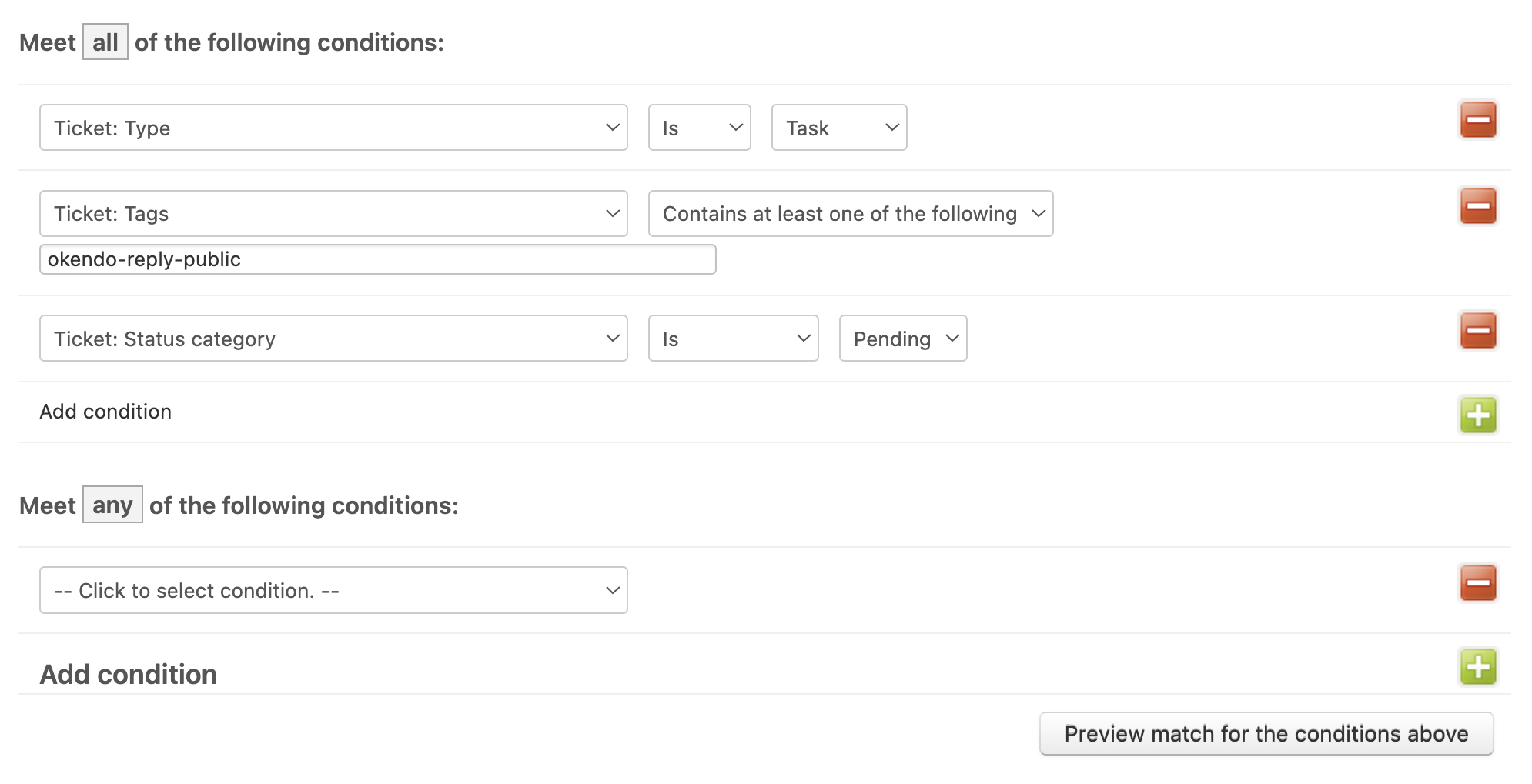
The public automation.
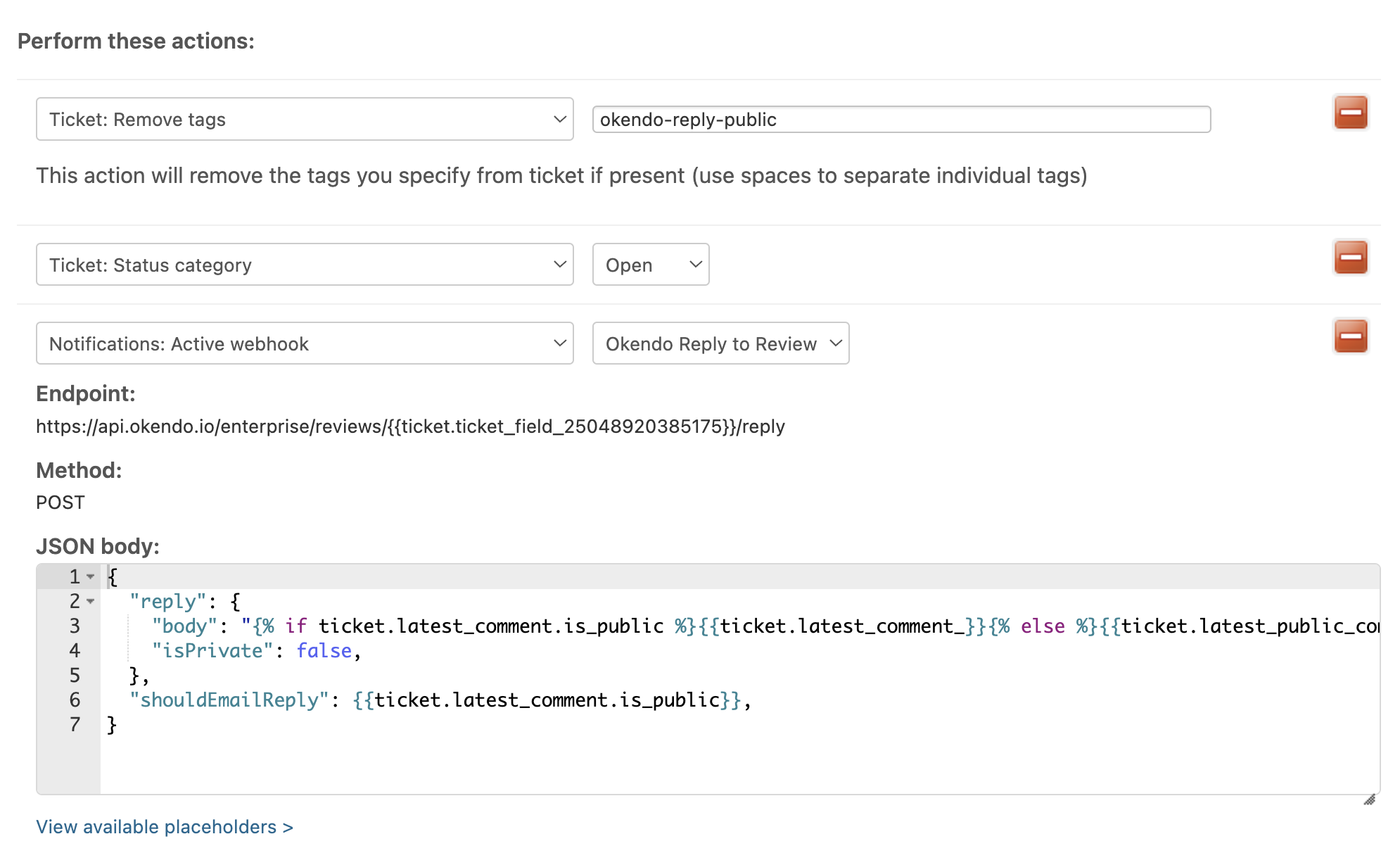
The public automation, continued.
Note: For the example code for both automations, contact support@agnostack.com.
Support and Troubleshooting
If you have questions or run into issues setting up the Okendo review workflow, contact us any time at support@agnostack.com. We're always happy to walk through and troubleshoot it together with you, and we try to make ourselves available across time zones.