
Setting up Klaviyo
as your Marketing Provider
Connect Klaviyo to agnoStack in Zendesk: create a custom Private API Key in Klaviyo with the right scopes, then enter it in the agnoStack configuration panel.
Connect Klaviyo to agnoStack in Zendesk: create a custom Private API Key in Klaviyo with the right scopes, then enter it in the agnoStack configuration panel.
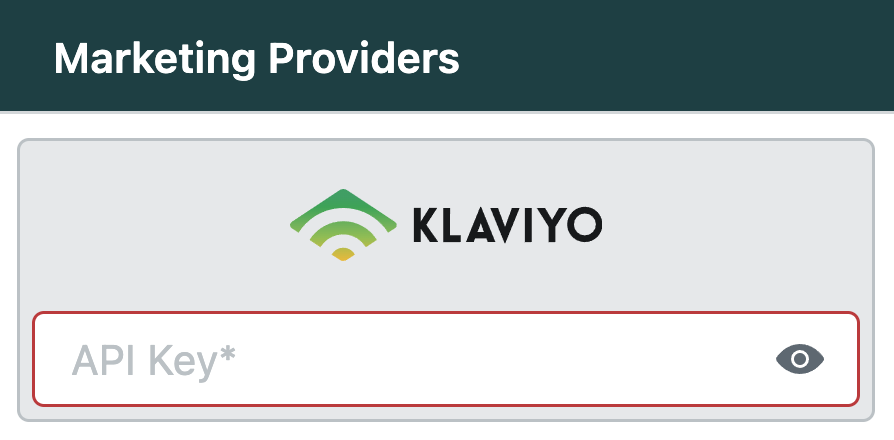
Klaviyo can be connected to Zendesk using the free Add-On Provider within the agnoStack plugin.
Klaviyo is one of the industry's leading Marketing Automation platforms, empowering businesses to use customer data for personalized email and SMS marketing so they can connect with their audience effectively.
To connect Klaviyo, you'll need one value: a Klaviyo Private API Key. Follow the steps below to create one.
API Keys in Klaviyo
-
Log in to your Klaviyo dashboard.
-
In the lower left-hand portion of the dashboard, click your account, then Settings.
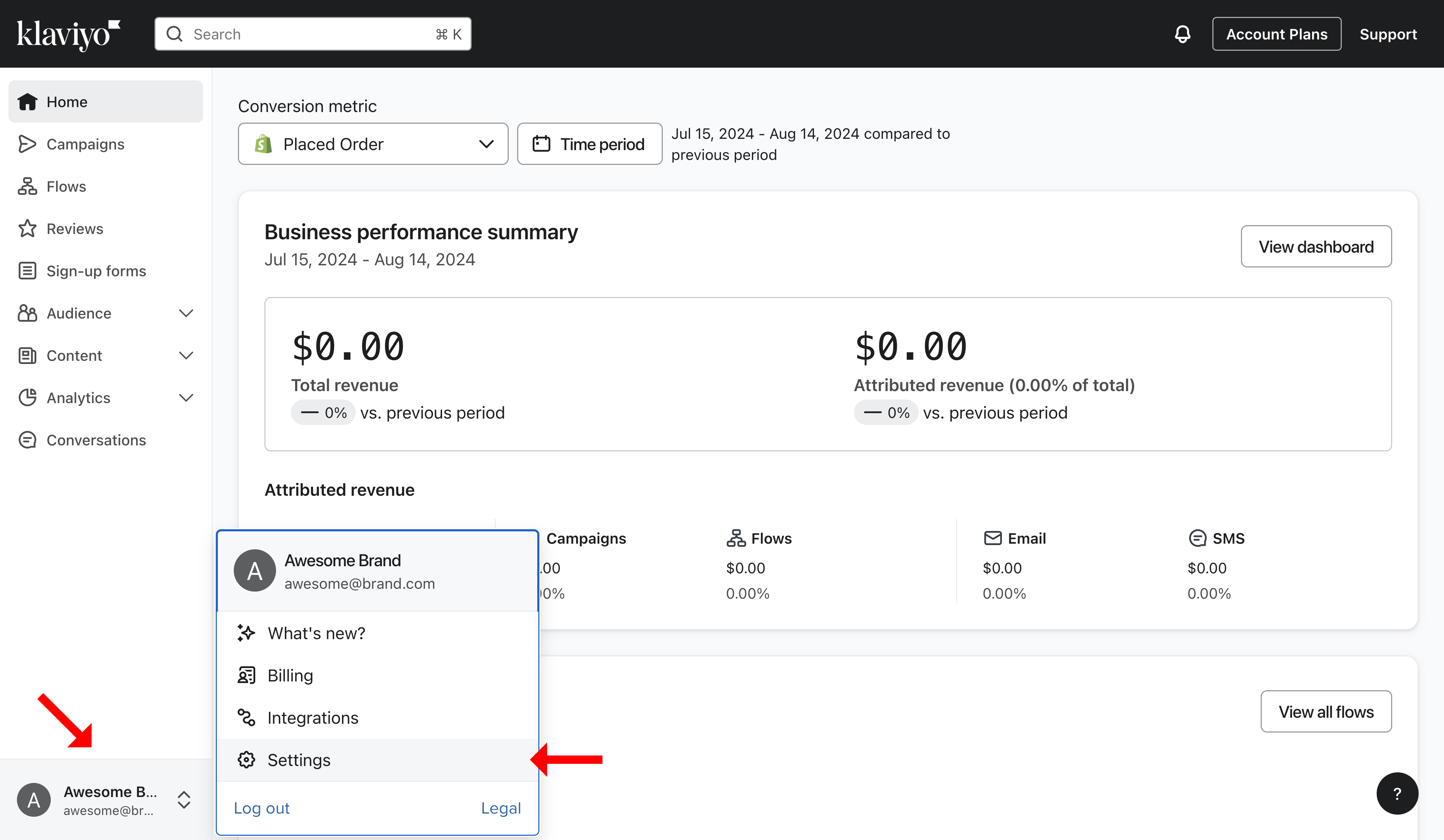
The Klaviyo dashboard.
-
On the Settings page, go to Account → API keys and click Create Private API Key.
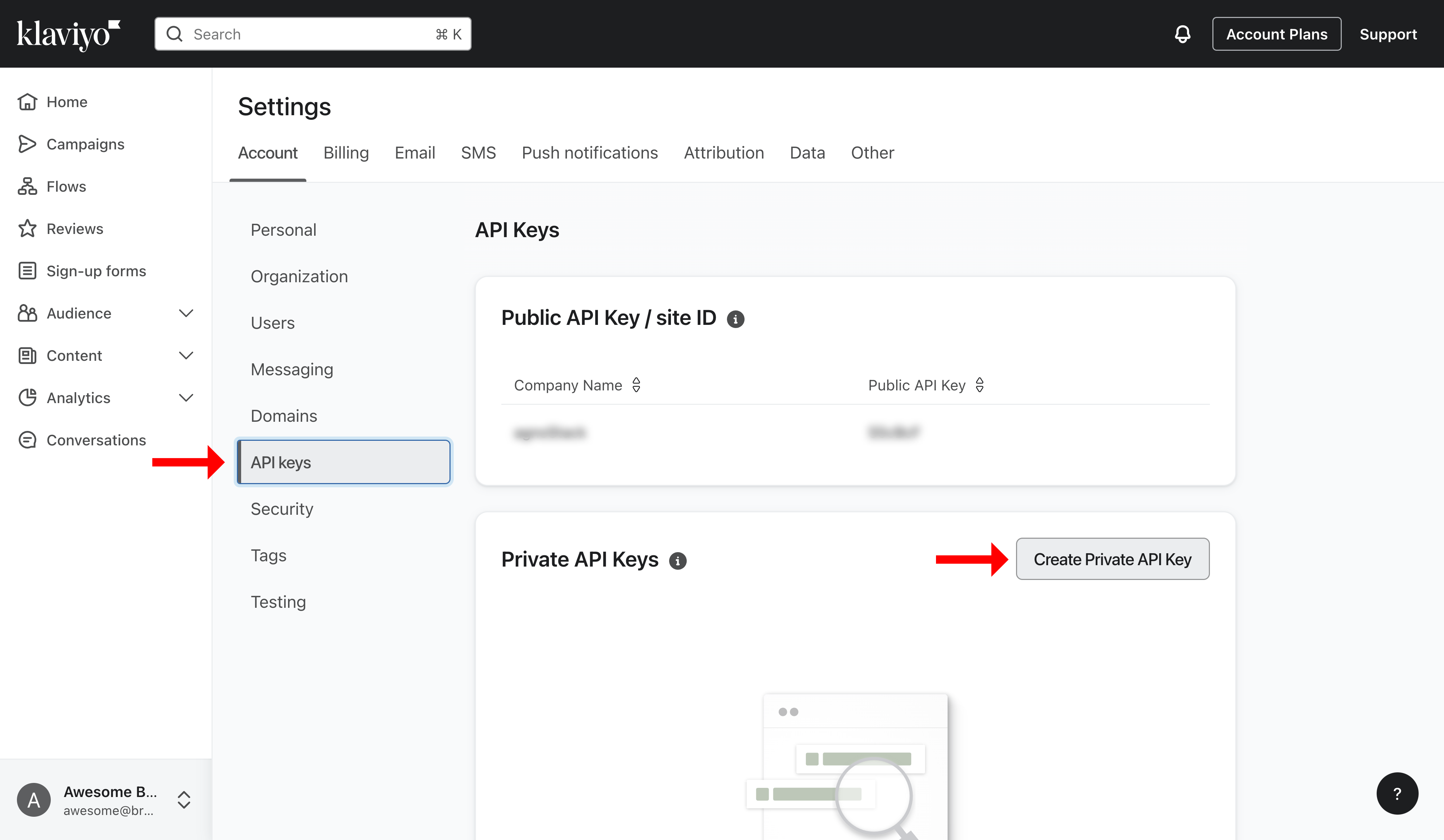
API keys in Klaviyo's account settings.
Private API Key
-
On the Create Private API Key page, give your key a meaningful name. It can be anything you wish, but is often Zendesk or agnoStack.
-
Under Select Access Level, make sure Custom Key is selected.
-
Set the API scopes as follows:
API Scope Access Coupon Codes Read Access Coupons Read Access Events Read Access List Read/Write Access Metrics Read Access Profiles Read/Write Access Segments Read/Write Access Subscriptions Read/Write Access -
Click Create to create your API key.
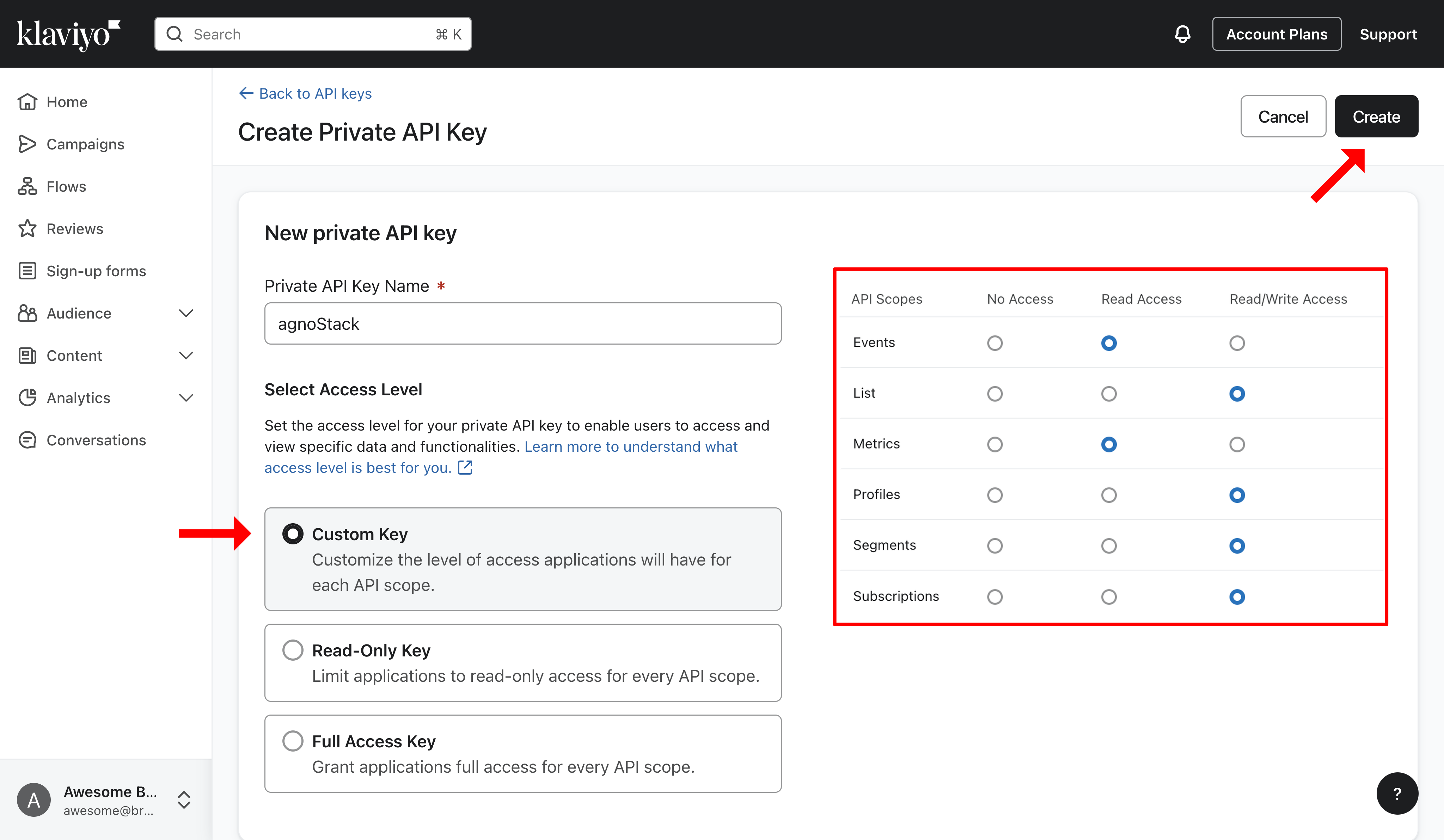
Choosing a custom access level and API scopes.
-
On the Private API Key confirmation screen, copy the API key shown under Your Private Key. This is the key you'll enter in agnoStack.
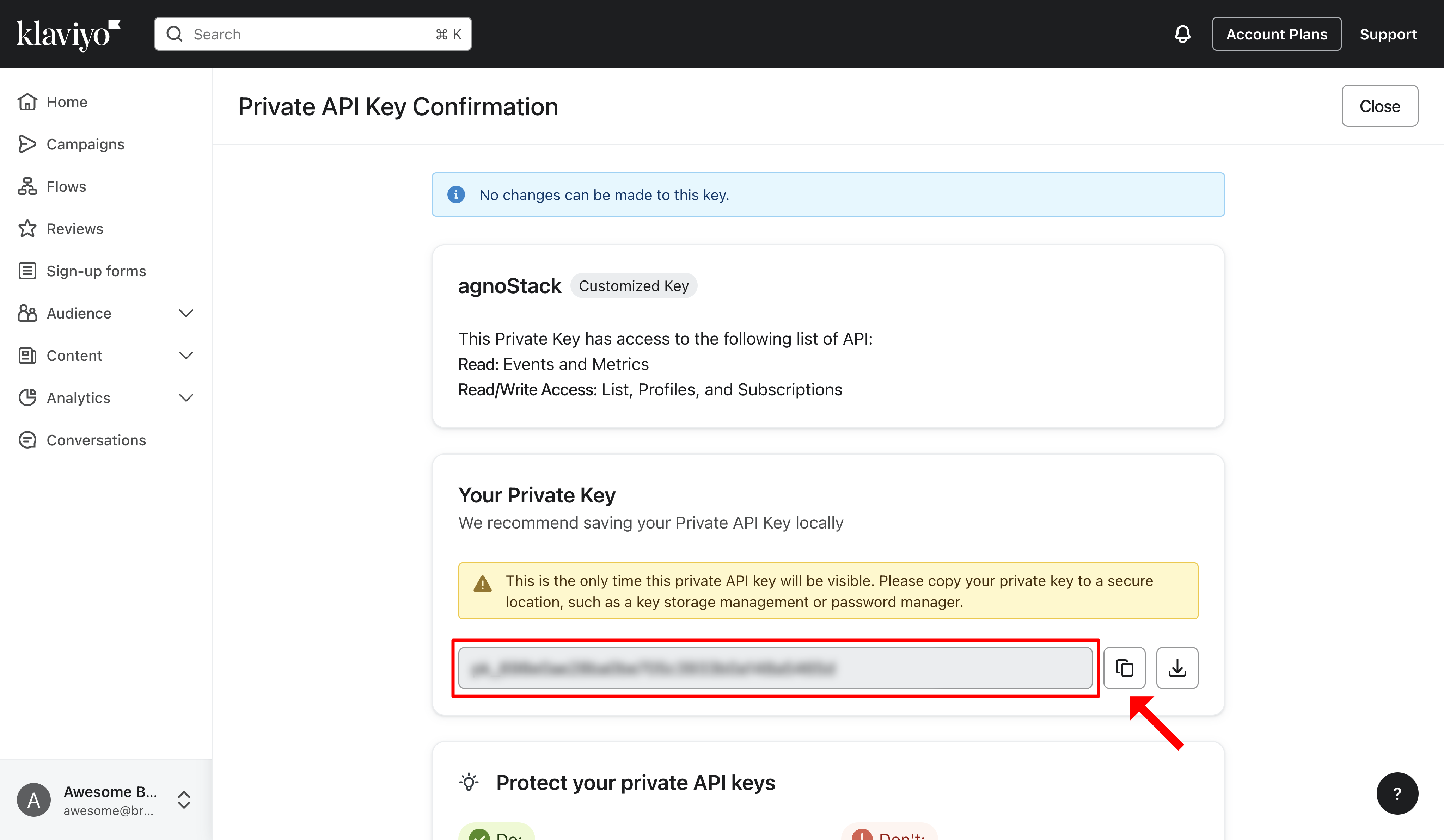
Copying your new Private API Key.
Entering Your Credentials in agnoStack
In Zendesk, open the agnoStack configuration panel (via the Manage Your Account link or the icon in the left sidebar) and, under Marketing Providers, enter the Klaviyo API key you copied above.
Continue through the remainder of the configuration screens and click Activate to save your new Add-On configuration.
If you run into any trouble or need additional assistance, please contact us any time at support@agnostack.com.