
Setting up Emarsys
as your Marketing Provider
Connect Emarsys to agnoStack in Zendesk: create an Emarsys Loyalty API Key (and, optionally, Core API credentials), then enter them in agnoStack.
Connect Emarsys to agnoStack in Zendesk: create an Emarsys Loyalty API Key (and, optionally, Core API credentials), then enter them in agnoStack.
Zendesk can be integrated with Emarsys through the free agnoStack Add-On Loyalty Provider (or Marketing Provider).
Emarsys provides both a Loyalty Platform that drives customer retention and its Core Platform for driving engagement. Together they help brands increase retention and customer lifetime value through personalized loyalty programs. With Emarsys connected to Zendesk through agnoStack, agents see key loyalty metrics right inside their support workflow.
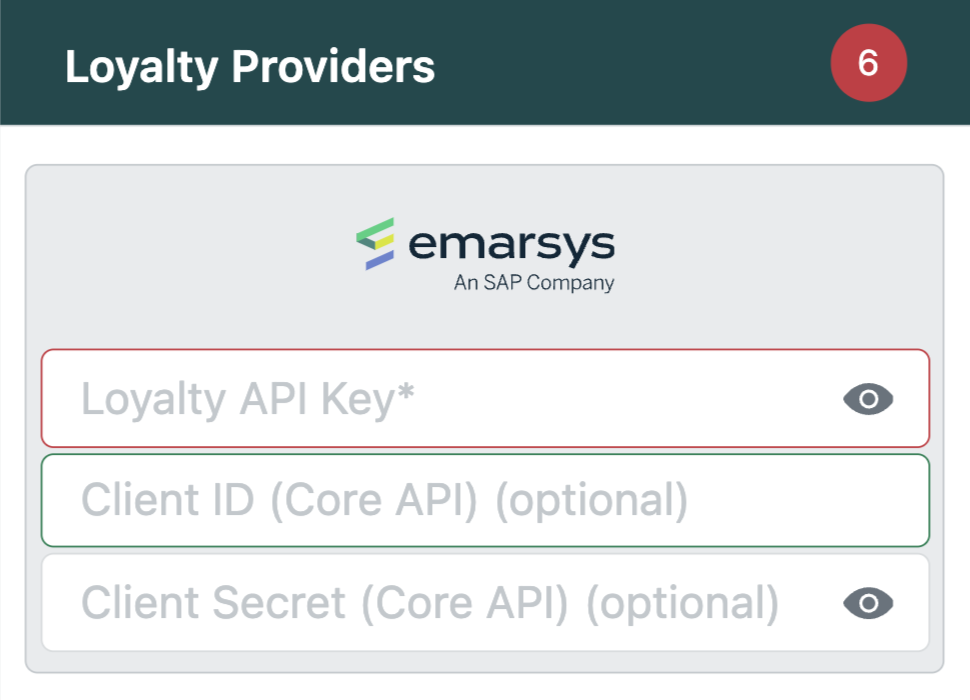
To connect Emarsys, you'll need a Loyalty API Key. You can also add a Client ID and Client Secret for the Emarsys Core API.
Loyalty API Key
The Emarsys account owner can create the Loyalty API Key in the Emarsys Suite under Loyalty Configuration → API Key. This key is different from the key for the Emarsys Core API (below). For more details, see Emarsys's Loyalty authentication guide.
- Log in to your Emarsys dashboard as the account owner.
- Open the Loyalty Management module from the main dashboard navigation.
- Within Loyalty, go to the API Key tab.
- Click Create API Key.
- Enter a name to help identify the key (for example, Zendesk Integration or agnoStack).
- Click Create to generate the key. This is your Loyalty API Key.
Note: You may need to have Smart Insight configured in your account. Otherwise, the option to create the API key will be disabled.
Emarsys Core API (Optional)
To call the Core API, agnoStack needs API credentials (a Client ID and Client Secret) created with the Emarsys v3 OpenID Connect authentication method.
The account owner can create the Client ID and Client Secret under Management → Security Settings in the Emarsys application. For details, see API Credentials in Emarsys's v3 API authentication guide.
Entering Your Credentials in agnoStack
In Zendesk, open the agnoStack configuration panel (via the Manage Your Account link or the agnoStack icon in the left sidebar), select Emarsys, and enter the following:
| Field | Value |
|---|---|
| Loyalty API Key | Your Emarsys Loyalty API Key |
| Client ID (Core API) (optional) | Your Emarsys Core API Client ID |
| Client Secret (Core API) (optional) | Your Emarsys Core API Client Secret |
Continue through the rest of the configuration screens and click Activate to save your new Add-On configuration.
If you run into any trouble or need help, contact us any time at support@agnostack.com.