
Setting up Givy
as your Gift Card Provider
Connect Givy to agnoStack in Zendesk so agents can see, issue, top up and disable your Shopify store's Givy gift cards from the ticket.
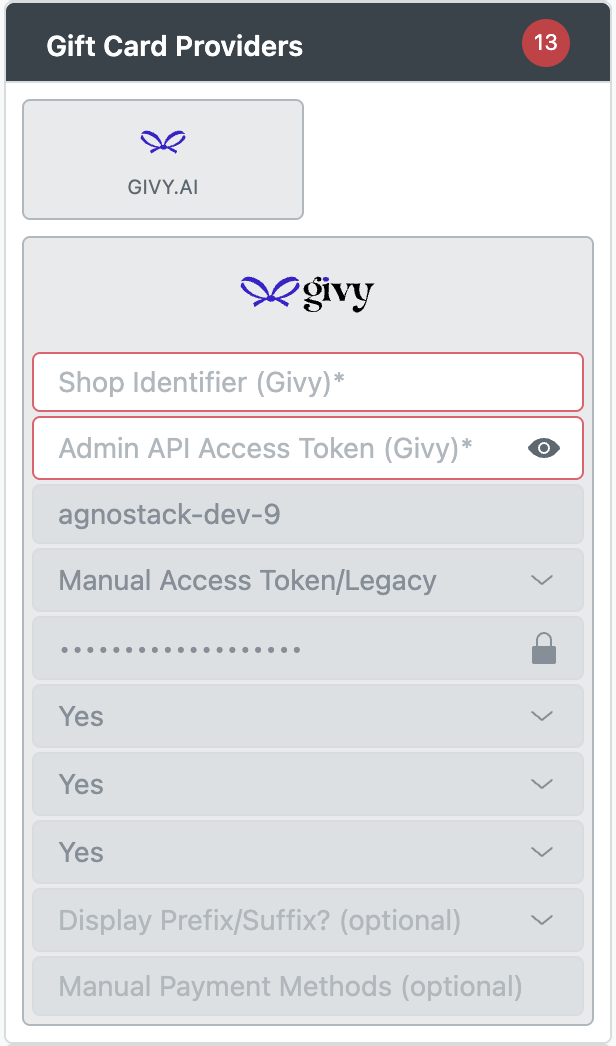
Givy adds personalized gift cards to your Shopify store. With Givy connected to agnoStack, agents can see, issue, top up and disable a customer's Givy gift cards right inside each Zendesk ticket. Givy is supported on our Premium and Enterprise subscription tiers.
To connect Givy, you'll need two values from Givy: your Shop Identifier and an Admin API Access Token.
Note: Givy works on top of your Shopify connection, so Shopify must already be your agnoStack Commerce Provider, on a Shopify Plus store with Givy installed.
Enabling Gift Cards for Shopify
In Zendesk, open the agnoStack configuration panel, open your Shopify Commerce Provider settings and set Enable Gift Cards? to Yes. Givy is only offered once this is set.
Shop Identifier and Access Token
Both values are on Givy's API Access settings. Enabling Givy's Admin API there creates your Shop Identifier, if you don't have one yet, and an Admin API Access Token.
-
In your Shopify admin, open Apps → Givy.
-
Go to Settings → API Access.
-
Under Admin API, click Enable, then save the page.
-
Click the copy icon beside Shop Identifier. This is your Shop Identifier.
-
Under Admin API, click the copy icon beside Access token. This is your Admin API Access Token.
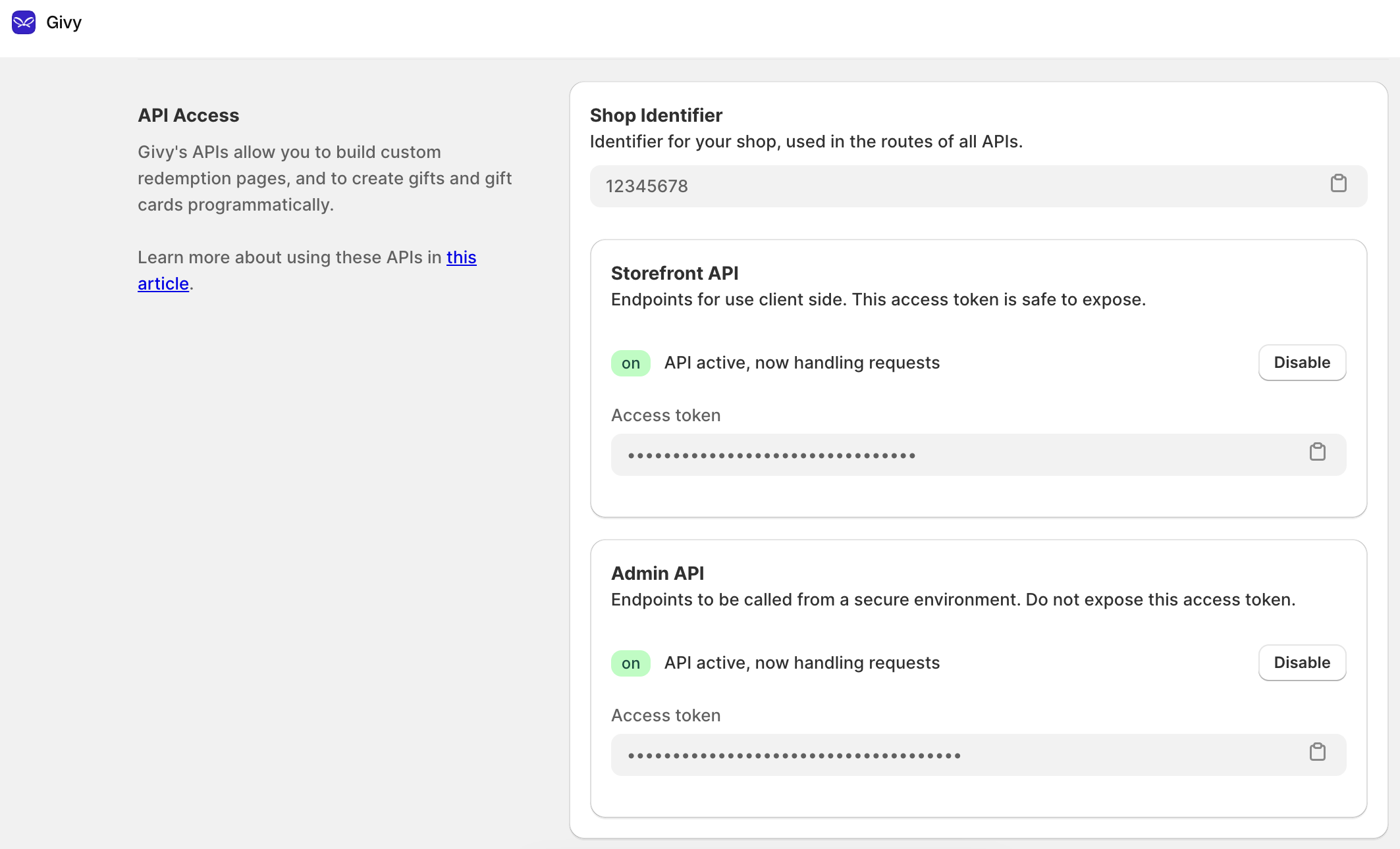
Givy's API Access settings.
Note: Use the Admin API access token, not the Storefront API one. The Admin API token must be kept private, so don't share it outside the agnoStack configuration panel.
Entering Your Credentials in agnoStack
In the agnoStack configuration panel, go to Manage Add-Ons, select Givy.ai under Gift Card Providers, and enter the following:
| Field | Value |
|---|---|
| Shop Identifier (Givy) | Your Givy Shop Identifier |
| Admin API Access Token (Givy) | Your Givy Admin API Access Token |
The greyed-out Shopify fields below them are filled in from your Commerce Provider, so there's nothing else to set up. Givy gift cards then appear in the Gift Cards tab of each customer's details.
Troubleshooting
Givy isn't listed under Gift Card Providers. Check that Shopify is your Commerce Provider, that Enable Gift Cards? is set to Yes, and that you're on Premium or Enterprise.
Agents see "Gift Card balance access scope is not enabled". Gift cards that weren't issued through Givy are topped up in Shopify, which needs the write_gift_card_transactions access scope on your Shopify connection.