
Setting up Dynamics Business Central
as your CRM Provider
Connect Microsoft Dynamics 365 Business Central to agnoStack in Zendesk: register an Azure AD application, authorize it in Business Central, then enter your Tenant ID, Client ID and Client secret.
Connect Microsoft Dynamics 365 Business Central to agnoStack in Zendesk: register an Azure AD application, authorize it in Business Central, then enter your Tenant ID, Client ID and Client secret.
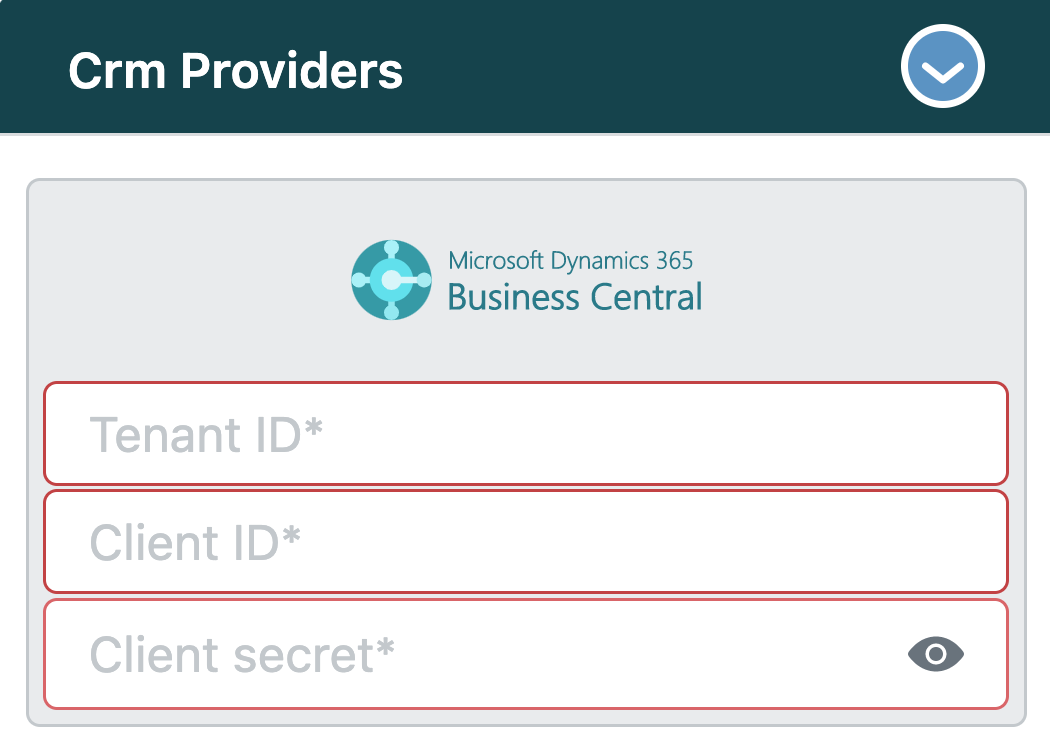
Microsoft Dynamics Business Central can be integrated with Zendesk as a free Add-On Provider through agnoStack.
Microsoft Dynamics 365 Business Central is an ERP/CRM solution that provides cloud-based business management software, bringing your business data into one system and giving every department a unified view of the overall business.
To connect Business Central, you'll need three values from an Azure Active Directory (Azure AD) application: a Tenant ID, a Client ID and a Client secret. Follow the steps below to create the application, authorize it in Business Central and grant it API access.
Create and Register an Azure AD Application
-
Sign in to the Azure portal (
https://portal.azure.com) using the same Admin credentials you use to access Business Central.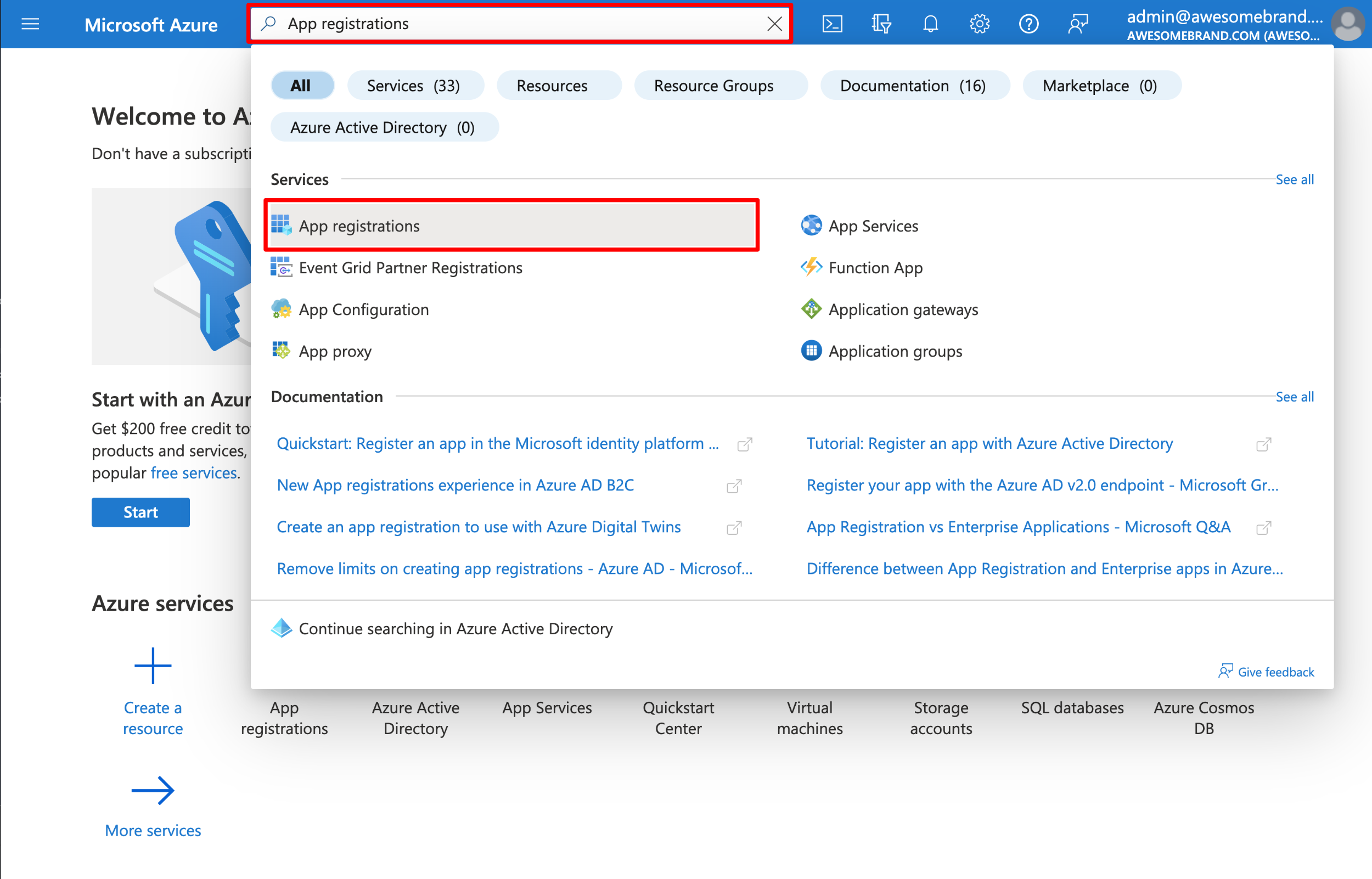
Searching for App registrations in the Azure portal.
-
Click New registration to register your new application.
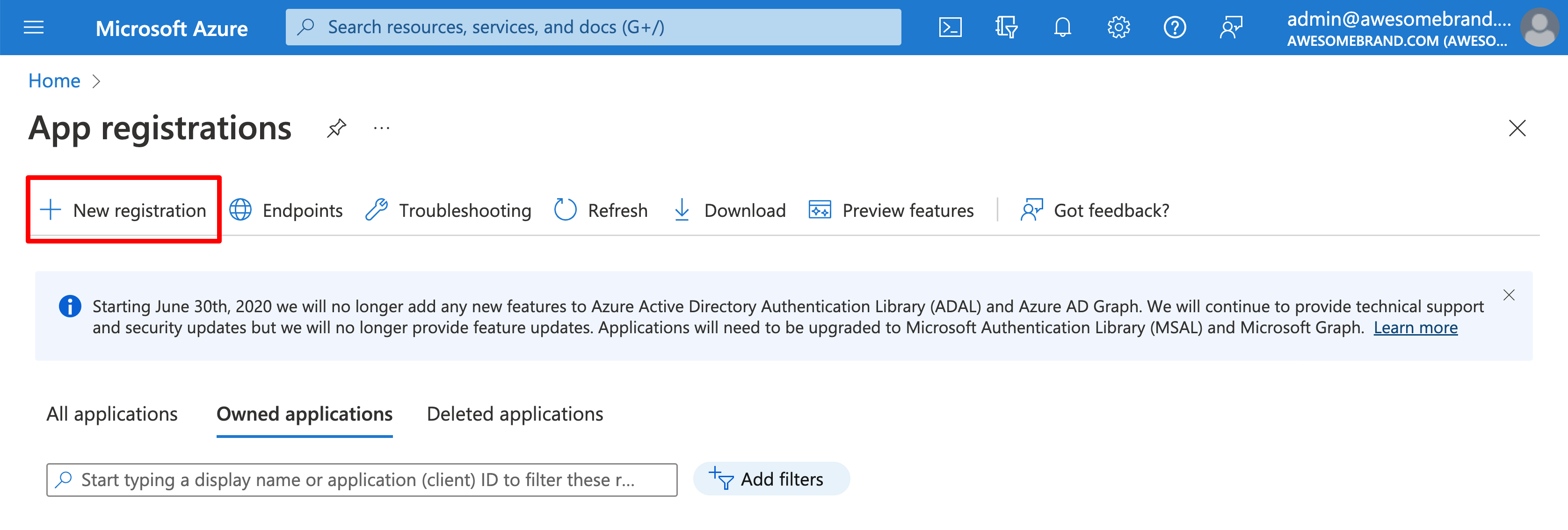
App registrations in the Azure portal.
-
Give your application a meaningful name (this can be anything you wish), make sure to select the Single tenant option, then click Register.
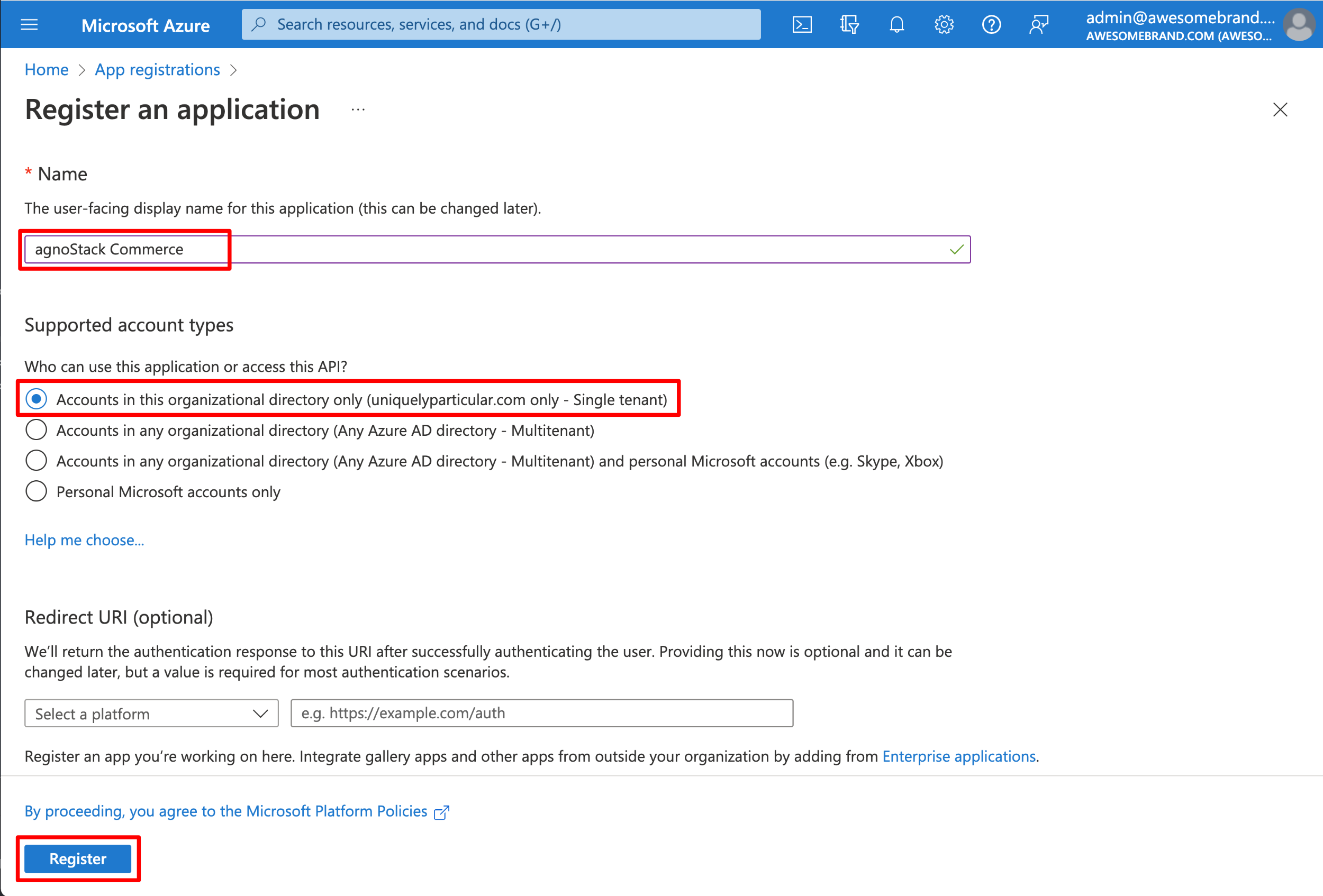
Registering a new application.
-
Once your application is registered, make a note of the Application (client) ID (your Client ID) and the Directory (tenant) ID (your Tenant ID). You'll need both later to configure agnoStack.
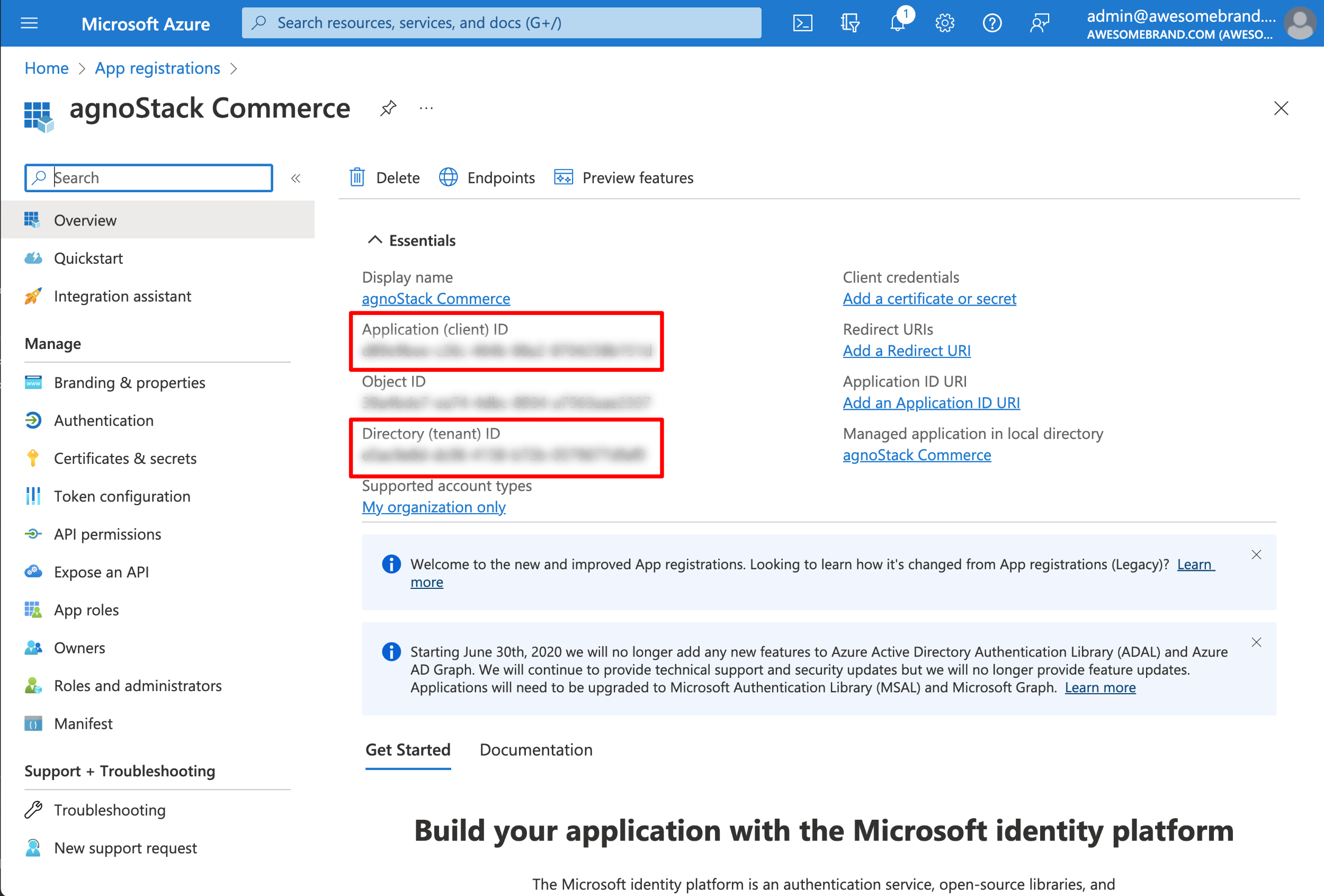
The app registration overview.
-
Click Certificates & secrets in your app registration's left-hand menu. Choose New client secret, give it a description and select an expiration duration (we recommend 24 months).
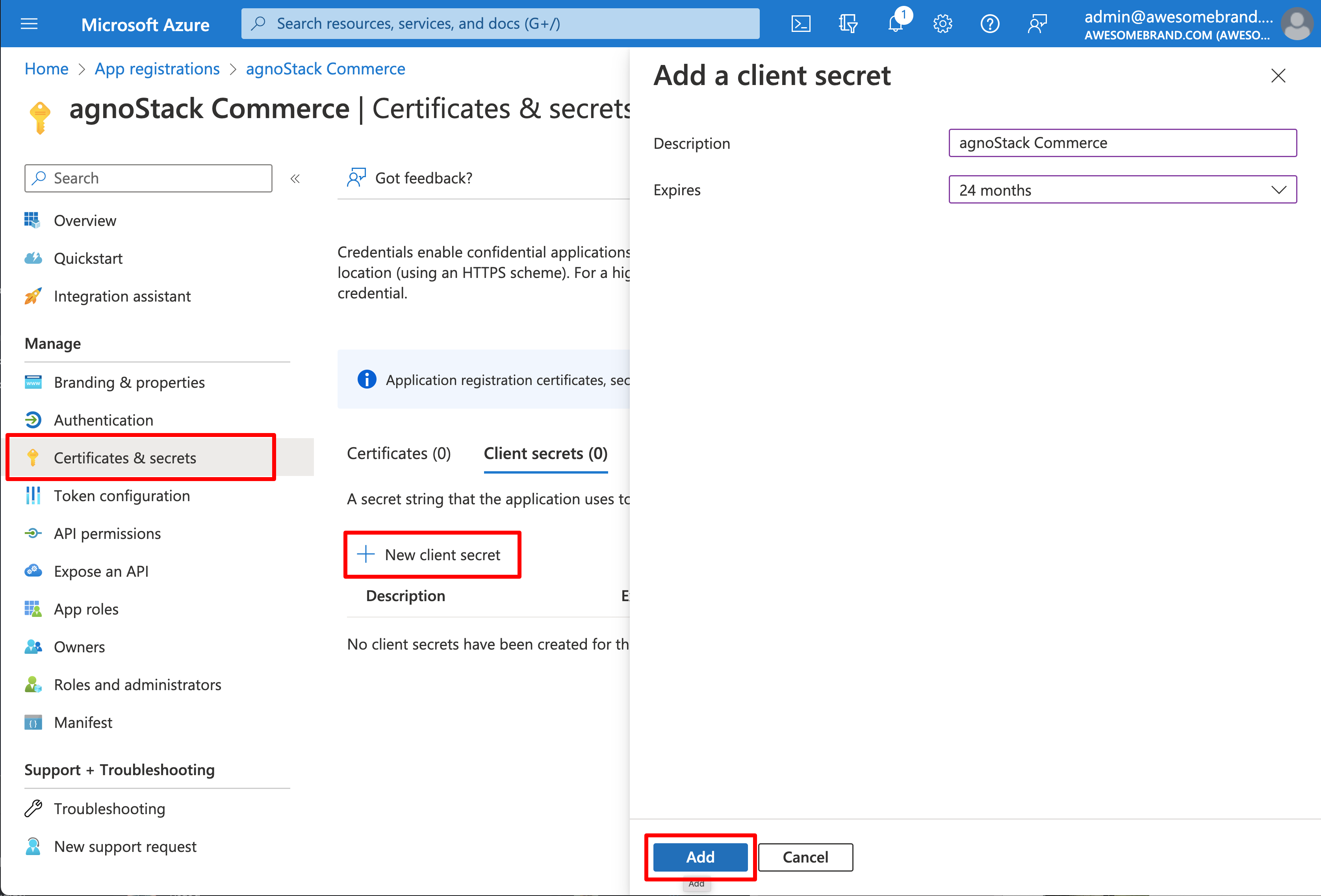
Adding a client secret.
-
Once your client secret is created, copy its value. This is your Client secret.
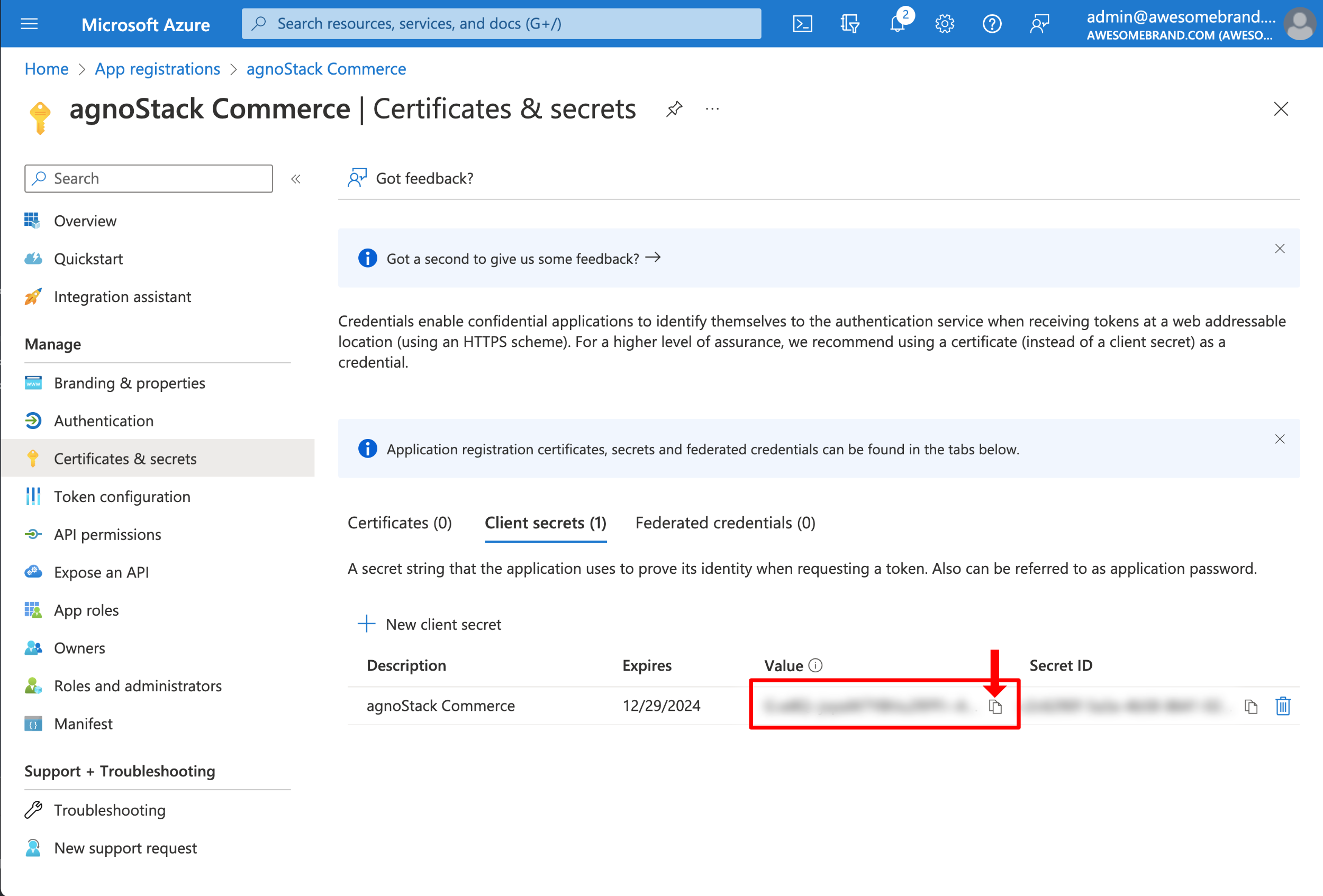
Copying the client secret.
Note: Copy your client secret immediately, as it is only displayed once. You'll need this value later to configure agnoStack.
Set Up the Azure AD Application in Business Central
-
Log in to your Business Central account using your Admin credentials. In the main search field, type Azure Active Directory Applications and select this option in the search results.
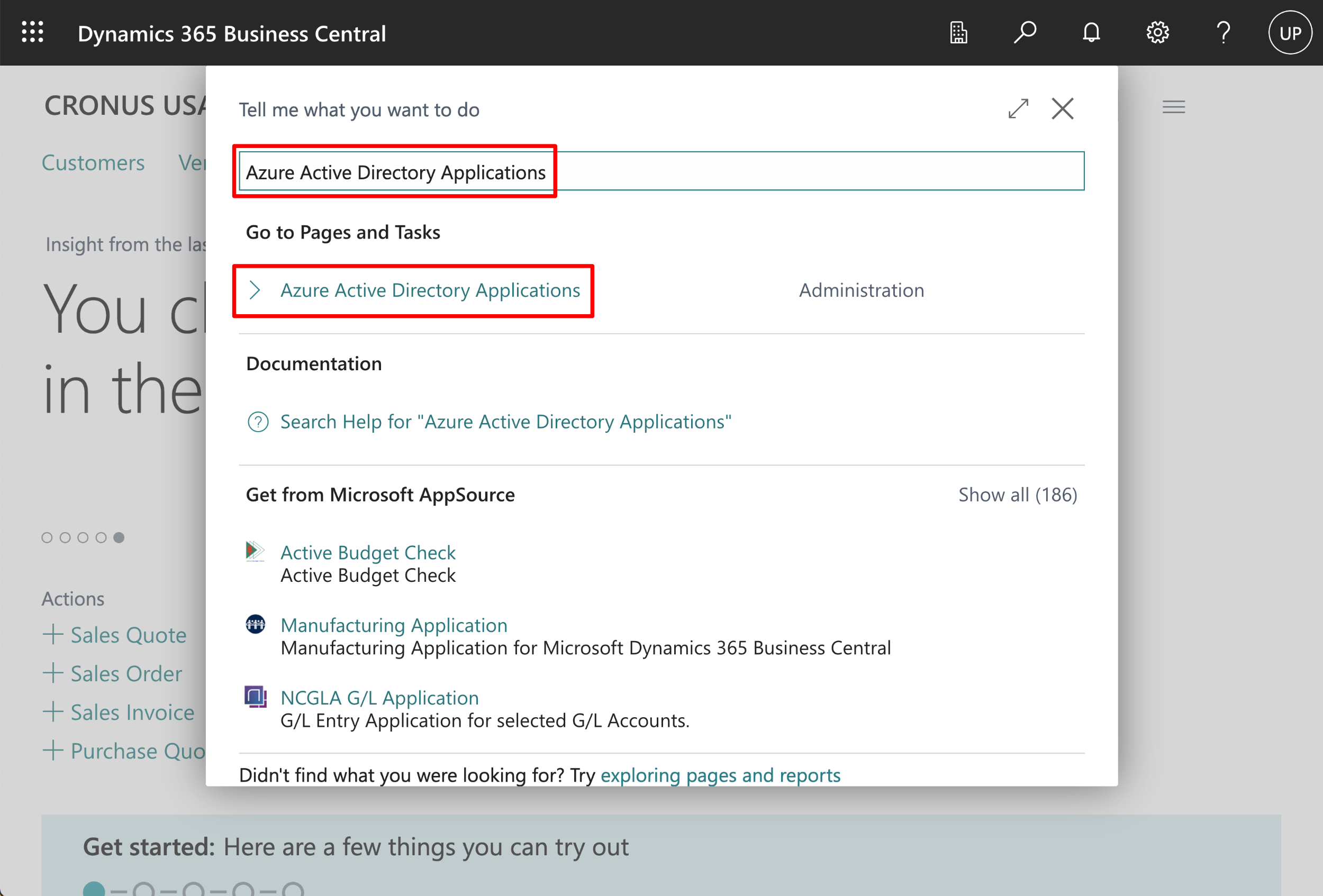
Searching for Azure Active Directory Applications in Business Central.
-
Click New to add your new application to Business Central.
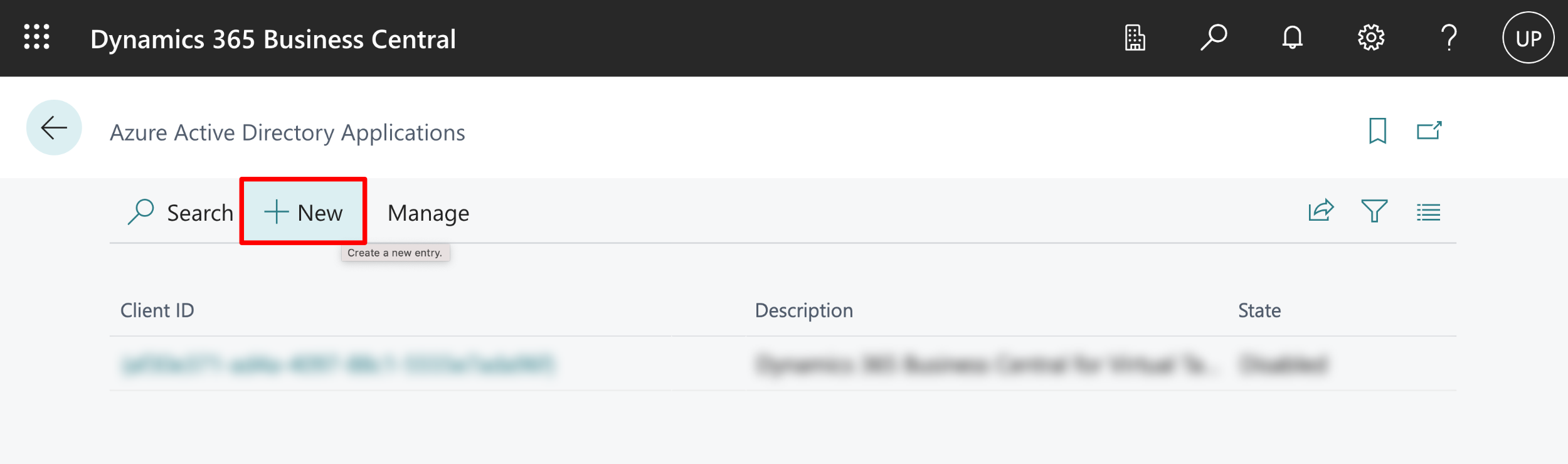
Adding a new application.
-
Enter the Client ID you noted earlier, give it a description and set State to Enabled. Then scroll down to the User Groups section to add the appropriate permissions.
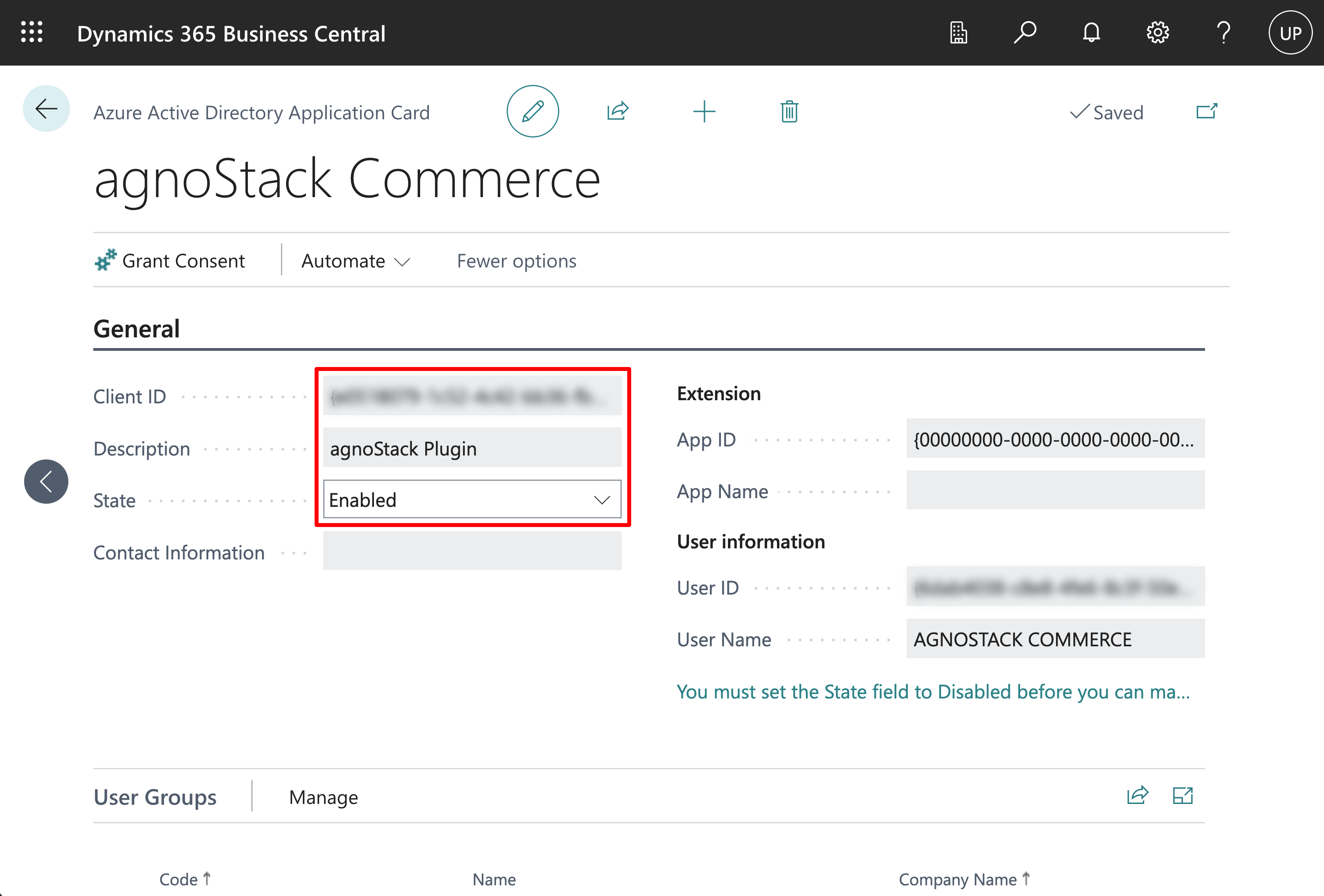
The Azure Active Directory Application Card.
-
Click inside the Code field to open the permission list and choose the appropriate permissions. The minimum permission agnoStack needs is D365 BASIC ISV.
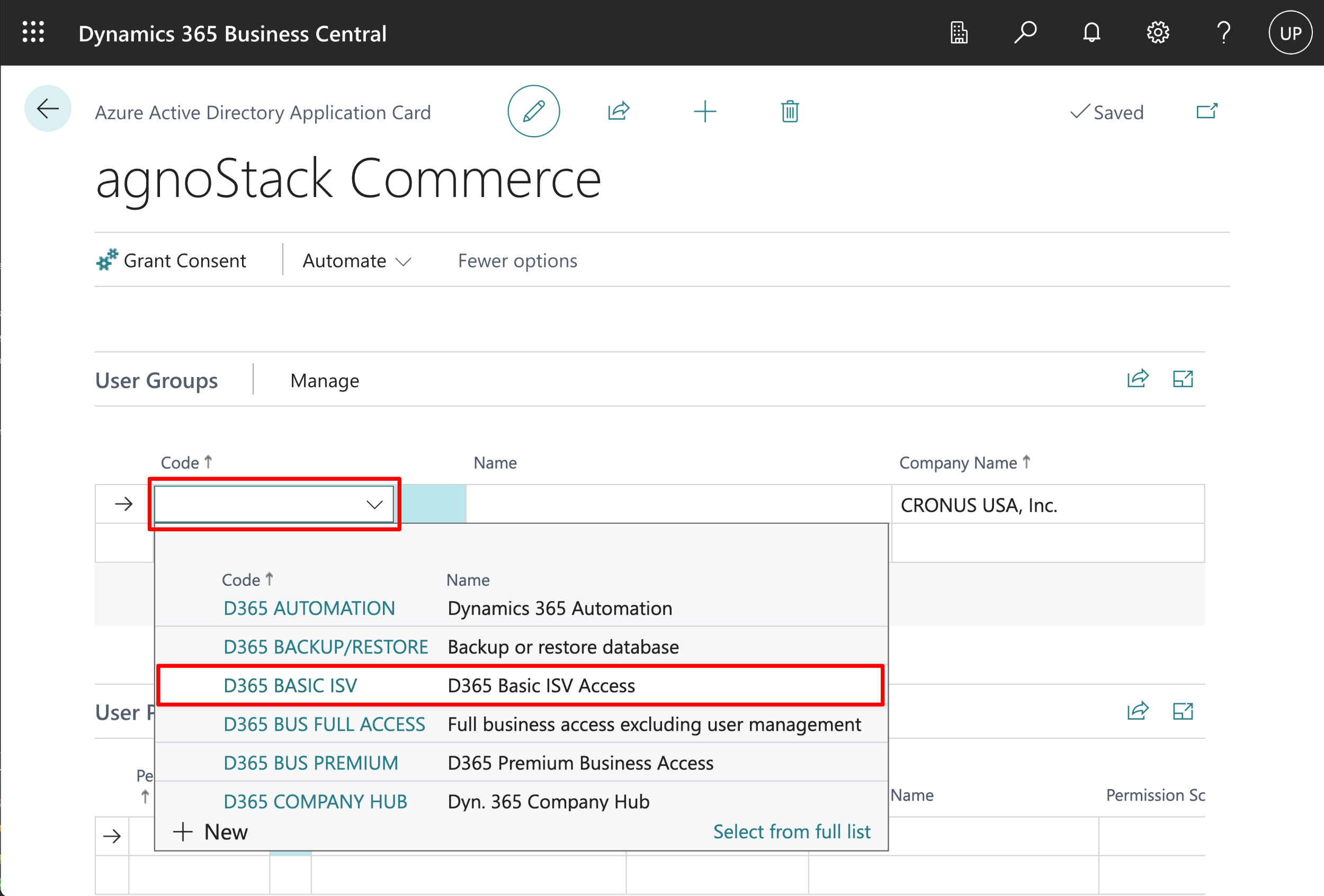
Choosing the application's permissions.
-
Once selected, click into the Name field to make sure its value is populated. Your configuration should then look like the screenshot below.
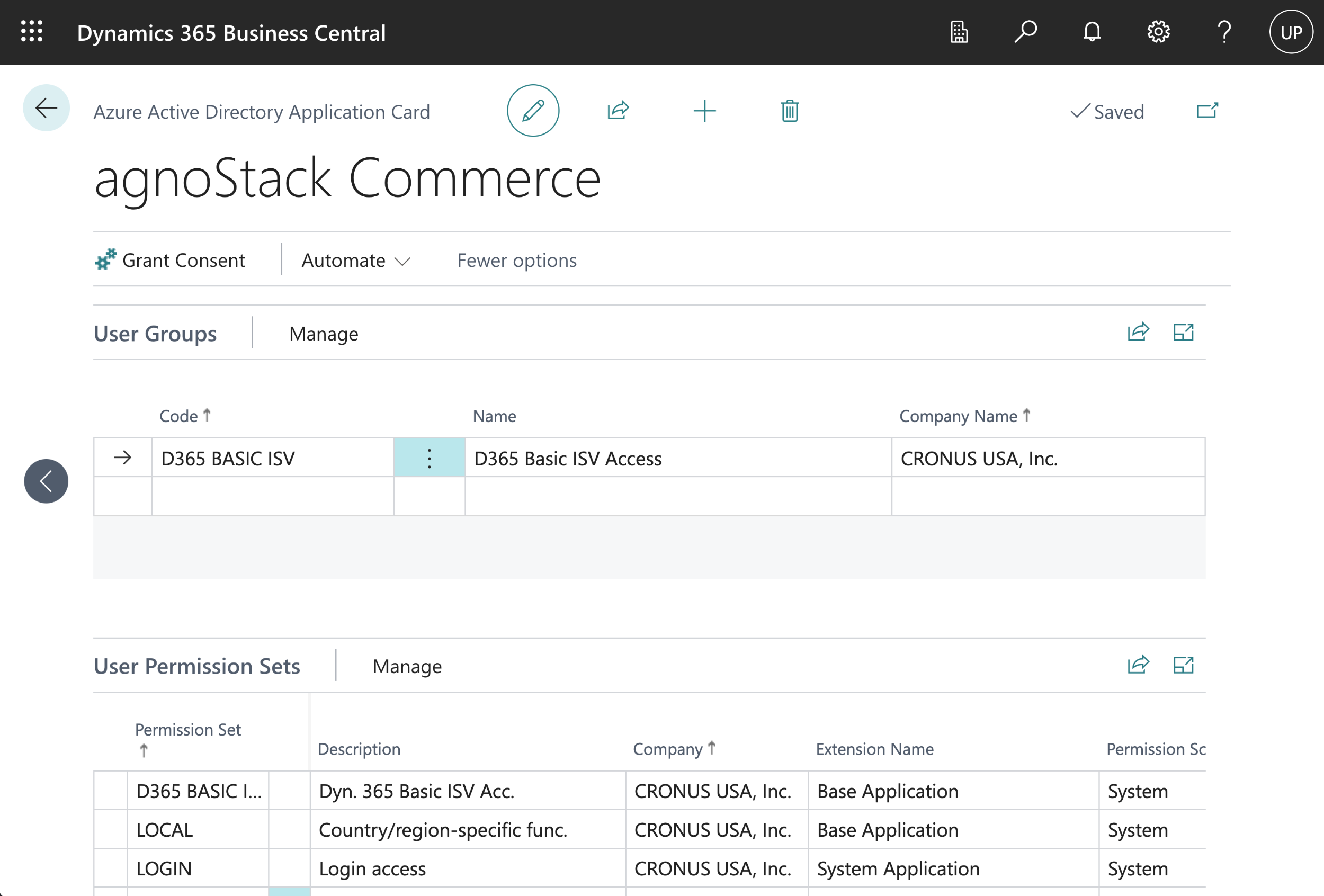
The configured application permission.
-
Go back to your Business Central dashboard, select the Gear icon and choose Admin Center to authorize your new application.
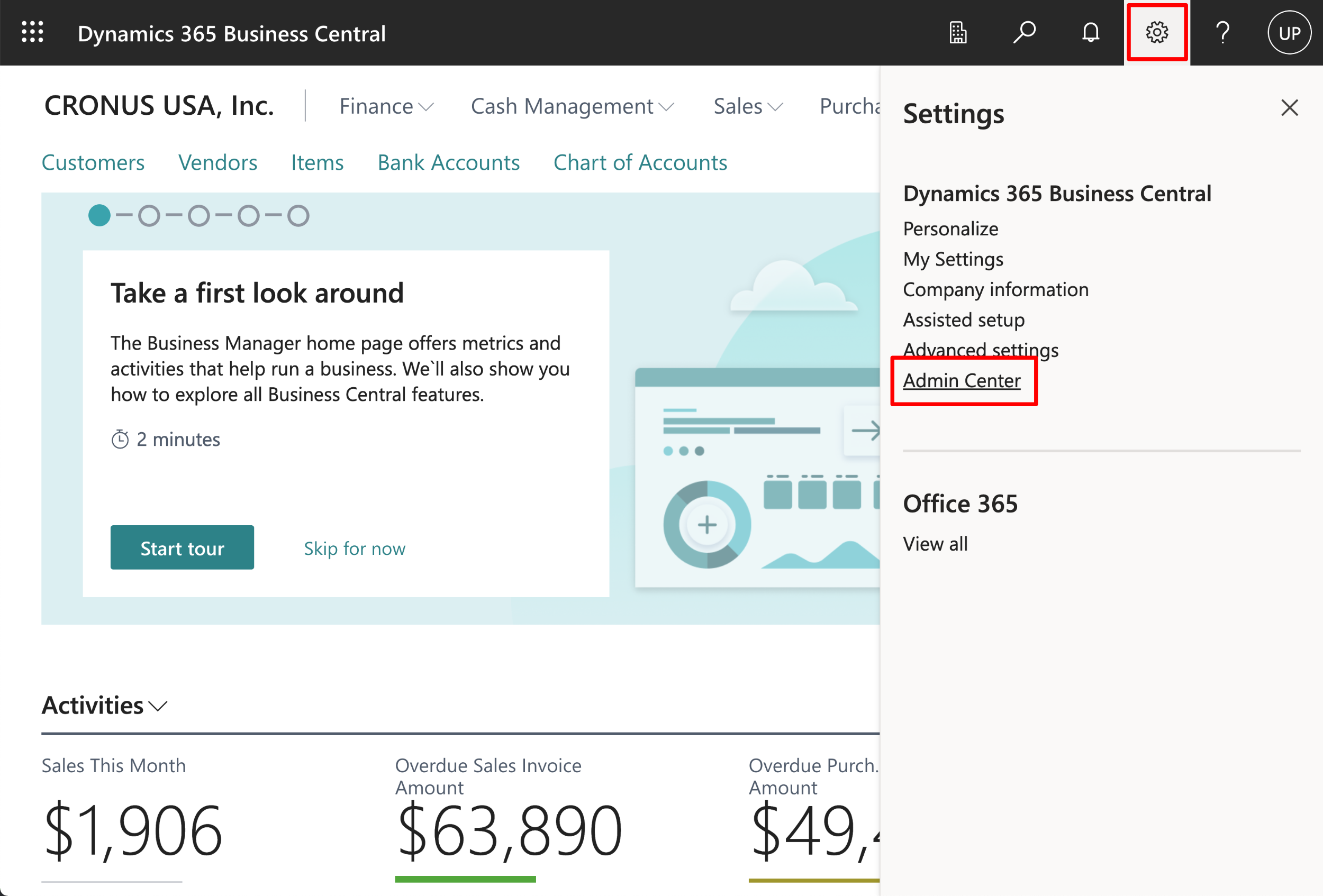
Opening the Admin Center from the settings menu.
-
Choose Authorized AAD Apps, then click Authorize Azure AD app at the top of the screen. In the Application (Client) ID field, enter your Client ID and click Save.
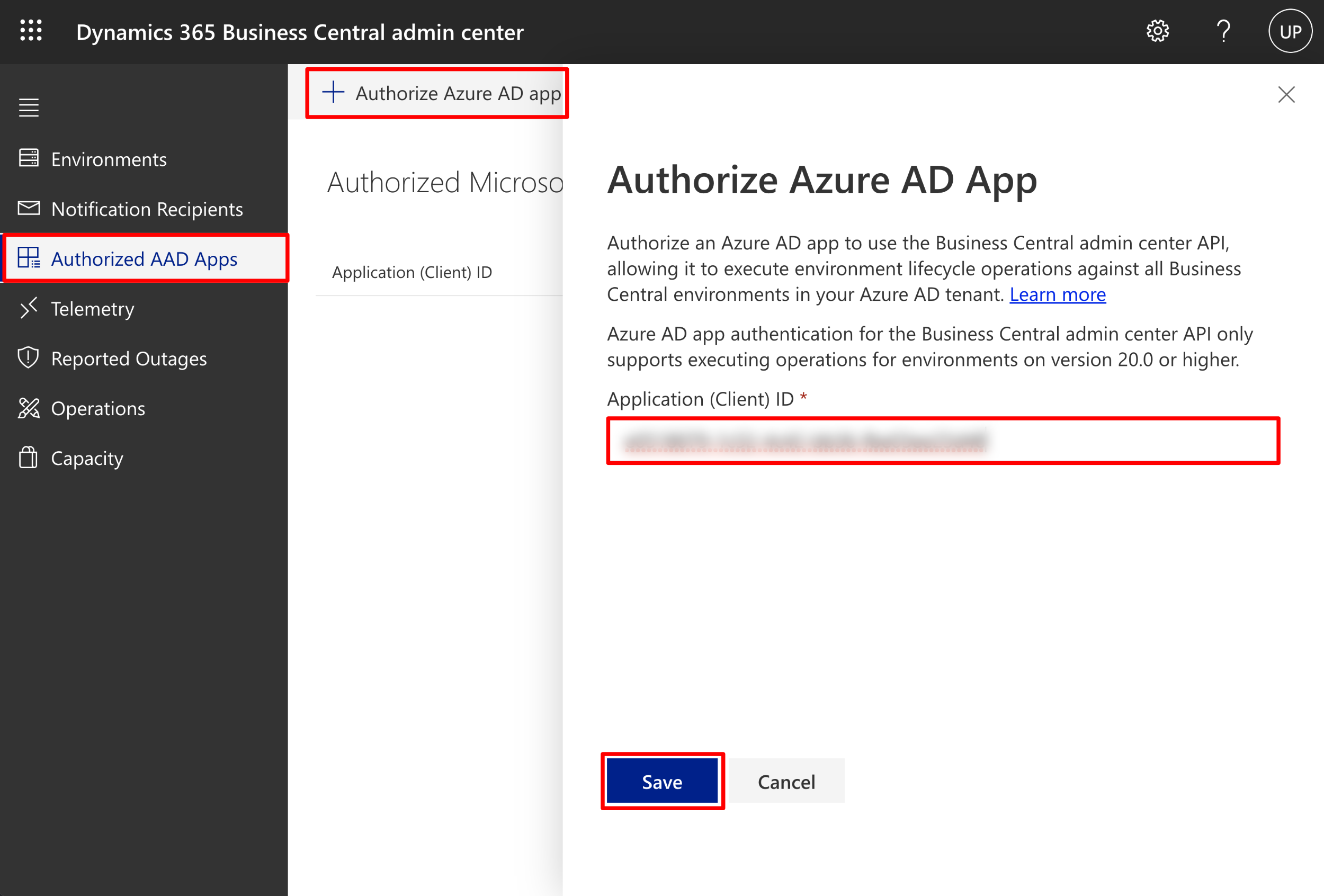
Authorizing the Azure AD application.
Note: You don't need to click the Grant link that appears in the list once saved. You'll grant consent in the Azure portal in the next section.
Configure the Azure AD Application Permissions
-
Go back to the Azure portal (
https://portal.azure.com) and open your new app registration. You can find it by searching for App registrations and selecting your application from the list. -
On your application's overview screen, click API permissions in the left-hand menu. In the Request API permissions panel, click Dynamics 365 Business Central.
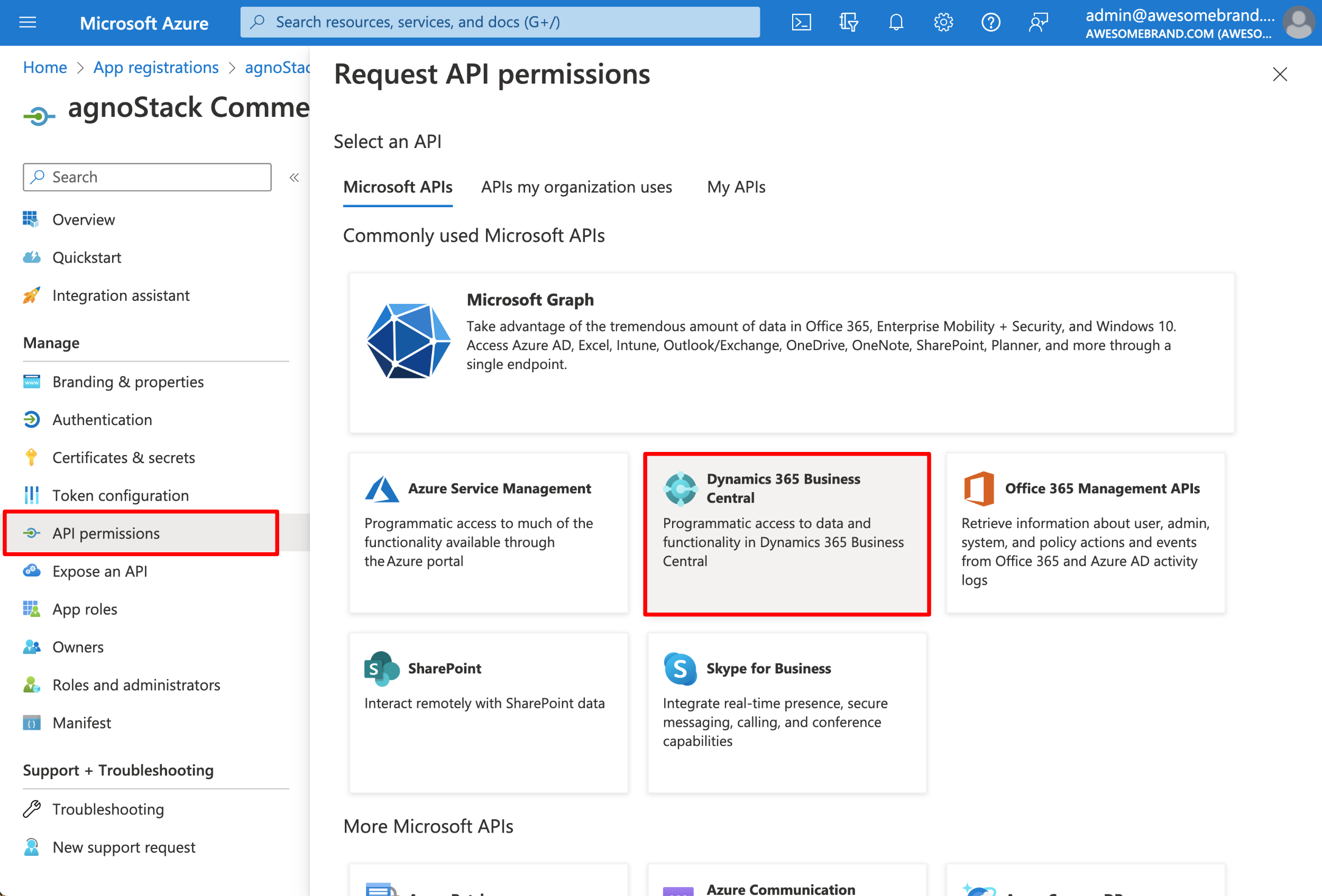
Selecting the Dynamics 365 Business Central API.
-
Scroll down, select the API.ReadWrite.All permission and click Add permissions.
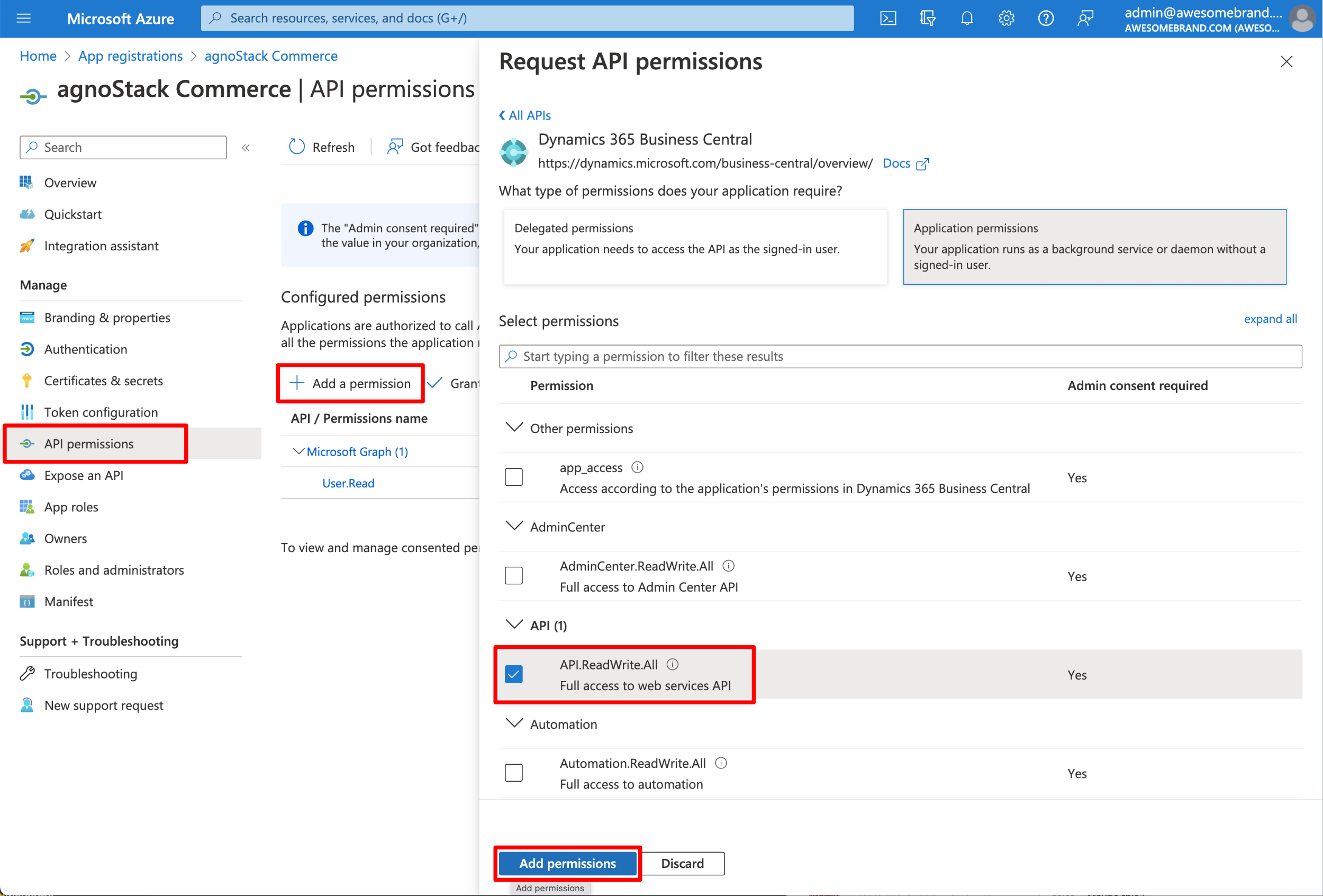
Adding the API.ReadWrite.All permission.
-
Finally, click Grant admin consent for [your domain]. Everything is now configured.
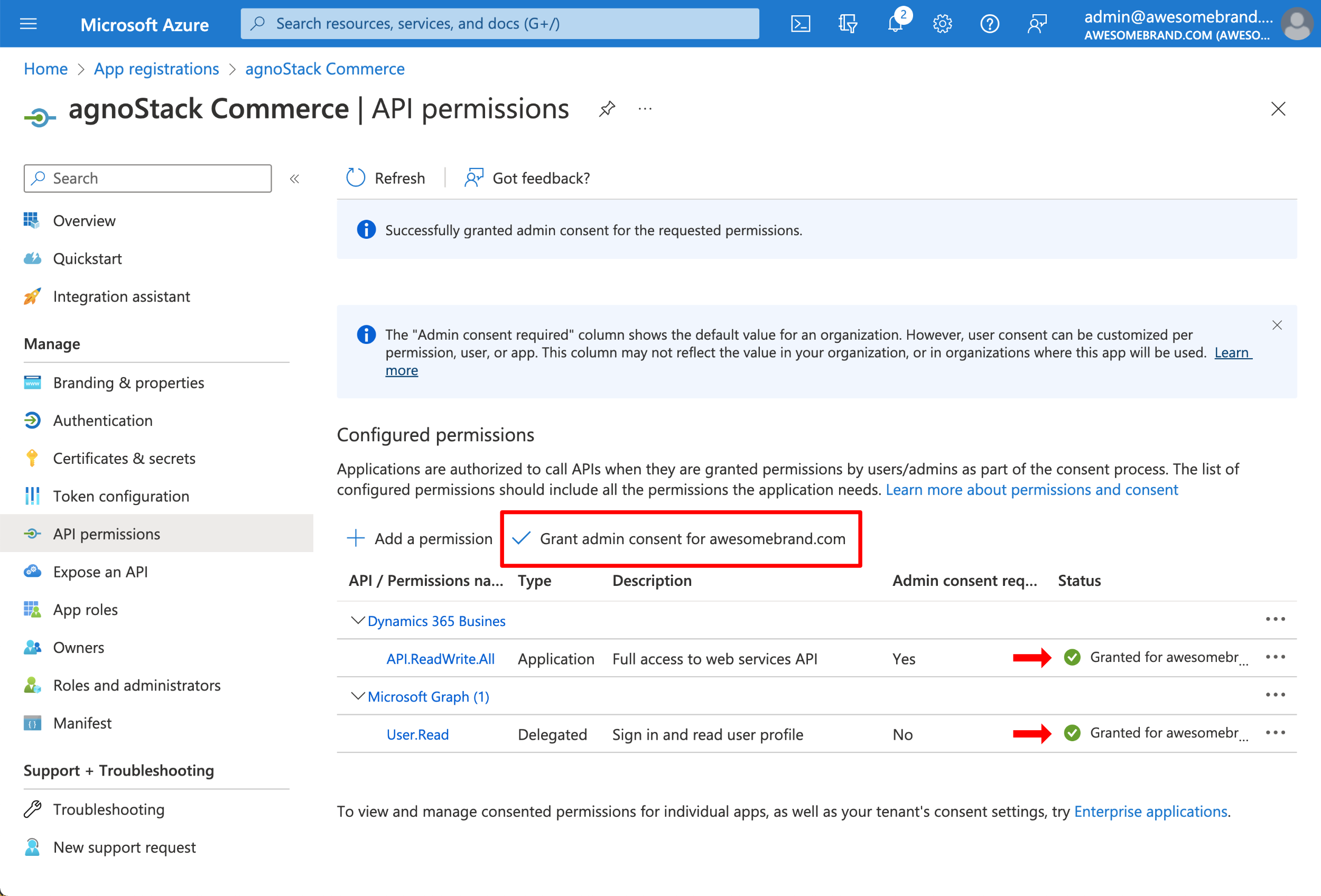
Granting admin consent.
Entering Your Credentials in agnoStack
In Zendesk, open the agnoStack configuration panel (via the Manage Your Account link or the icon in the left sidebar) and, under CRM Providers, select Business Central. Then enter the following:
| Field | Value |
|---|---|
| Tenant ID | The Directory (tenant) ID of your Azure app registration |
| Client ID | The Application (client) ID of your Azure app registration |
| Client secret | The client secret value you copied |
Continue through the remainder of the configuration screens and click Activate to save your new configuration.
If you run into any trouble or need additional assistance, please contact us any time at support@agnostack.com.