
Setting up VTEX
as your Commerce Provider
Connect your VTEX store to agnoStack in Zendesk: create a read-only role and API key in VTEX, then enter your Account Name, AppKey and AppToken.
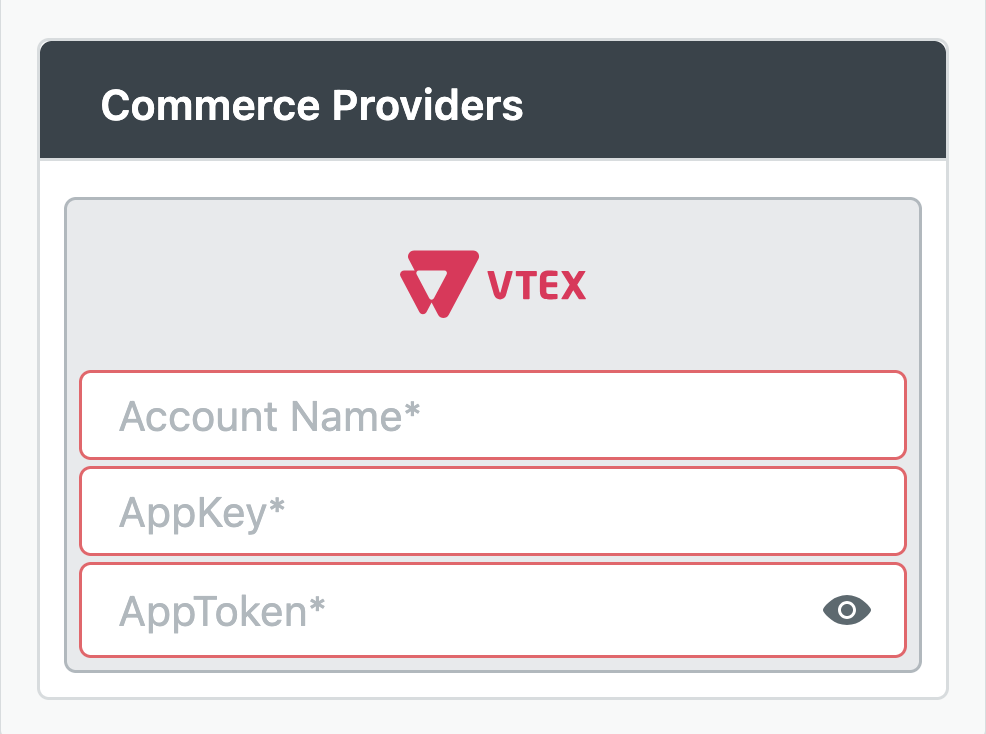
agnoStack connects your VTEX store to Zendesk, so your agents see a customer's order history, payment and refund status, shipment tracking and product details right inside each Zendesk ticket, without switching to the VTEX Admin. VTEX is supported up to our Professional subscription tier.
To connect VTEX, you'll need three values: your Account Name, an AppKey and an AppToken. If you already have the API credentials described below, you can enter them in the agnoStack configuration screen. Otherwise, follow the steps below to get them.
Account Name
Your Account Name is the subdomain of your VTEX Admin URL. For example, if your VTEX Admin URL is https://mystore.myvtex.com/admin, enter mystore as your Account Name. This is the part of the URL after https:// and before .myvtex.com.
VTEX User Role
agnoStack needs read-only access to your VTEX orders, customers, payments and catalog. VTEX doesn't offer a predefined role with exactly this access, so you'll create a custom role and then assign it to the API key you generate in the next section.
Note: To create a custom role, your VTEX user must have the User Administrator - RESTRICTED role. You also need roles that include each of the products listed below. A user with the Owner (Admin Super) role meets both requirements.
-
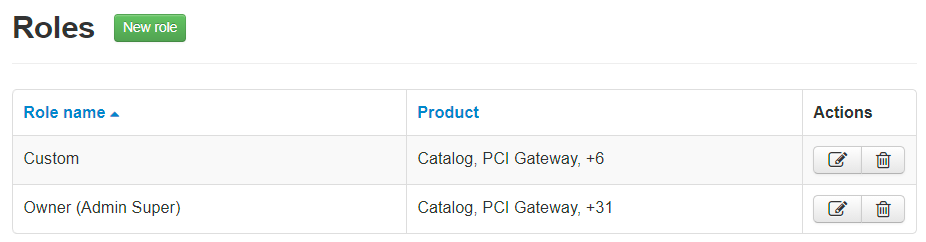
In the top bar of your VTEX Admin, click your profile avatar (the first letter of your email), then click Account settings → User roles.
-
Click + Create Role.
-
Click the Choose role field and select Custom.
-
Under Choose a product, select the first product from the table below and check its resources. Then click Configure Another Product and repeat for each remaining product. Leave all other resources unchecked.
Product Resources OMS View order, List Orders Dynamic Storage Read only documents PCI Gateway View Payment Data Catalog API View Product 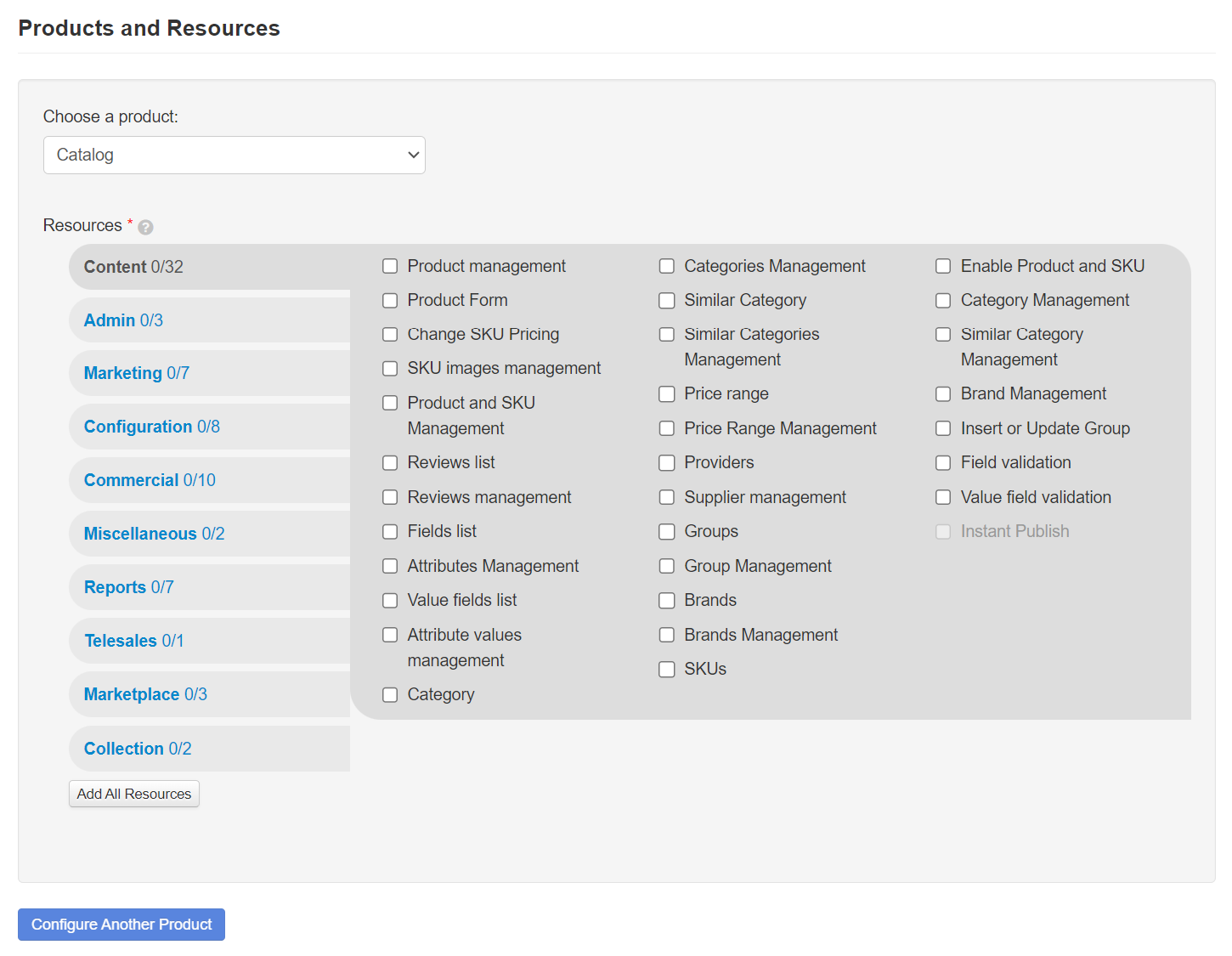
Choosing a product and its resources. Image: VTEX Help Center.
-
In the Role name field, enter a name for the role (for example, agnoStack Zendesk Connector).
-
Click Save. You don't need to add any users to this role.
AppKey and AppToken
Next, generate an API key and assign it the role you just created.
-
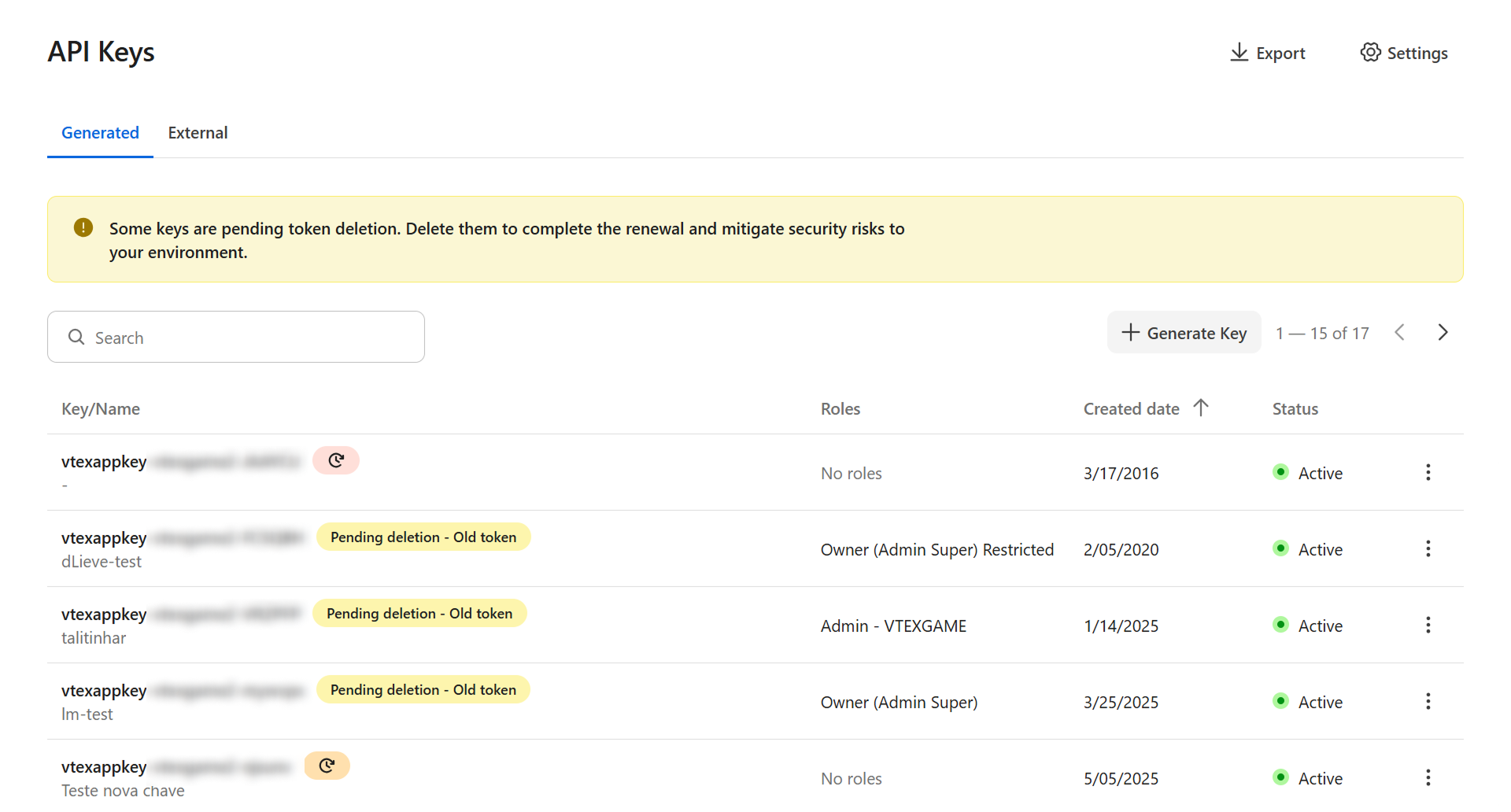
In the top bar of your VTEX Admin, click your profile avatar, then click Account Settings → API Keys.
-
Make sure you are on the Generated tab, then click + Generate Key.
-
In the Key identification field, enter a name for the key (for example, agnoStack Zendesk Connector).
-
Select the role you created in the previous section. Don't select any other roles.
-
Click Generate.
-
You'll see your new key, which begins with
vtexappkey-. This is your AppKey. Copy it and save it in a safe place. -
Below the key, click Copy to copy the Token unique access link. This link is only displayed once, so save it before you continue.
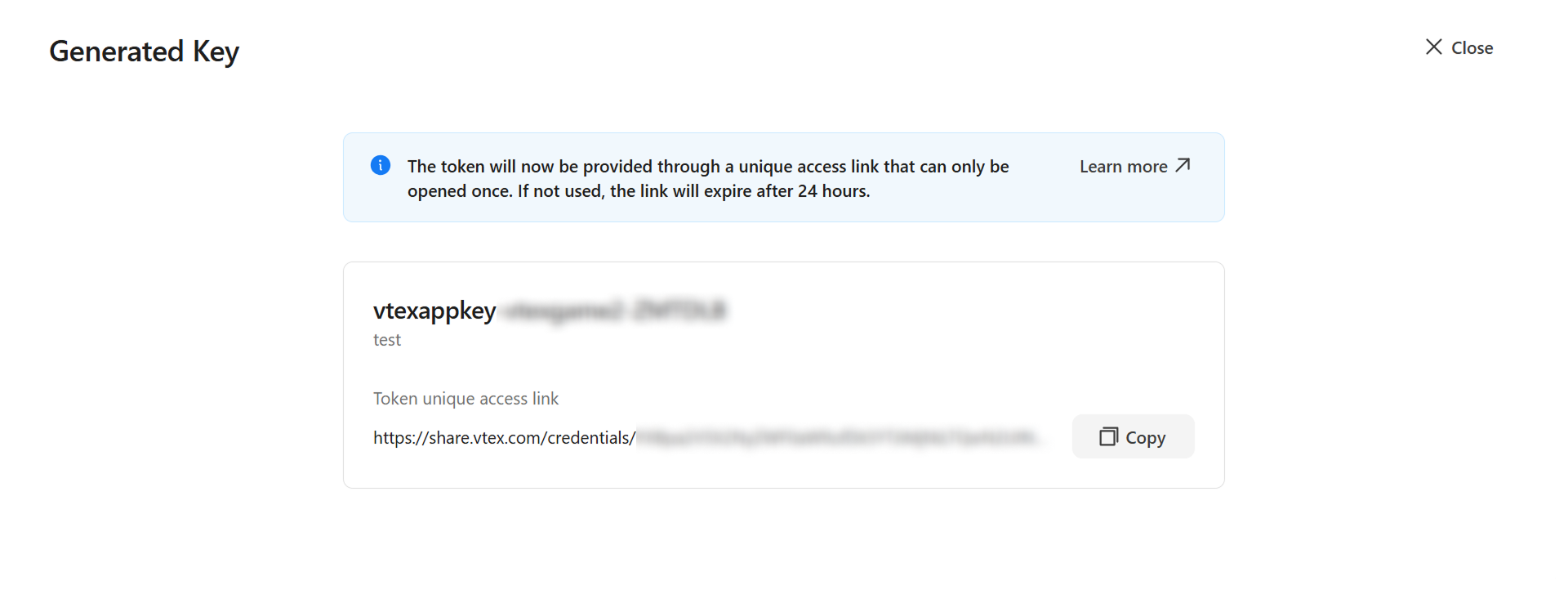
The generated key and its token access link. Image: VTEX Help Center.
-
Click Close.
-
Open the link you copied. You can open the link only once, and it expires after 24 hours if it isn't used.
-
Click Copy to copy the token. This is your AppToken. It is only displayed once, so save it in a safe place.
Note: The access link from VTEX always starts with
https://share.vtex.com/credentials/. Check this before opening a link you've received.
Entering Your Credentials in agnoStack
In Zendesk, open the agnoStack configuration panel and, under Commerce Providers, select VTEX. Then enter the following:
| Field | Value |
|---|---|
| Account Name | Your VTEX Account Name |
| AppKey | The key that begins with vtexappkey- |
| AppToken | The token you copied from the access link |
Payment and shipping details use these same credentials, so there's nothing else to set up.
Troubleshooting
Agents see an unauthorized error. The AppKey or AppToken is wrong, the key has been revoked, or its role is missing one of the resources in the table above. Check the role first, then generate a new key if needed and enter the new values in agnoStack.
The Account Name won't save. Enter only the Account Name (mystore), not a URL such as mystore.myvtex.com.