
Setting up OpenAI/ChatGPT
as your AI Provider
Connect OpenAI to agnoStack in Zendesk: create an OpenAI account, generate an API secret key, then enter it (and your Organization ID, if needed) in agnoStack.
Connect OpenAI to agnoStack in Zendesk: create an OpenAI account, generate an API secret key, then enter it (and your Organization ID, if needed) in agnoStack.
OpenAI is a research organization that builds Artificial Intelligence (AI) programs trained on large language models. One of its most popular programs is ChatGPT.
ChatGPT is very good at understanding the context of what you're doing when coming up with responses to customers. It can be used for many things, including customer service chatbots, translating macros, writing quick responses to customer inquiries and much more.
OpenAI is available as an Add-On Provider in agnoStack, to help craft Quick Replies to customers with our Macro Snippets and to generate (or localize) Advanced Macros.
To connect OpenAI, you'll need an OpenAI API Key and, if you use an Organization other than your default one, your Organization ID. Follow the steps below to get them.
Creating an OpenAI Account
- Go to the OpenAI API Platform signup page.
- Enter your email address and click Continue.
- Follow the instructions to create an account.
API Key and Organization ID
-
Once you've created an account, click your profile (top right) and click View API keys.
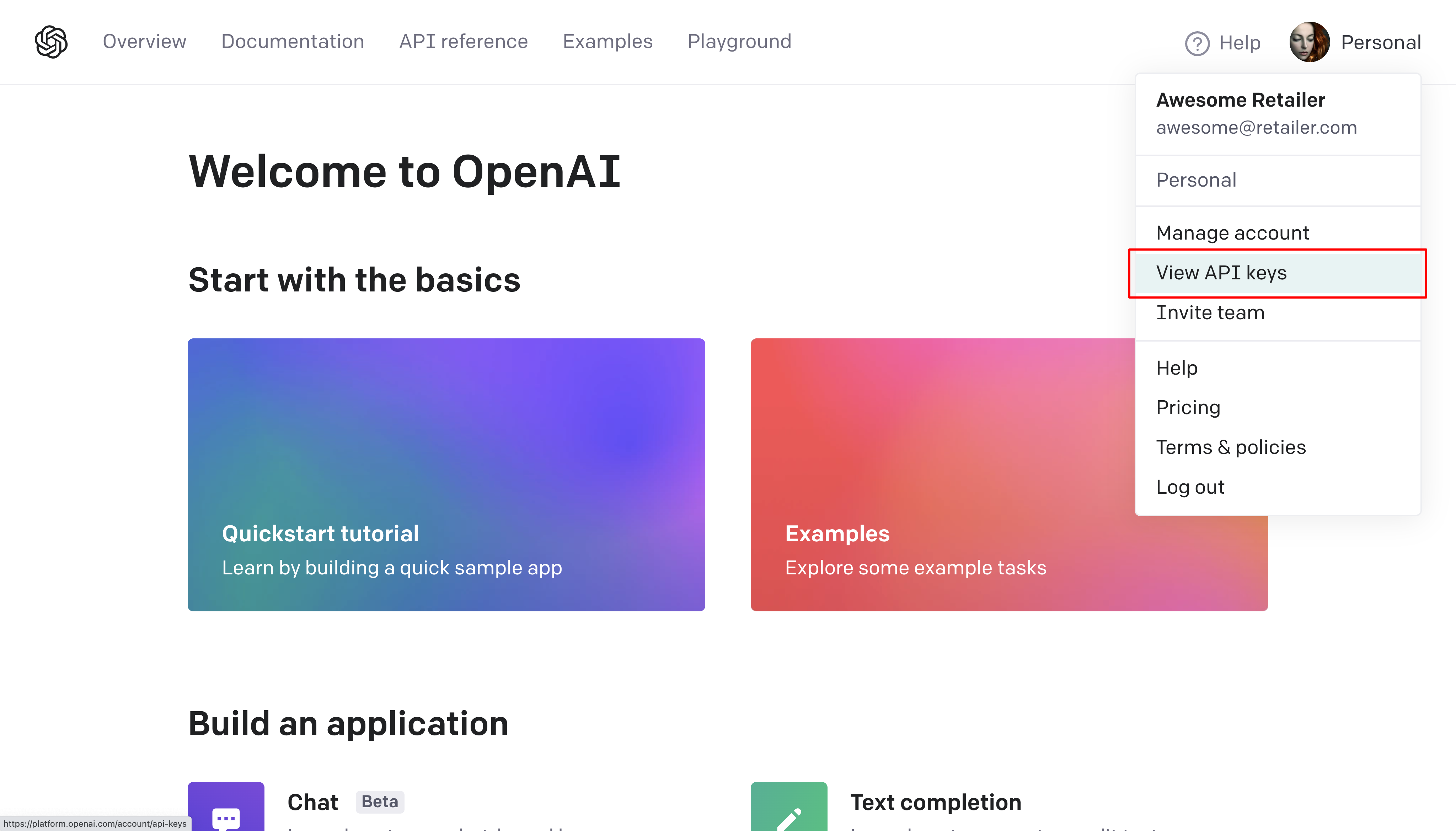
The OpenAI dashboard.
-
If your account belongs to more than one Organization, select the right Organization from the dropdown menu.
-
Click Create new secret key.
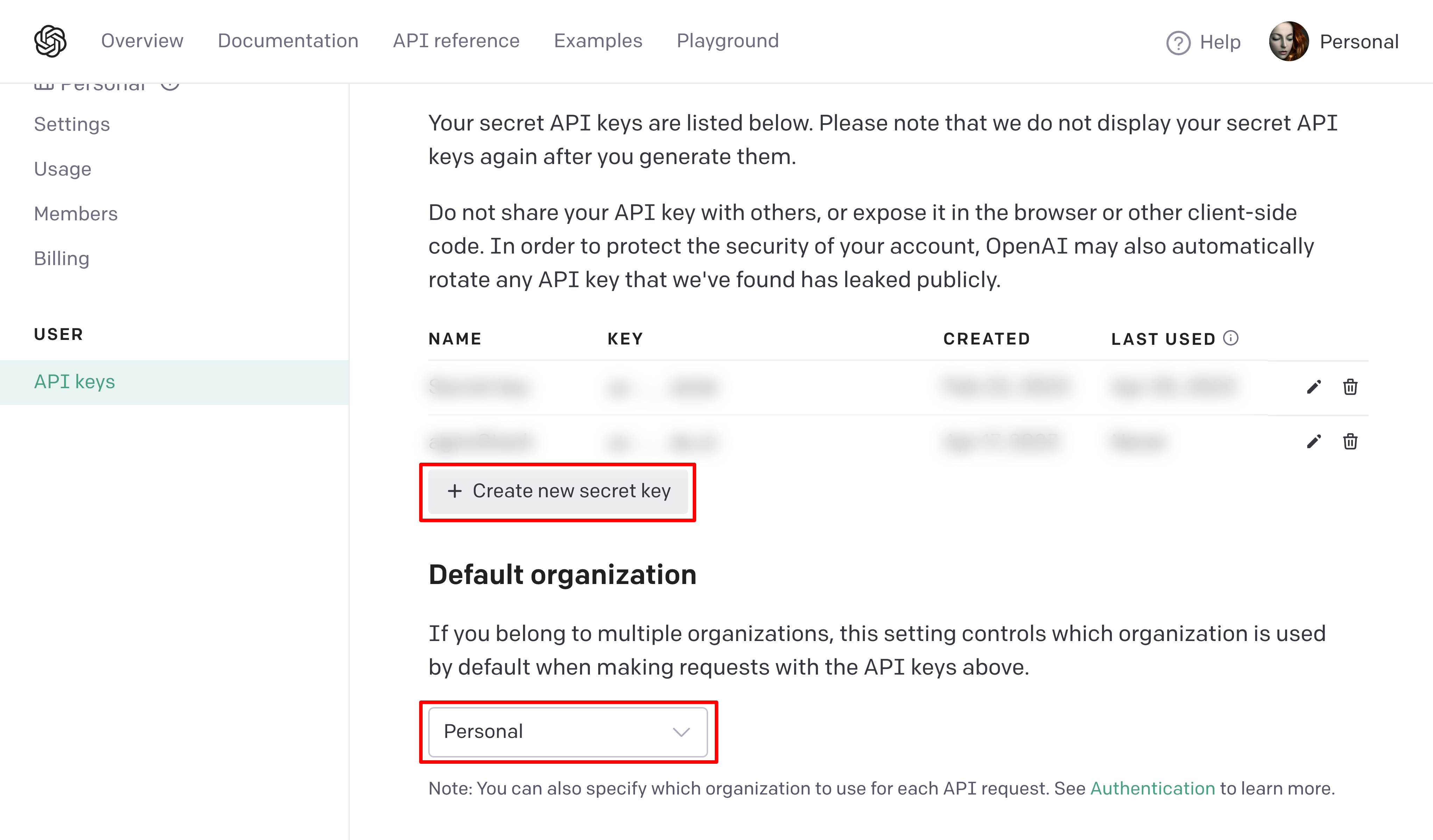
API keys in OpenAI.
-
Give your API key any name you'd like (for example, agnoStack) and select the API you want to use.
-
Click Create secret key.
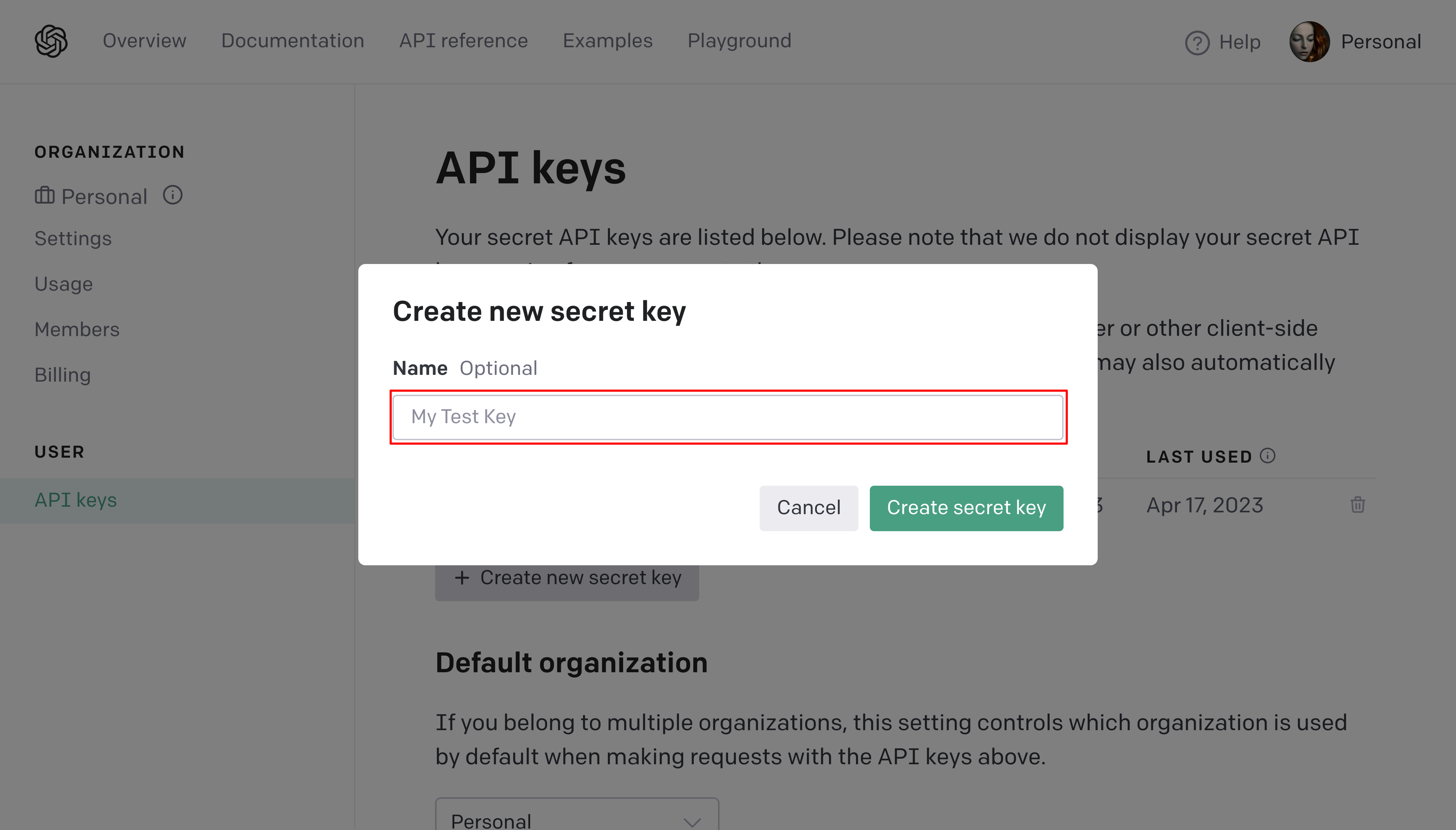
Creating a new secret key.
-
Copy your new API secret key. This is your API Key.
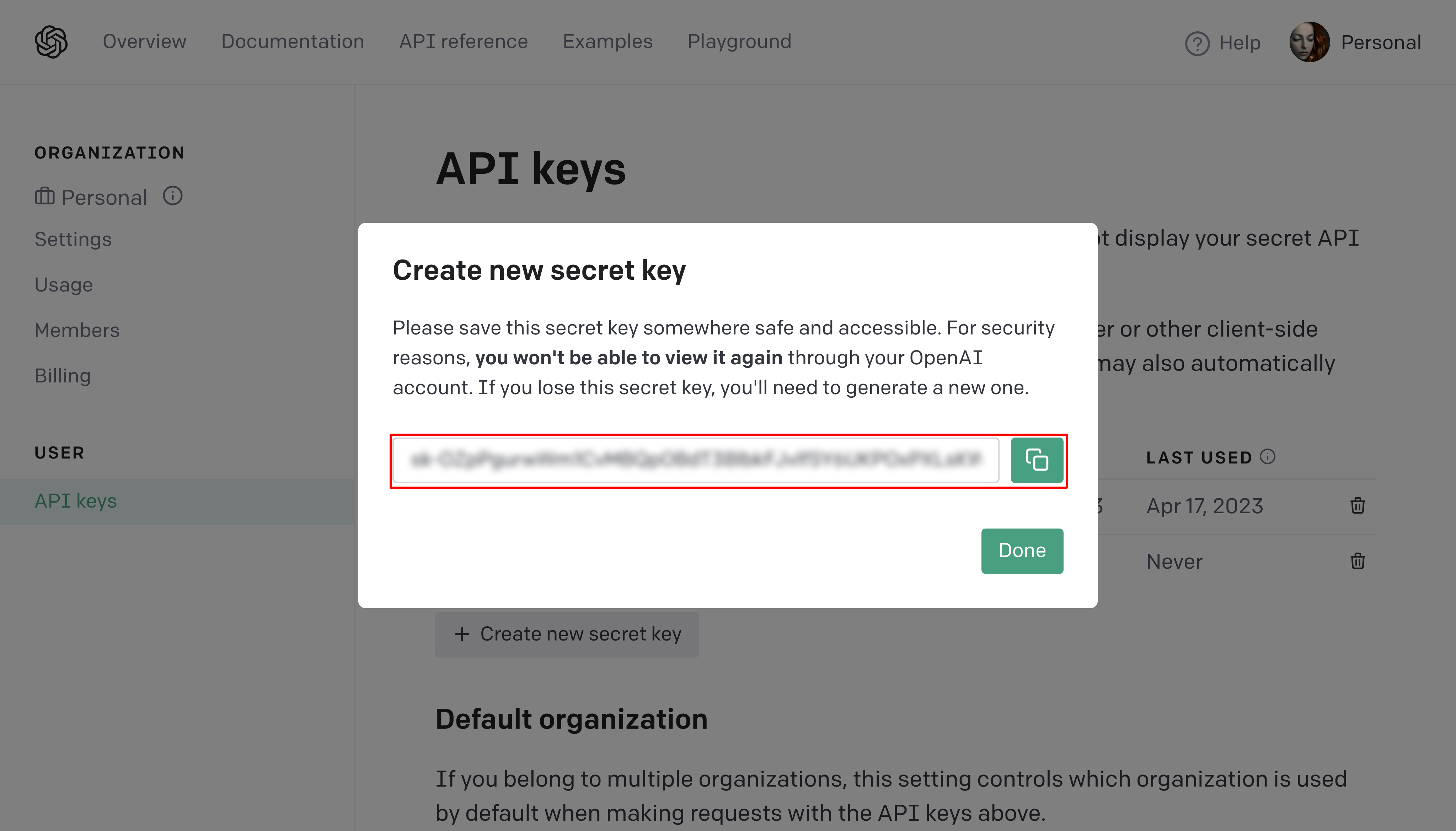
Copying the new secret key.
-
If you selected an Organization that isn't your default, go to the Organization Settings screen and copy your Organization ID. You don't need it if you're using your Personal (or Default) Organization.
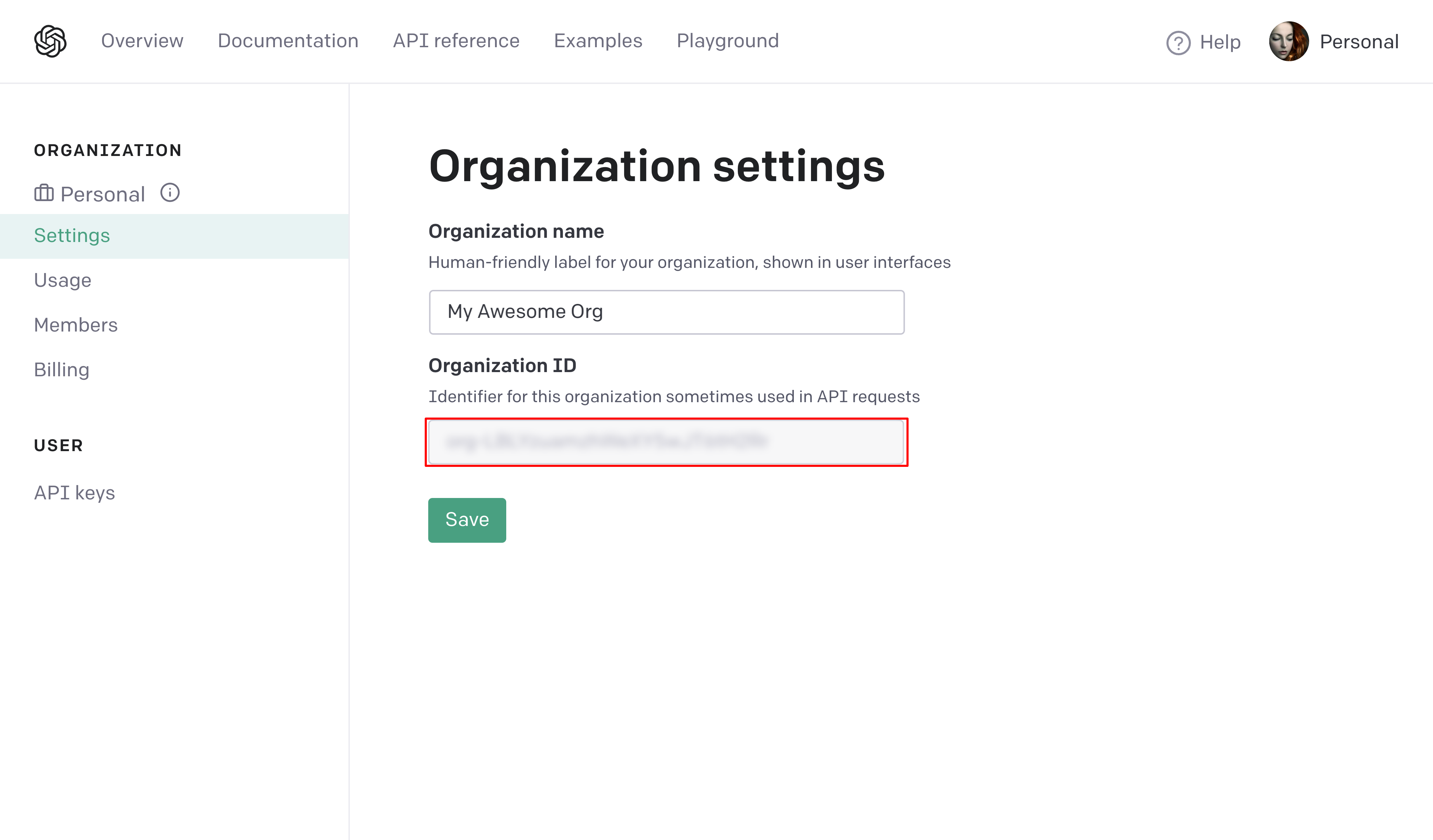
The Organization ID in OpenAI's Organization Settings.
Note: Keep your API key secure and only share it with those who need access to it.
Entering Your Credentials in agnoStack
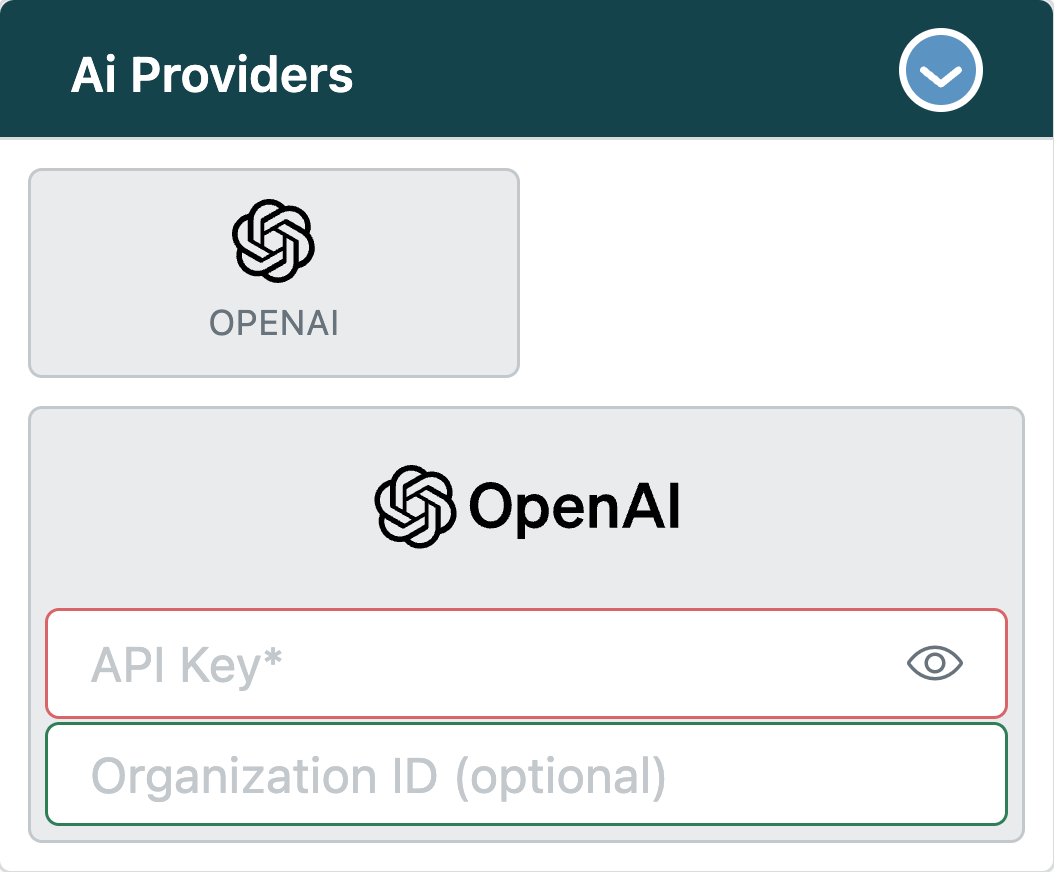
In Zendesk, open the agnoStack configuration panel (via the Manage Your Account link or the agnoStack icon in the left sidebar), select OpenAI under AI Providers, and enter the following:
| Field | Value |
|---|---|
| API Key | Your OpenAI API secret key |
| Organization ID (optional) | Your OpenAI Organization ID, if you're not using your default Organization |
Continue through the rest of the configuration screens and click Activate to save your new Add-On configuration.
If you run into any trouble or need help, contact us any time at support@agnostack.com.